# Quick Guides ⚡
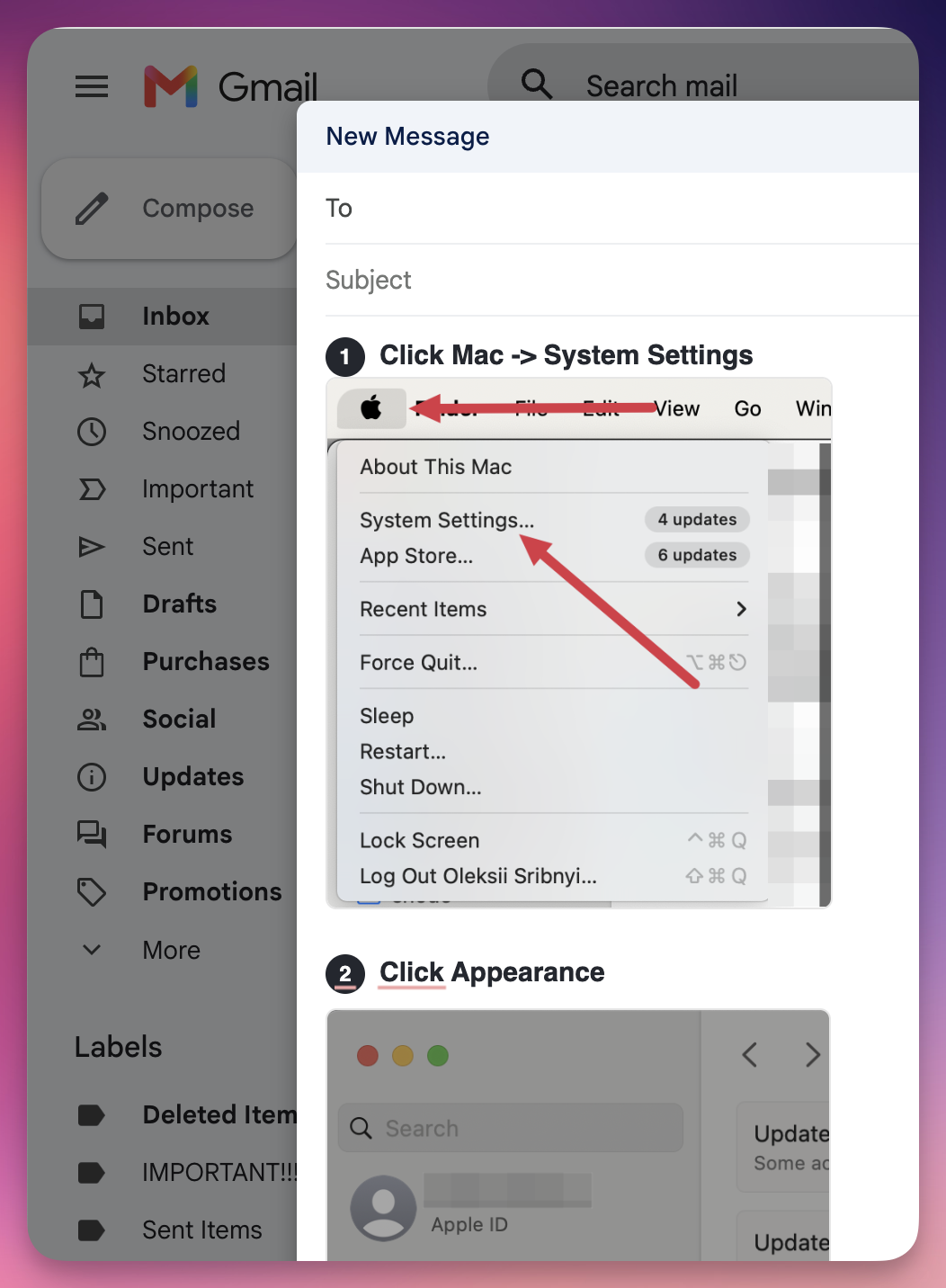
Sometimes you don't need a full guide - just three or four annotated screenshots to answer a question in an email or chat. That's what Quick Guides are for: press a shortcut, select an area of your screen, repeat a few times, and copy the result as a single image you can paste anywhere.
No project setup, no export dialogs - a quick guide goes from your screen to your clipboard in under a minute.
# Capture steps
Press Cmd + Shift + 2 (Mac) or Ctrl + Shift + 2 (Windows) - from any app, at any time, as long as Folge is running. Your screen freezes exactly as it is (open menus and hover states stay visible), and you drag to select the area you want. Release the mouse, and that selection becomes a step.
Press the shortcut again to add the next step. Each capture is added to the same quick guide until you finish it.
- Press Esc to cancel a capture.
- You can also start a capture from the Folge tray icon: click it and choose New Quick Guide.
Change the shortcut
You can see or change the combination anytime in Settings > Hotkeys > Quick guide capture. If the default was already in use on your system, Folge leaves it unassigned - just pick one there.
# The floating card
After your first capture, a small card appears in the corner of your screen. It shows your latest step and how many you've taken so far. It stays out of your way - and out of your screenshots.
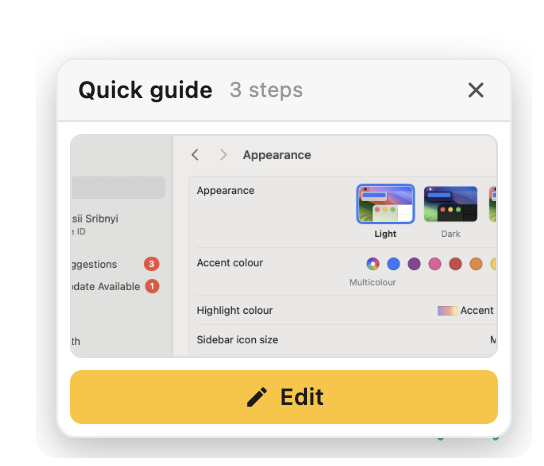
- Edit opens the editing window.
- Done finishes the session. Your quick guide is kept in the history (see below).
# Edit and annotate
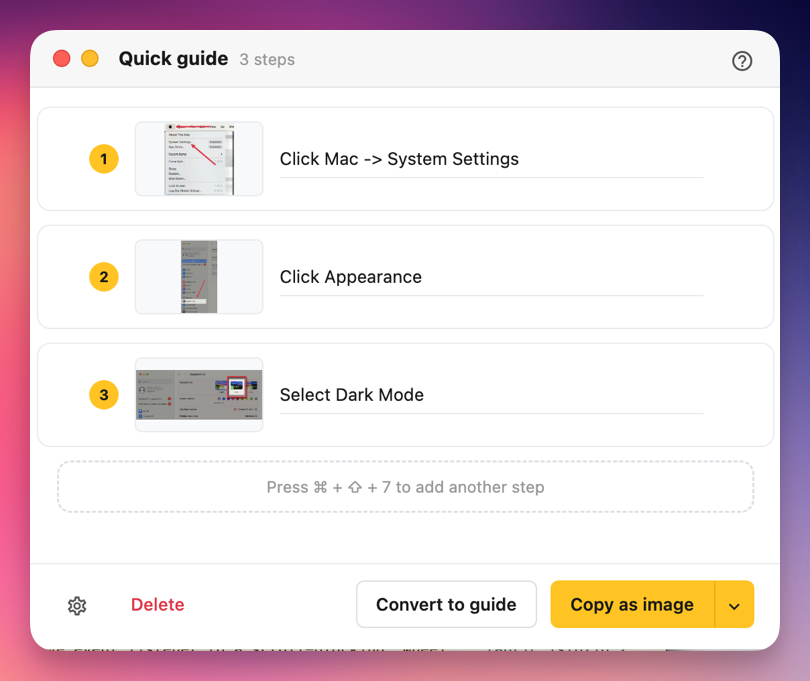
Click Edit on the floating card to open the editing window. Here you can:
- Add a short caption to each step
- Reorder steps by dragging them
- Delete a step (with undo, in case you change your mind)
- Click a step's image to annotate it
The annotation tools are a compact version of the main editor: arrows, rectangles, circles, lines, blur (or pixelate), callouts, text, and a spotlight. Each tool shows only the options that make sense for it - colors (including a custom color picker), line widths, text sizes and fonts.
# Copy and share
The button in the bottom-right corner copies your quick guide to the clipboard as one single image, ready to paste into an email, chat, or document. Click the small arrow next to it to pick a different format:
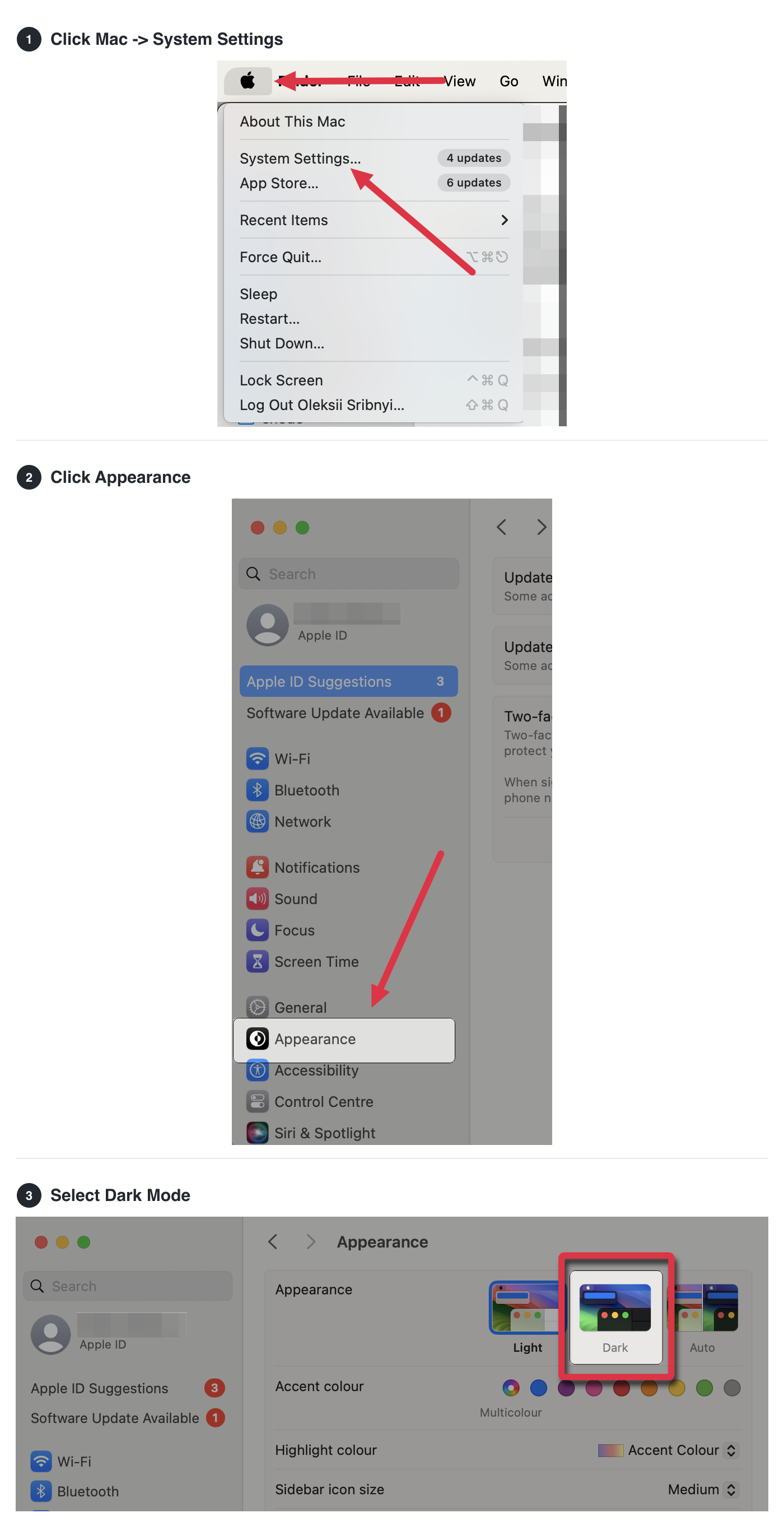
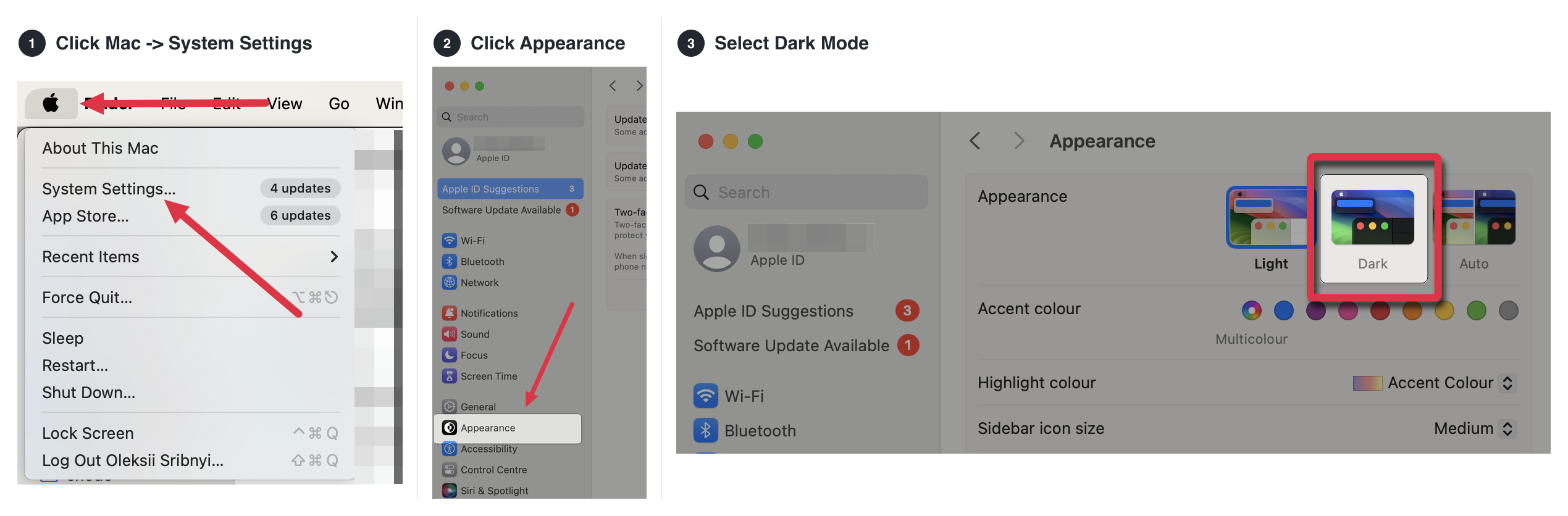
- Copy as image - steps stacked vertically, ideal for emails
- Copy wide image - steps side by side, great for chat messages
- Copy as HTML - text and images, for editors that accept rich content
- Save as PNG... - save the stacked image as a file instead
- Save wide as PNG... - save the side-by-side image as a file
Long captions wrap automatically, and each step gets a number so the order is always clear.
Free plan
Quick guides are unlimited on the free plan. Copied and saved quick guides carry a small Made with Folge line at the bottom; on paid plans it is not added.
Here is the same three-step quick guide in both image formats:
# Appearance settings
Click the gear icon in the editing window to adjust how exports look:
- Include numbers - show or hide the step numbers
- Step number color and Caption color - pick from presets or use any custom color
# History
Quick guides don't clutter your guides list - they live in their own history. Open it with the Quick guides button at the top of your guides list.
From the history you can:
- Resume a previous quick guide and keep adding steps to it
- Delete entries you no longer need
- Set Keep history to control how long old quick guides are kept (from "never" up to a month)
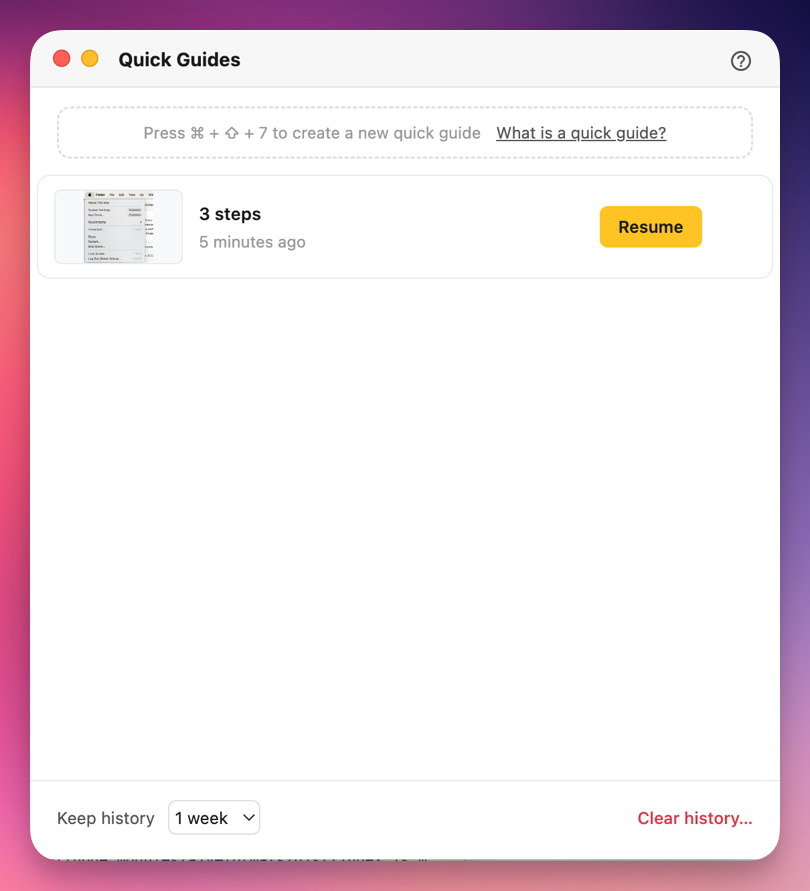
When you close Folge, your current quick guide simply moves to the history - the next capture starts a fresh one.
# Convert to a full guide
Started something quick that grew into something bigger? Click Convert to guide in the editing window to turn a quick guide into a regular Folge guide, with the full editor, all export formats, and everything else Folge offers. Converting is available on paid plans; copying quick guides stays unlimited on every plan.