Create Your First Guide
Record a process, add a few words to each step, and export a PDF. About ten minutes, start to finish.

Install Folge
Folge runs on Windows and Mac. Download it from folge.me/download, then:
- Windows: Run the installer and follow the prompts.
- Mac: Open the .dmg and drag Folge into your Applications folder.
Create a Guide
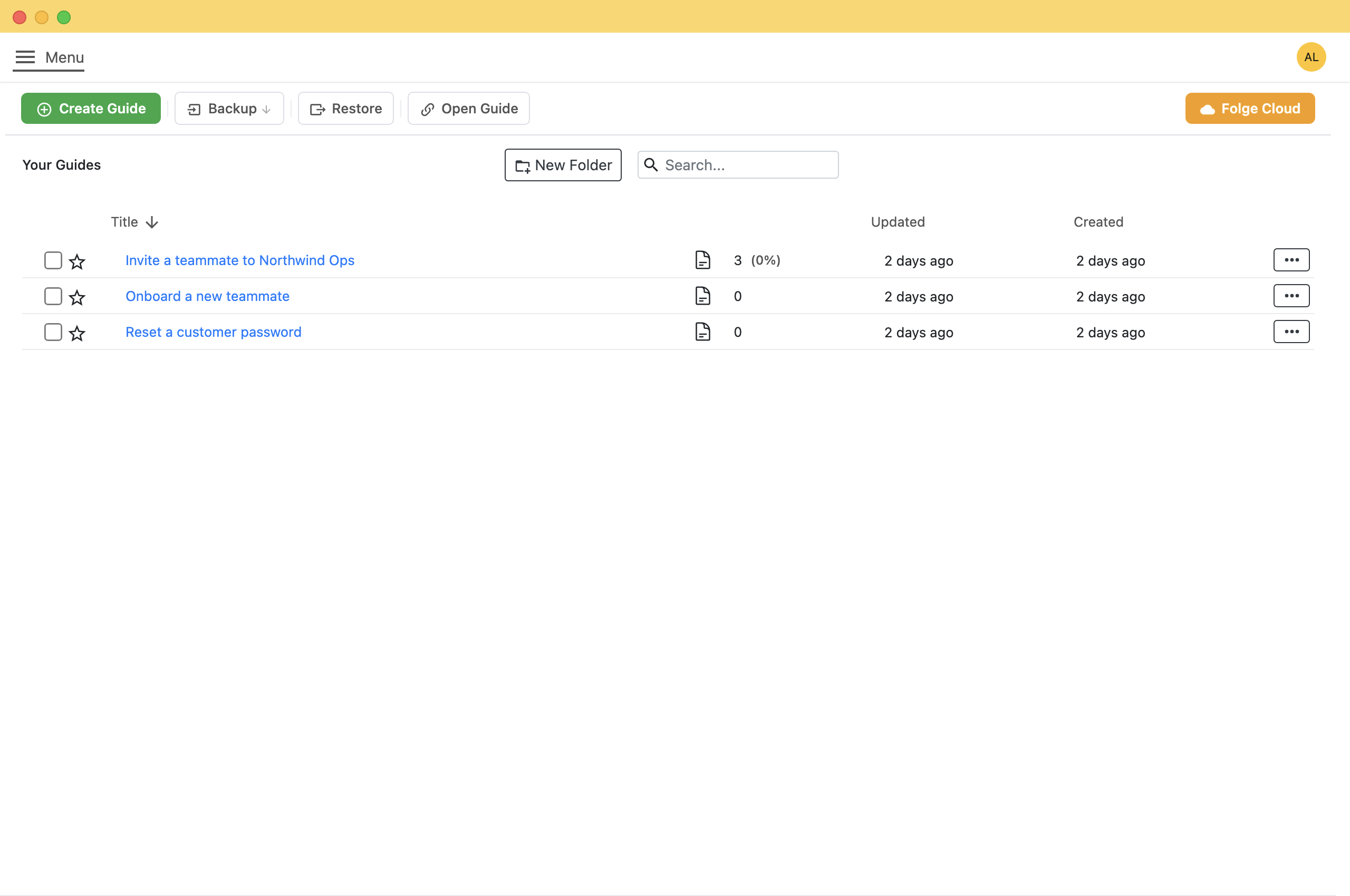
Folge opens on the guides list. Everything you record ends up here.
- Click Create Guide.Folge creates an empty guide and opens it in the editor.
- Give it a name you will recognise later, like "Invite a teammate".
Capture Your Steps
Instead of taking screenshots one at a time, you do the job once and Folge takes a screenshot of every click as you go.
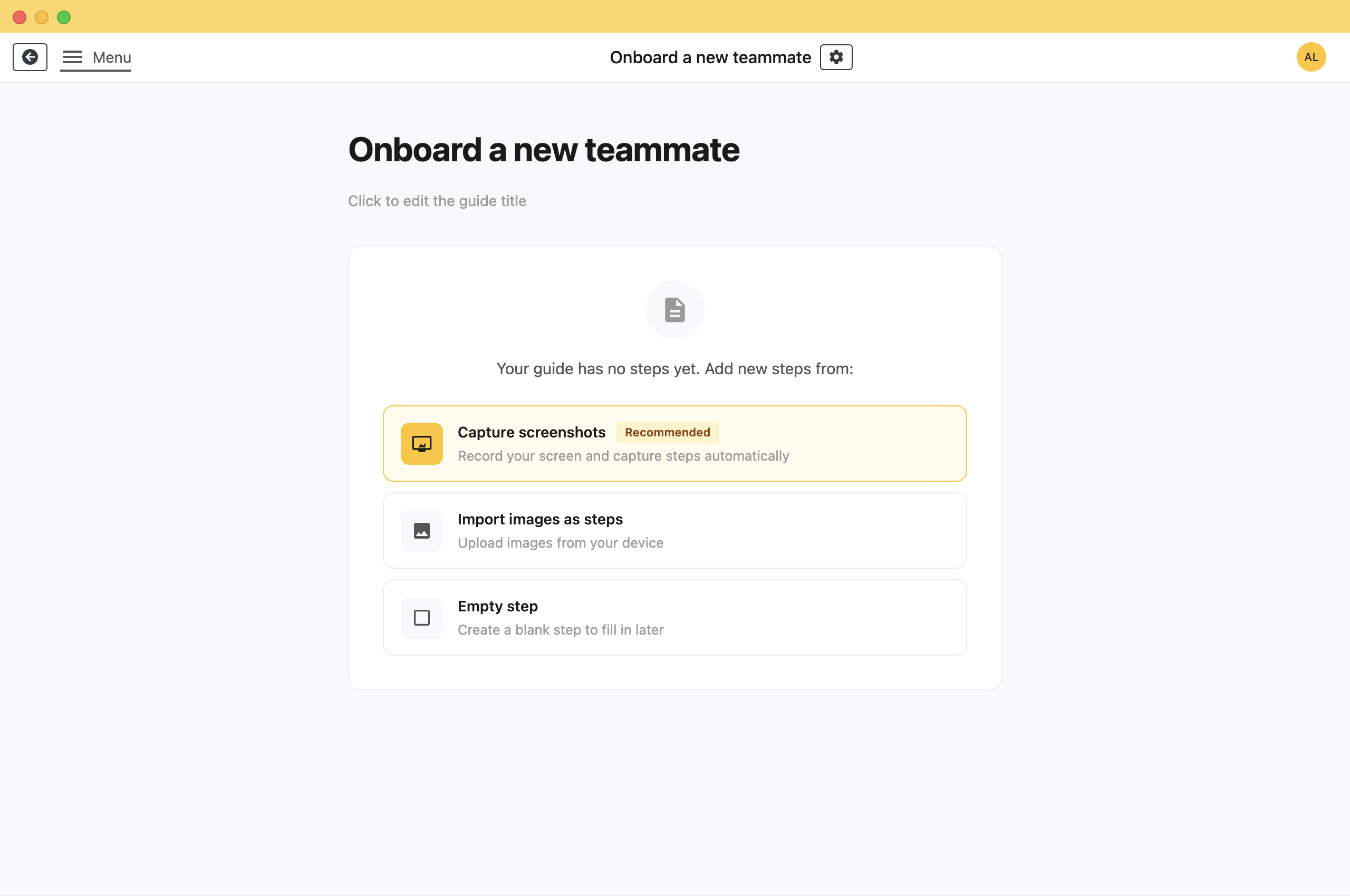
A new guide offers three ways to add steps. Use Capture screenshots.
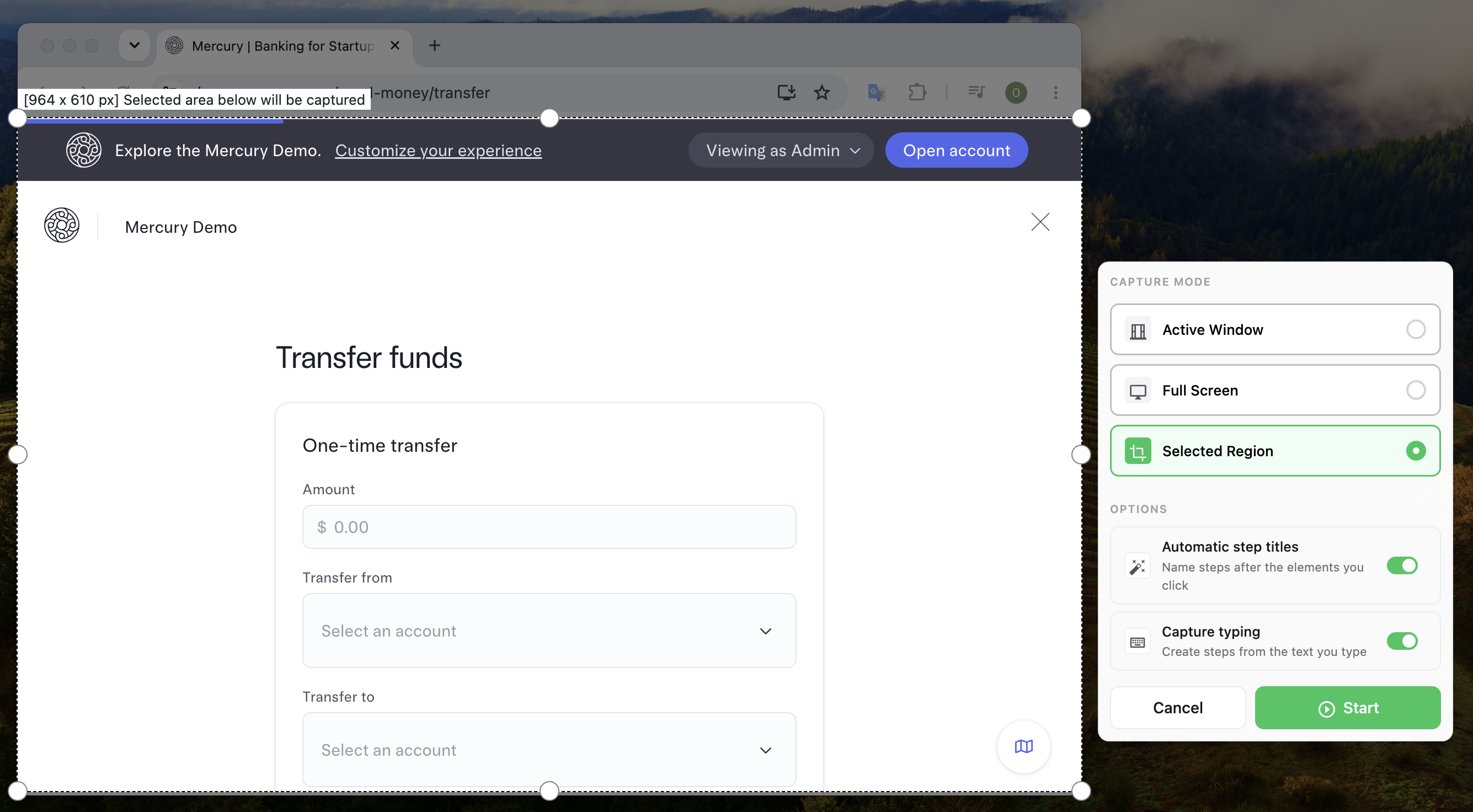
- Click Capture screenshots.Folge shows a small capture window.
- Choose what Folge should capture (see below), then click Start.
- Do the thing you are documenting. Click through it at normal speed.
- When you are finished, click Finish.Every click you made is now a step, in order.
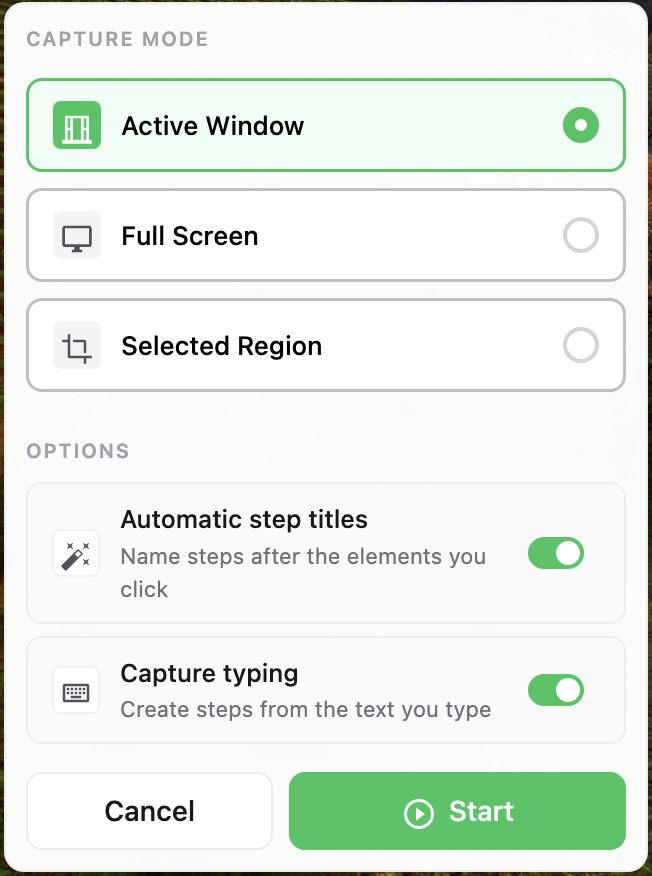
There are three ways Folge can watch your screen:
- Active Window: Captures whichever window you are working in. Switch apps or monitors and Folge follows you. This is the one to pick if you are unsure.
- Full Screen: Captures the whole screen, useful when the process uses two windows at once.
- Selected Region: Captures only an area you draw, on the monitor where you started.
Find Your Way Around the Editor
Your captures are now steps. The editor has four areas.
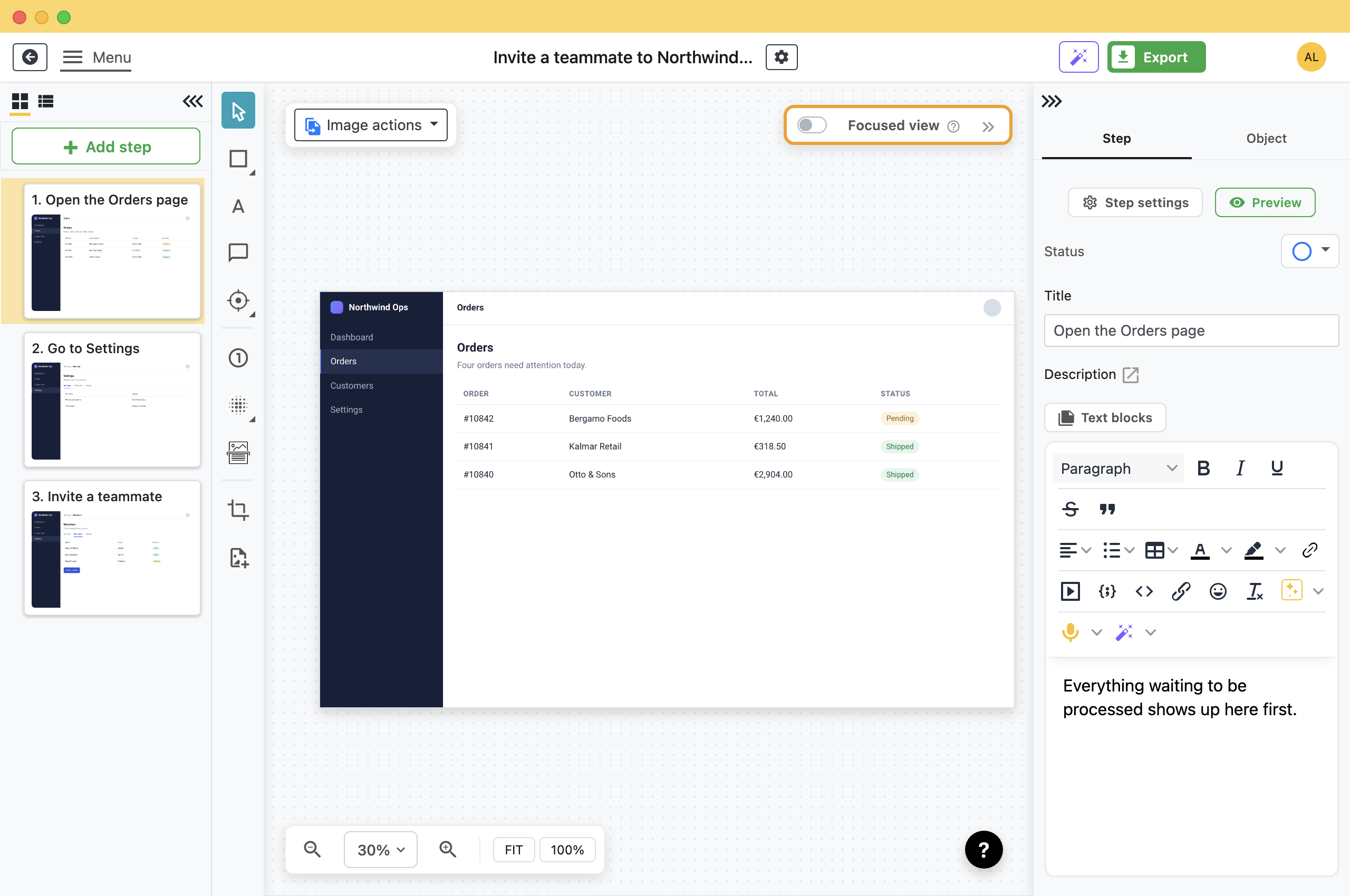
- 1 Annotation tools Arrows, shapes, step numbers and blur, for drawing on the screenshot.
- 2 Steps Every capture, in order. Drag to reorder, or click Add step to insert one.
- 3 Canvas The step you are working on. Anything you draw here is saved with it.
- 4 Step details The title and description for the selected step. This is the text your reader gets.
Say What Each Step Does
Click a step, then fill in the Title and Description on the right. Both end up in whatever you export.
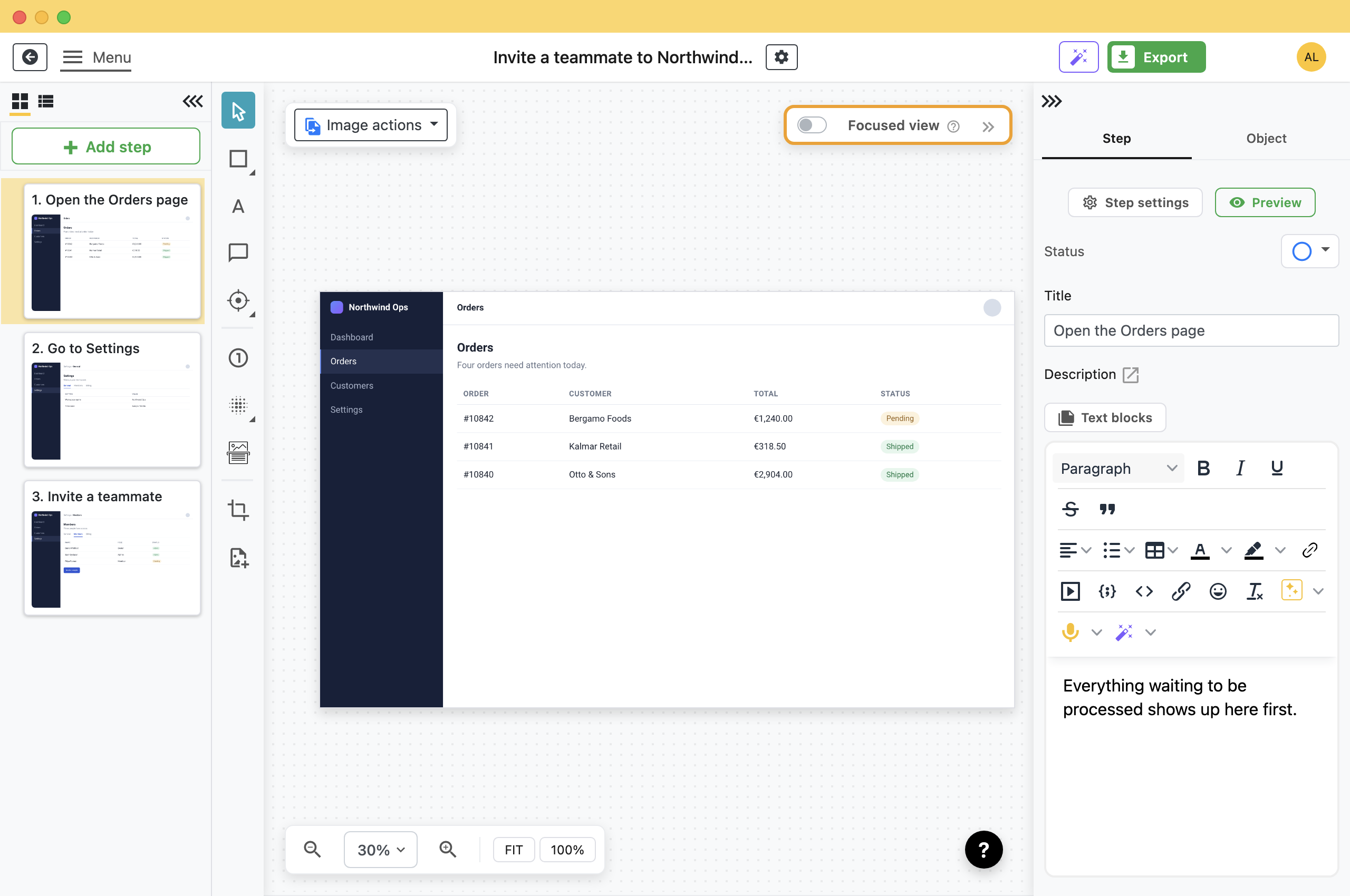
- 1 Title The action, in a few words: "Go to Settings", "Invite a teammate".
- 2 Description Anything the picture cannot say: why this step exists, what to watch out for, what happens next.
Export Your Guide
Once the steps read well, click Export in the header and pick the format your reader needs. There are fifteen; two of them cover most situations.
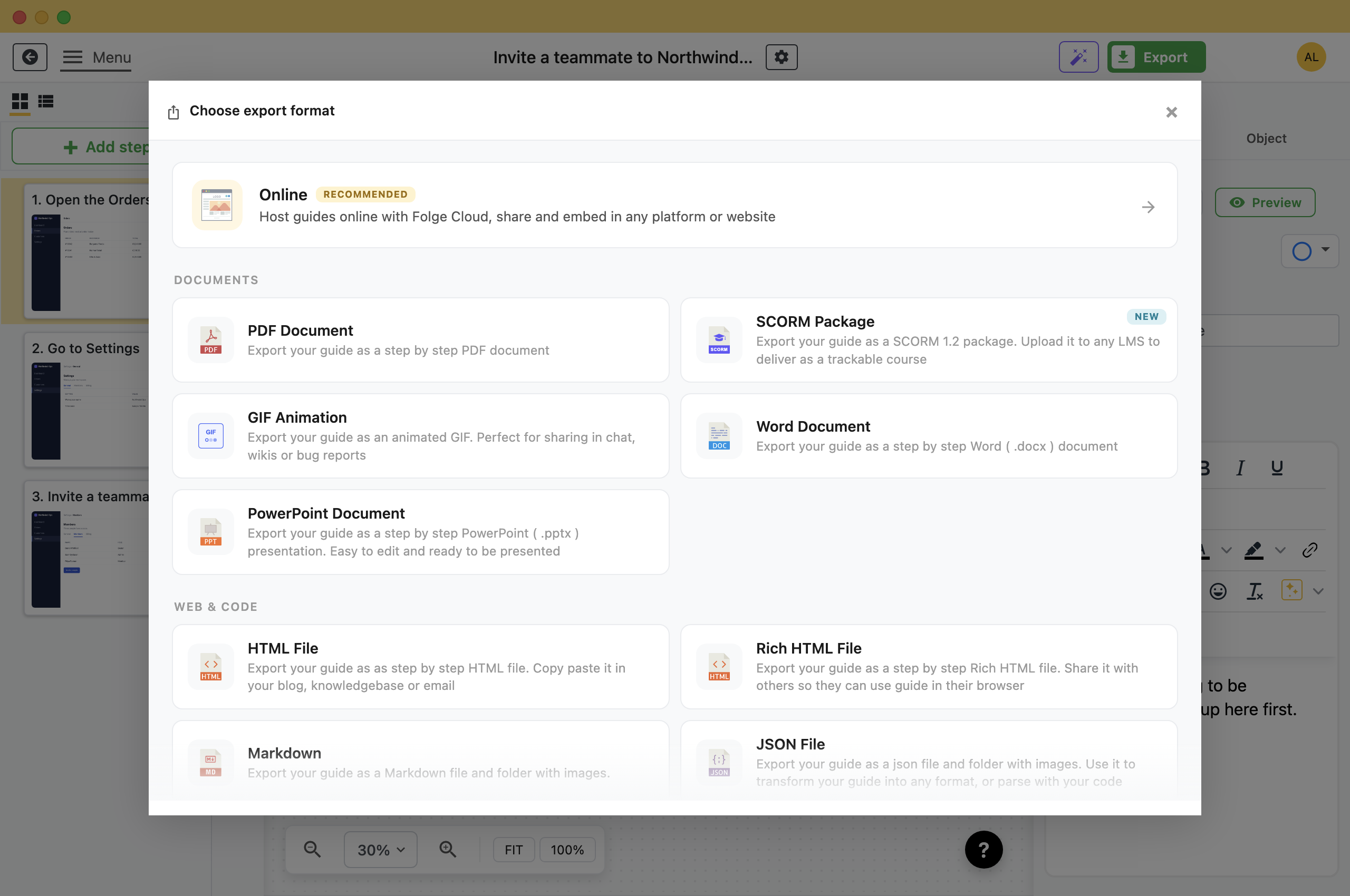
- 1 PDF The safe default. Looks the same for everyone and needs no software to read.
- 2 Word Pick this when someone else needs to edit the text afterwards.
Set Up the PDF
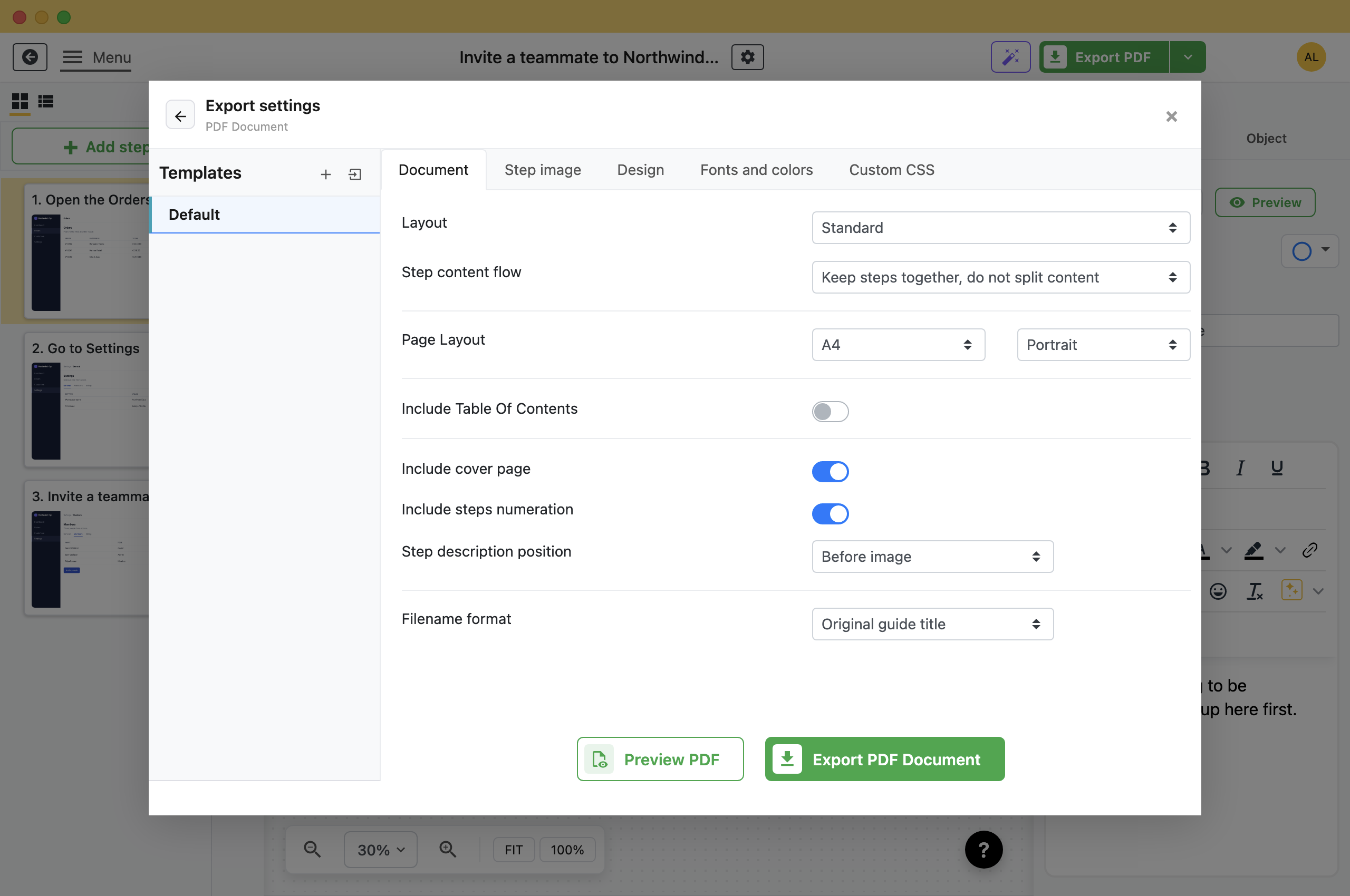
Click PDF and this is what opens. You can click Export PDF Document straight away and get a good file. Change the five tabs when you want a different layout.
- Document: Page size, orientation, cover page, table of contents. This is the tab you are on, and the only one most people touch.
- Step image: How big the screenshots are, and the file size that comes with that.
- Design: Header, footer, page numbers and your logo.
- Fonts and colors: Typefaces and colours for titles and text.
- Custom CSS: Full control of the styling.
- Leave everything as it is for your first export.
- Click Preview PDF to check the layout.Folge renders the first few steps, which takes a second or two.
- Click Export PDF Document and choose where to save.Folge writes the file and opens the folder it saved to.
Open the PDF. Every step is there, numbered, with your titles and descriptions. More on the PDF settings.
Where to Go From Here
That is the whole loop: capture, describe, export. The reference docs go deeper on each piece.
- Annotations and shapes: Every tool for marking up a screenshot.
- Step types: Captured, imported, simple screenshot, or text with no image at all.
- Substeps: Nest steps under a parent when a process has branches.
- Placeholders: Reuse values like the guide title or the date across your content.
- Custom watermark: Brand your exports.
About Folge
Folge is a fully offline desktop application for Windows and macOS that records a process while you carry it out and turns it into a step-by-step guide. Teams use it to write standard operating procedures, work instructions, onboarding and training material, IT and helpdesk documentation, and software tutorials.
Everything happens on your own computer. Capturing, editing and exporting need no internet connection, and your guides are stored locally rather than in a vendor cloud, so screenshots of internal systems, customer records or regulated processes stay on your machine. Folge Cloud and the AI features are optional add-ons you switch on if you want them. Everything you export is a file you own: PDF, Word, PowerPoint, HTML, Markdown, SCORM and more.
Folge is developed in Germany, in the EU. It is a desktop application you install and licence, not a hosted service that keeps your documentation.
What this is good for
- Show a colleague how to do something instead of explaining it twice.
- Write down a process before the person who knows it leaves.
- Turn a support answer you keep repeating into something you can send.


Make guides like this one
Folge takes a screenshot on every click, so you make a guide by doing the task once.