# Open Guide (Team Collaboration)
TIP
Team collaboration feature is available from version 1.35.0
Open Guide lets you work on a shared .flgg file directly. Unlike Backup & Restore which creates a copy, Open Guide creates a live link to the file - your changes save back to the original, and you see your teammates' changes each time you open the guide.
This is ideal for teams sharing guides via network drives, Dropbox, Google Drive, OneDrive, or any shared folder.
Important: Read Before Using
Open Guide is NOT real-time collaborative editing like Google Docs. Please understand:
- Only one person should edit at a time to avoid conflicts
- Changes must be saved manually with Cmd+S (Mac) or Ctrl+S (Windows)
- Network issues or simultaneous edits may cause work to be overwritten
- You are responsible for coordinating with your team
The developer is not responsible for any data loss that may occur from improper use or network issues.
# How it works
- One team member creates a guide and uses Share as File (from the "..." menu) to save a
.flggfile to a shared location - The creator and teammates use Open Guide to link to that shared file
- Each person edits the guide and saves changes back with Cmd+S (Mac) or Ctrl+S (Windows)
- When someone opens the guide, Folge automatically loads the latest version from the file
# Opening a shared guide
From the Guides List Screen, click the "Open Guide" button.
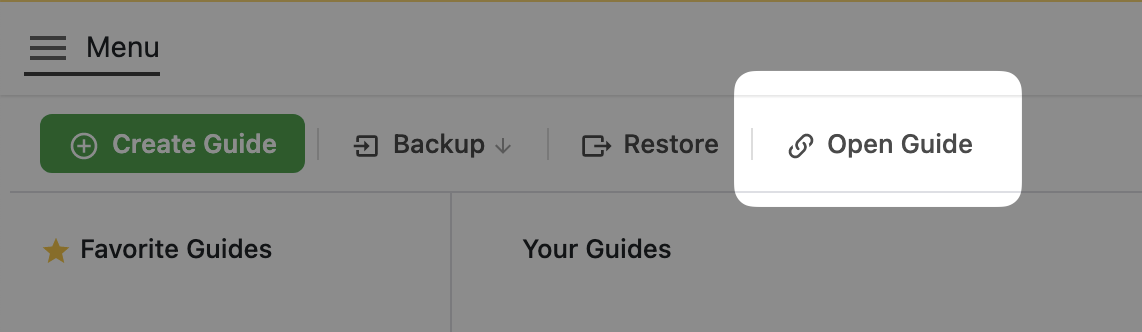
You'll be prompted to select a .flgg file from your drive. Pick a file from a shared location (network drive, Dropbox folder, etc.).
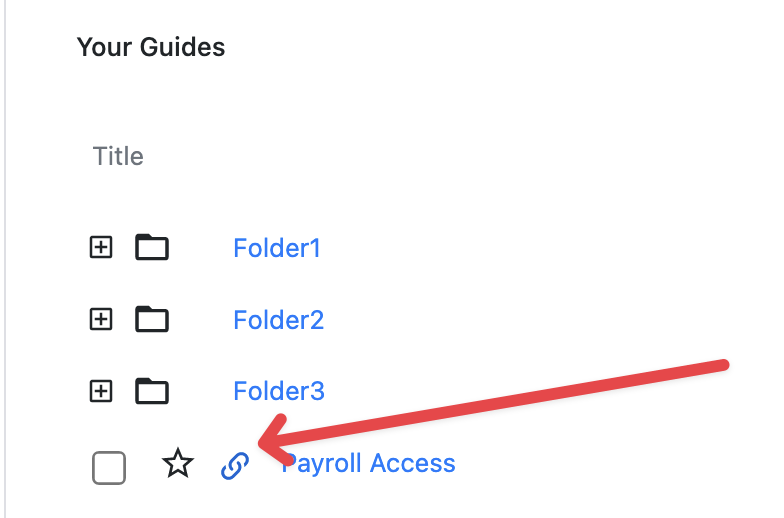
Once opened, the guide appears in your guides list with several visual indicators to distinguish it from regular guides:
- A "Shared" badge next to the guide title
- The file path displayed below the title
- A tinted background and colored left border on the row
# Opening a file you already have
If the .flgg file matches a guide that's already in your library, Folge shows a "Guide Already in Your Library" dialog before opening. There are two flavors:
- You already have a local guide with this id - typically because this file was created from your own guide via Share as File. Choosing Open and Edit creates a separate linked copy that syncs with the file; your existing local guide is left untouched. Cancel does nothing.
- You've already opened this shared file before - choosing Open and Edit creates a second linked copy. Re-opening the same file from the same path doesn't trigger this dialog (Folge just navigates you to the existing linked guide).
The original local guide and the new linked copy are independent entries in your library - edits to the linked copy save back to the file; edits to the local copy stay local.
# Opening a .flgg by double-clicking
On macOS, Windows, and Linux you can also open a shared file by double-clicking the .flgg (or via Open with → Folge). If Folge is already running, the file opens in the running window; otherwise Folge launches and opens it.
# Editing and saving
Click on a linked guide to open it. You'll see:
- A "Linked Guide" badge next to the guide title
- A Save button next to the settings icon
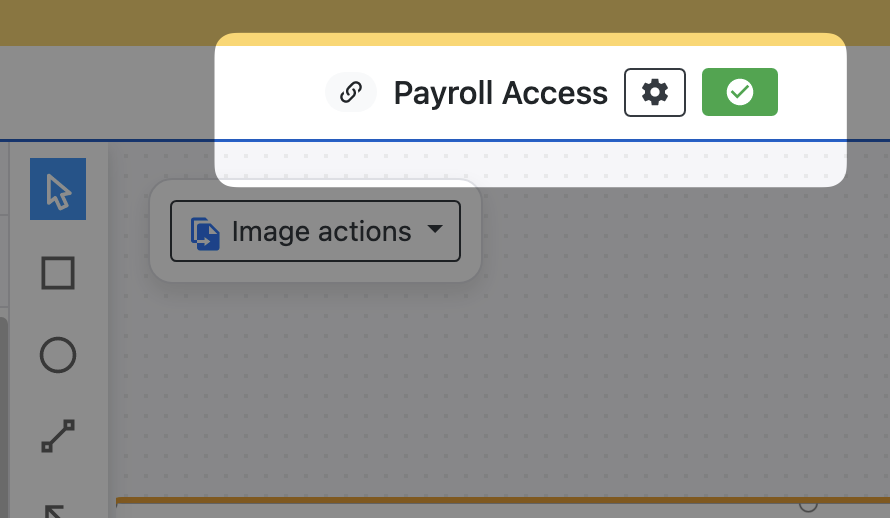
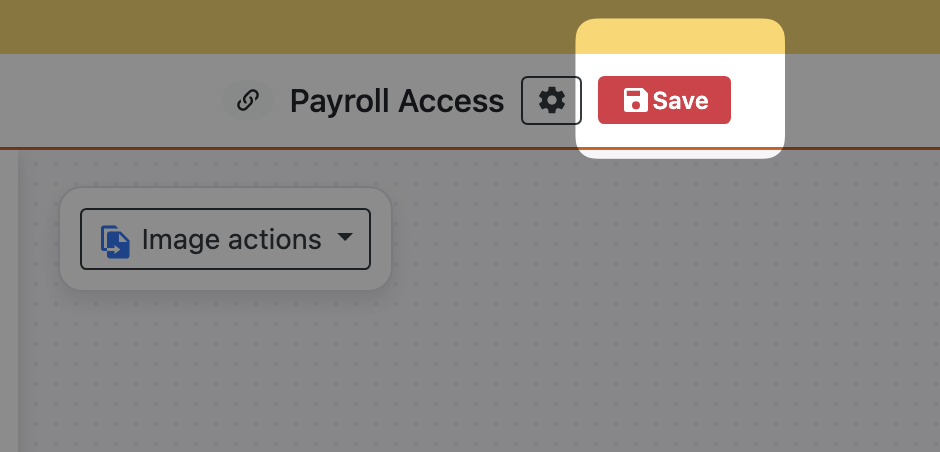
Edit your guide as normal. When you make changes, the Save button turns red. Save your work by:
- Pressing Cmd+S (Mac) / Ctrl+S (Windows)
- Clicking the Save button
After saving, the button briefly shows "Saved" in green.
# Quitting with unsaved changes
If you try to quit Folge while a linked guide has unsaved changes, you'll be prompted to Save & Quit, Discard & Quit, or Cancel.
- Save & Quit writes your changes to the shared file and then exits. If the save can't complete (for example, a teammate has taken over the lock or the file is no longer writable), Folge will show you the issue and keep the app open so you don't lose work.
- Discard & Quit exits without saving - your local changes are lost.
- Cancel keeps you in the editor so you can save or review changes first.
# File locking
When you open a linked guide, Folge creates a lock file to let teammates know you're editing. If someone else is already editing, you'll see who has the file open and can choose to wait or take over.
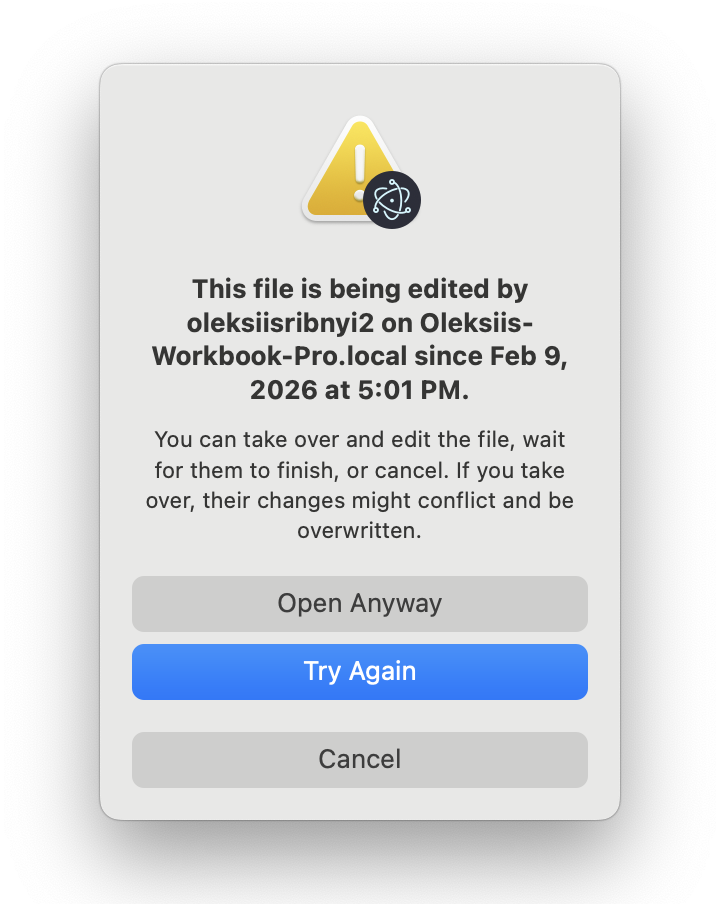
Lock files are automatically released when you navigate away, close the app, or save and switch to another guide.
# Lock conflict while editing
If someone else takes over the lock while you are editing, you'll see a "Lock Conflict Detected" dialog with two options:
- Discard & Close - Discards your unsaved changes and navigates away from the guide
- Keep Editing - Continue editing at your own risk, knowing your changes may conflict with the other user's
TIP
Lock files (named filename.lock-flgg) are stored alongside the shared .flgg file. They are automatically managed by Folge and should not normally require manual intervention.
# Guide menu restrictions
Linked guides have some menu options hidden in the "..." dropdown to prevent actions that don't apply to shared files:
- Rename - Hidden, since the guide title comes from the shared file
- Make a Copy - Hidden for linked guides
# When the file is unavailable
If the shared file is unavailable (network disconnected, file moved), you'll be prompted to locate it or remove the linked guide from your list.
You can still Backup a linked guide even if the file is unavailable - it uses your last local version.
# Best practices
# Save discipline
- Save immediately after changes - Press Cmd+S / Ctrl+S right after edits
- Watch for the red save button - Means you have unsaved changes
- Don't leave guides open - Navigate away when done to release the lock
# Communication
- Announce before editing - Let your team know via Slack, Teams, or your team chat
- Keep edits short - Make focused changes and save frequently
# Regular backups
- Use Backup before major changes - Create a safety copy outside the shared folder
- Use "title_and_time" format - Track versions over time
# What can go wrong
- Simultaneous edits: Last write wins (rare but possible)
- Network issues: Changes might not reach the file if connection drops
- Crashes: May leave stale lock files that need manual deletion
- Forgetting to save: You'll lose work if you forget Cmd+S / Ctrl+S
This feature requires discipline and coordination. For truly real-time collaborative editing, consider using online platforms designed for that purpose.
# Open Guide vs Backup & Restore
| Backup & Restore | Open Guide | |
|---|---|---|
| What happens? | A copy is added to your guides | The original file is linked |
| Where do changes go? | They stay local | They save back to the file |
| Can teammates see changes? | No | Yes, after you save and they reopen |
| Best for | Personal use, archiving | Team collaboration |