# SCORM Customization using custom CSS
You can inject your own CSS into a SCORM package during export to change fonts,
colors, backgrounds, and the look of the built-in player.
# Custom CSS location
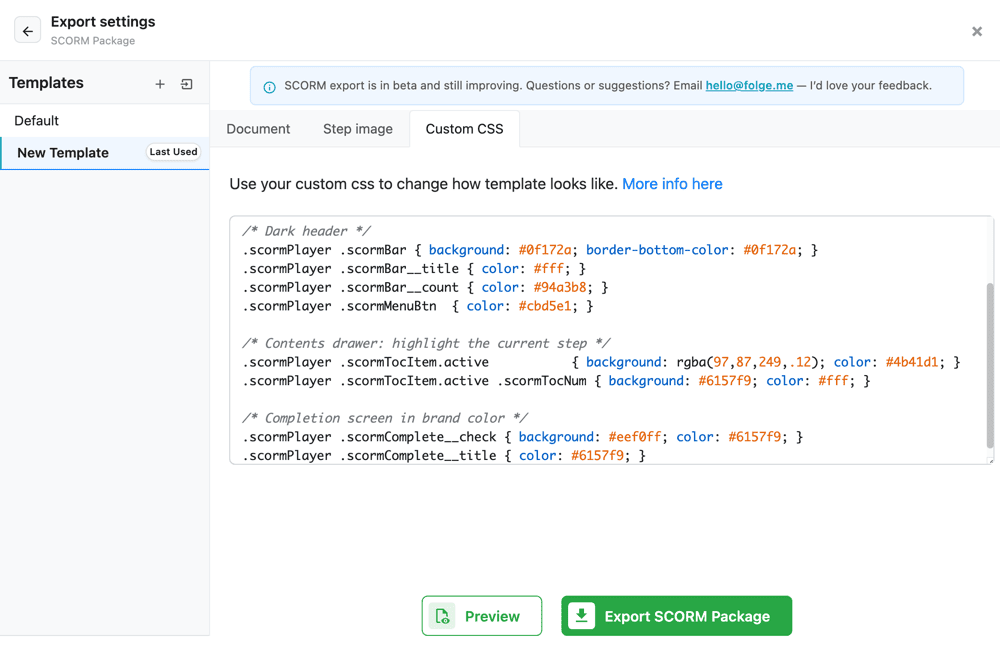
Open any guide, click Export -> SCORM Package -> Custom CSS.
Paste your CSS into the editor. It is injected into the exported HTML, so it
applies both to your guide content and to the SCORM player around it.
# HTML structure
A SCORM package has two layers:
- Your guide content - rendered exactly as in a Rich HTML export. To target
step cards, titles, descriptions, and images (
.stepCard,.stepTitle,.stepDescription,.stepImage, …), see Rich HTML Customization using custom CSS. - The player - Folge wraps that content in a step-by-step player that shows one step at a time. Its structure and class names are below.
<div class="scormPlayer">

  <!-- Header -->
  <div class="scormBar">
    <button class="scormMenuBtn"><!-- ☰ contents --></button>
    <img class="scormBar__logo"/>          <!-- your logo, if set -->
    <div class="scormBar__title"><!-- guide title --></div>
    <div class="scormBar__count"><!-- Step X of Y --></div>
  </div>

  <!-- Progress bar -->
  <div class="scormProgress"><div class="scormProgress__fill"></div></div>

  <!-- Steps (one visible at a time) -->
  <div class="scormViewport">
    <div class="scormSlide scormSlide--active">
      <!-- a Rich HTML .stepCard is rendered here -->
    </div>
    <!-- ...more .scormSlide... -->
    <div class="scormSlide">               <!-- final screen -->
      <div class="scormComplete">
        <div class="scormComplete__check"><!-- ✓ --></div>
        <h2 class="scormComplete__title"><!-- Course complete --></h2>
        <p class="scormComplete__sub"></p>
      </div>
    </div>
  </div>

  <!-- Footer navigation -->
  <div class="scormFooter">
    <button class="scormBtn scormBtn--ghost"><!-- Back --></button>
    <button class="scormBtn scormBtn--primary"><!-- Next / Finish --></button>
  </div>

  <!-- Contents drawer -->
  <div class="scormBackdrop"></div>
  <div class="scormDrawer">
    <div class="scormDrawer__head">
      <div class="scormDrawer__title"><!-- Contents --></div>
      <button class="scormDrawer__close"></button>
    </div>
    <div class="scormTocList">
      <button class="scormTocItem active">   <!-- current step -->
        <span class="scormTocNum">1</span>
        <span class="scormTocLabel"><!-- step title --></span>
      </button>
      <!-- ...more .scormTocItem... -->
    </div>
  </div>

</div>
# Common adjustments
Copy any of these into the Custom CSS editor and tweak the values.
# Use your brand color everywhere
Define your color once and reuse it across the progress bar, buttons, contents, and completion screen.
.scormPlayer { --brand: #6157f9; }

.scormPlayer .scormProgress__fill,
.scormPlayer .scormBtn--primary            { background: var(--brand); }
.scormPlayer .scormBtn--primary:hover      { filter: brightness(0.92); }
.scormPlayer .scormTocItem.active .scormTocNum,
.scormPlayer .scormComplete__check         { background: var(--brand); color: #fff; }
.scormPlayer .scormComplete__title         { color: var(--brand); }
# Tint the header
.scormPlayer .scormBar        { background: #0f172a; border-bottom-color: #0f172a; }
.scormPlayer .scormBar__title { color: #fff; }
.scormPlayer .scormBar__count { color: #94a3b8; }
.scormPlayer .scormMenuBtn    { color: #cbd5e1; }
# Change the surface behind each step
The doubled .scormPlayer.scormPlayer selector is just a way to win over the
player's own background without !important.
.scormPlayer.scormPlayer { background: #f3f4f8; }
.scormPlayer .scormBar,
.scormPlayer .scormFooter { background: #fff; }
# More readable step text
.scormPlayer .stepDescription { font-size: 15px; line-height: 1.7; }
.scormPlayer .stepTitleText   { font-size: 20px; }
# Frame the screenshots
.scormPlayer .stepImage {
  border-radius: 10px;
  box-shadow: 0 6px 20px rgba(0, 0, 0, 0.12);
}
# Pill-shaped buttons
.scormPlayer .scormBtn { border-radius: 999px; padding: 11px 22px; }
# Hide step numbers
Removes the 1, 2, 2.1 numbering from the screens and the contents drawer
(you can also do this with the Include steps numeration setting).
.scormPlayer .stepTitleNumber,
.scormPlayer .scormTocNum { display: none; }
# Widen the contents drawer
.scormPlayer .scormDrawer { width: 380px; }
WARNING
Avoid remote web fonts. A SCORM package often runs inside a locked-down or
offline LMS where external requests are blocked, so an @import url(…) or an
@font-face pointing at a CDN simply won't load. Stick to system fonts, or embed
the font as a base64 @font-face.
TIP
Your custom CSS is injected before the player's own styles, so to override
player elements (header, buttons, progress bar, drawer, completion screen)
prefix your selectors with .scormPlayer - as in the examples above - or add
!important. Styling the step content itself (.stepCard, .stepTitle, …)
works exactly as it does for Rich HTML.