# Export format: PowerPoint
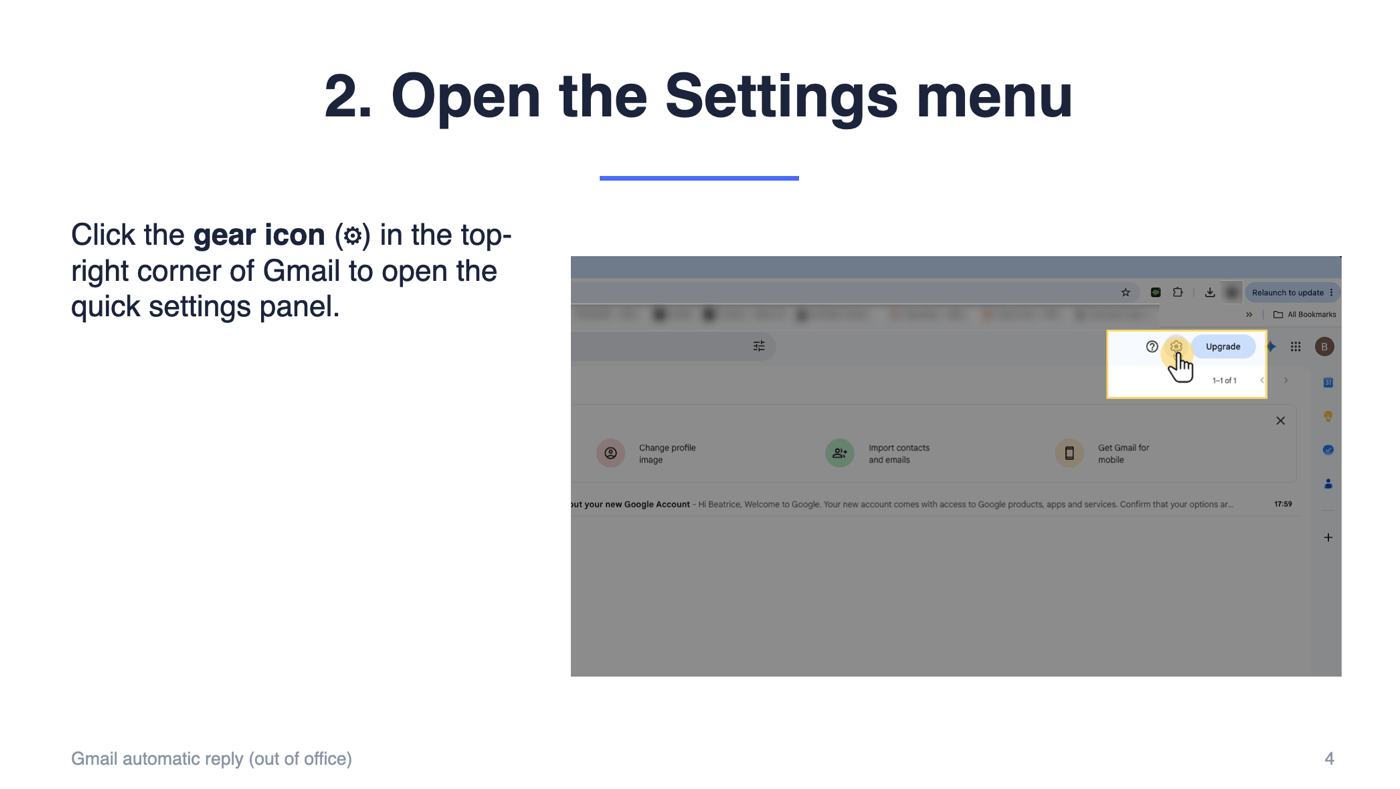
Folge can export your guide as a PowerPoint presentation (.pptx). Each step becomes its own slide with the step title, the screenshot and the step description, in a 16:9 layout you can present straight away or keep editing in PowerPoint.
The full text of each step description is also added to the slide's speaker notes, so a presenter has it in front of them while the slide itself stays readable.
Open a guide, click Export, and pick PowerPoint Document.
# Document settings
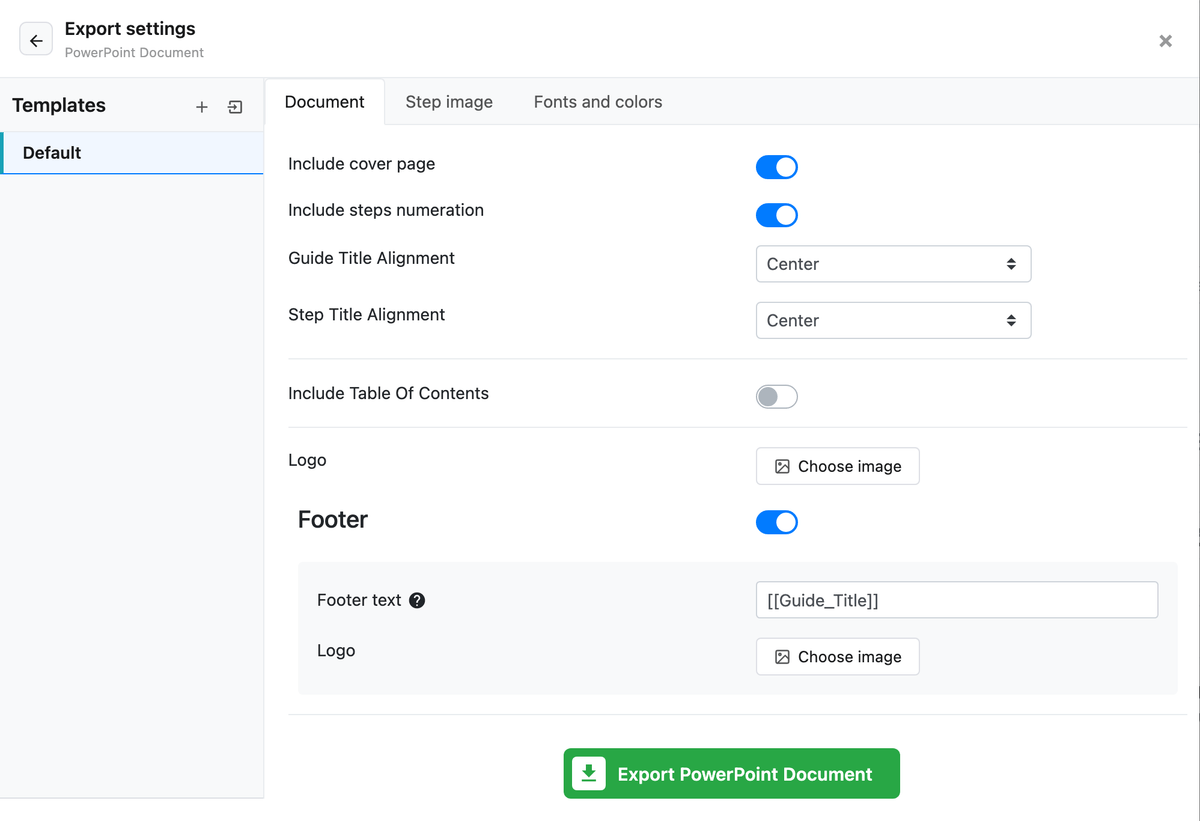
These live in the Document tab of the export screen.
# Include cover page
Adds a title slide with the guide title, followed by an overview slide with the guide description (the overview is only added when the guide has a description). Use Logo to put your logo on the cover slide.
# Include steps numeration
Puts the step number in front of each step title.
# Guide Title Alignment and Step Title Alignment
Left, center or right alignment for the guide title and for each step title.
# Include Table Of Contents
Adds an agenda slide listing the steps. Use 'Table Of Contents' translation to change the heading of that slide, for example to translate it.
# Footer
When Footer is on, every slide except the cover gets a footer line with your Footer text on the left and the slide number on the right. You can also choose a footer Logo; when one is set, it is shown in place of the footer text.
# Fonts and colors
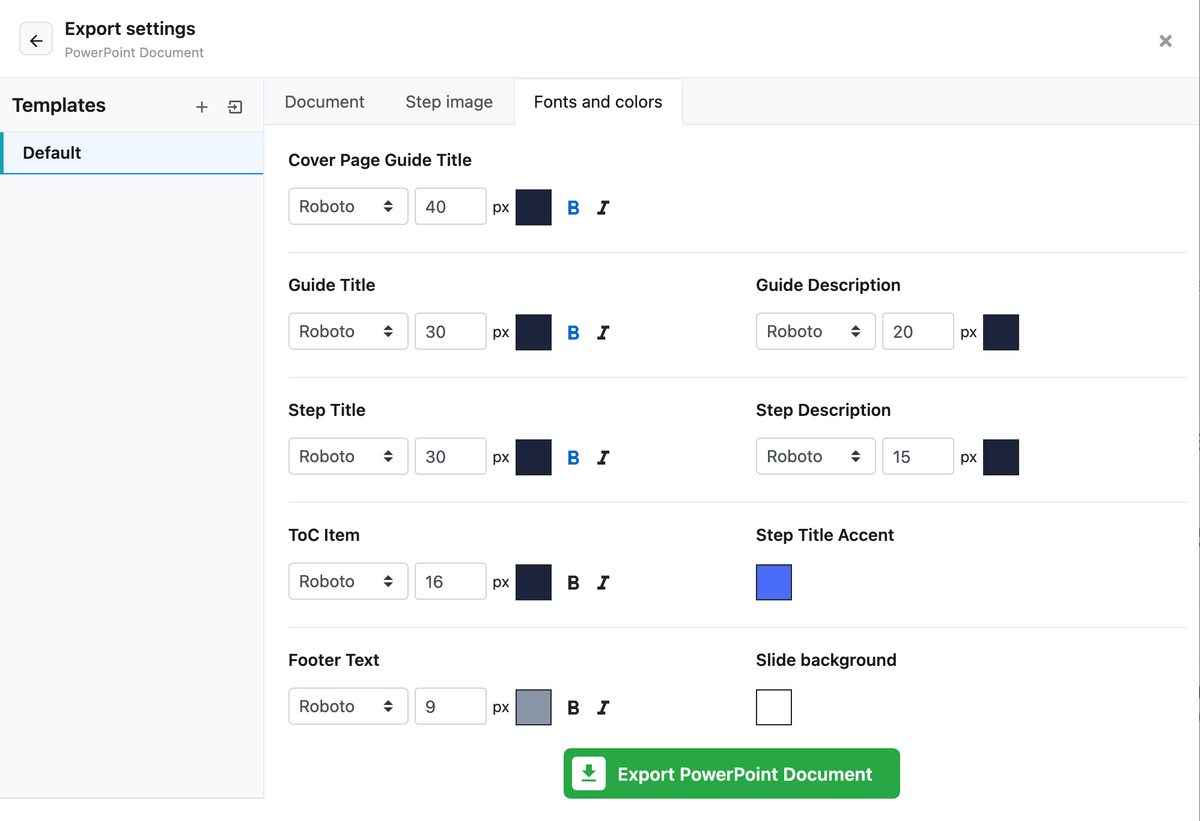
The Fonts and colors tab sets the font, size and color for each text element: the cover page title, guide title and description, step titles and descriptions, table of contents items and the footer text. It also has:
- Step Title Accent - the color of the accent line under slide titles and of the band on the cover slide
- Slide background - one background color for every slide in the deck, white by default
Since Folge 1.40, the footer text uses the font size and color set here.
# Step image
Use Image border width and color in the Step image tab to draw a border around each screenshot, which helps light screenshots stand out on a light slide background.