# Export format: SCORM package
TIP
SCORM export is a new feature and is currently in beta. Questions or ideas to make it better? Email hello@folge.me - your feedback shapes what comes next.
Folge can export your guide as a SCORM 1.2 package - a single .zip file you
upload to any Learning Management System (LMS). Your guide is then delivered as a
trackable course: learners open it inside the LMS, click through it step by step,
and the LMS records their completion.
SCORM is the format used by virtually every corporate LMS - Cornerstone, Docebo, Moodle, TalentLMS, SAP SuccessFactors, and many more. Use this export when you want to turn a guide into onboarding or training material that lives in your LMS with completion tracking.
# Exporting
- Open a guide and click Export.
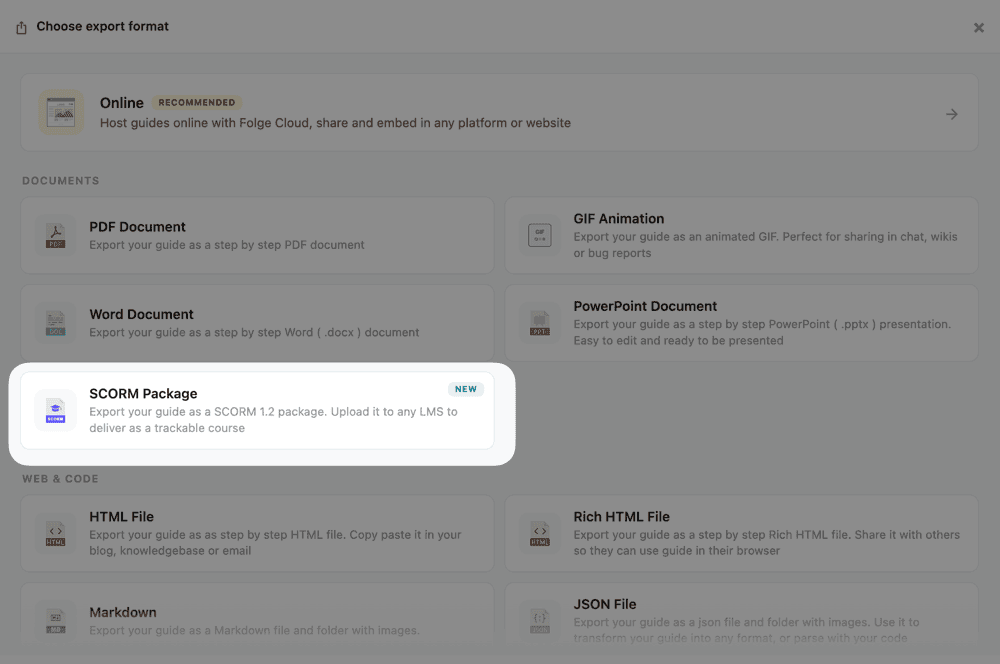
- Choose SCORM Package (in the Documents group).
- Adjust the settings if you want (see Settings below).
- Click Export SCORM Package and choose where to save the
.zip. - Upload that
.zipto your LMS as a SCORM 1.2 course.
That's it - no accounts, keys, or servers to configure. The package is fully self-contained and works offline.
# The learner experience
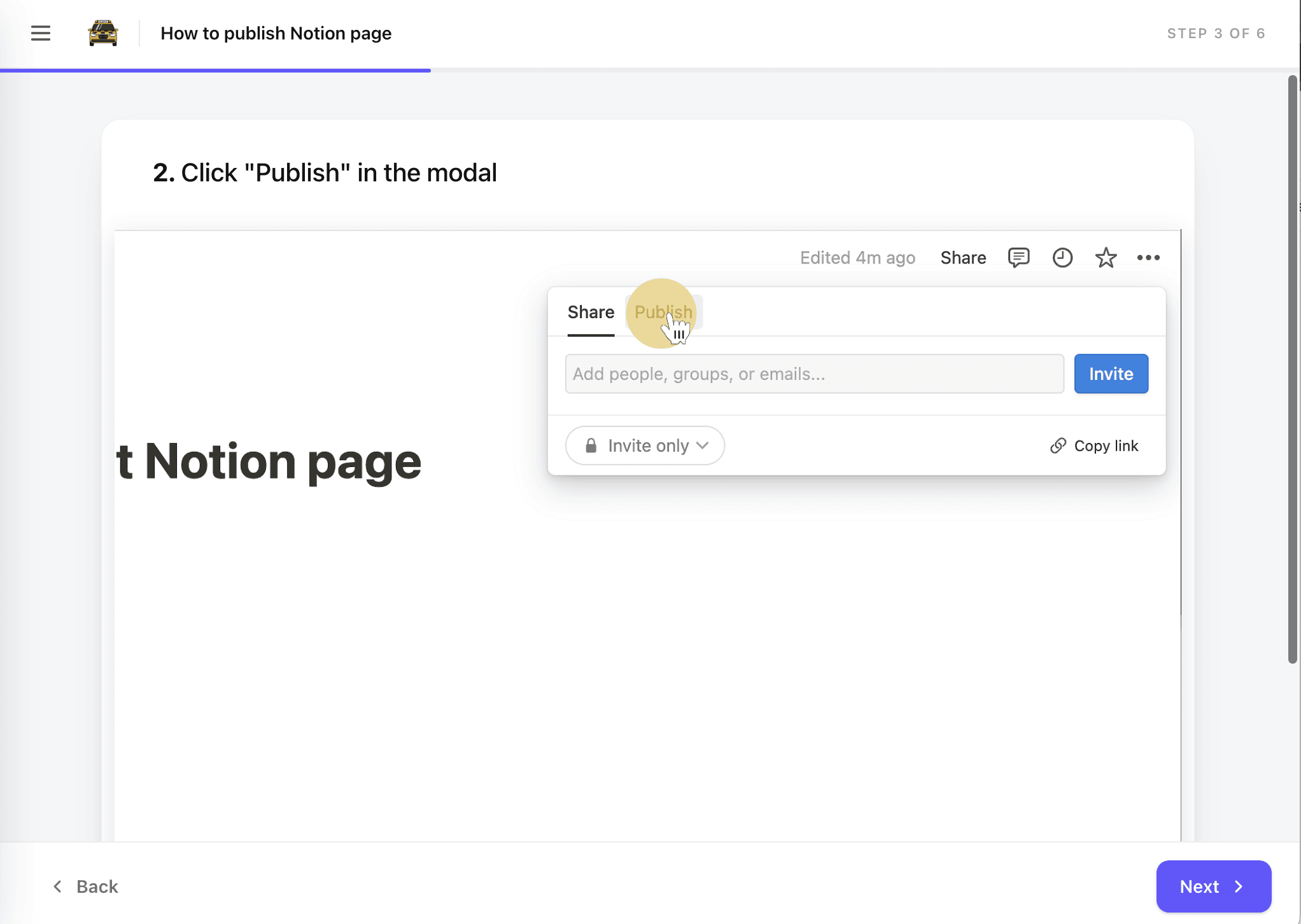
The SCORM package plays your guide as a step-by-step player, not a long scrolling page:
- One step per screen, with Back / Next buttons and left/right keyboard arrows.
- A progress bar and a Step X of Y counter in the header.
- A Contents drawer (the ☰ button) to jump to any step.
- Your logo in the header, if you set one (see Settings).
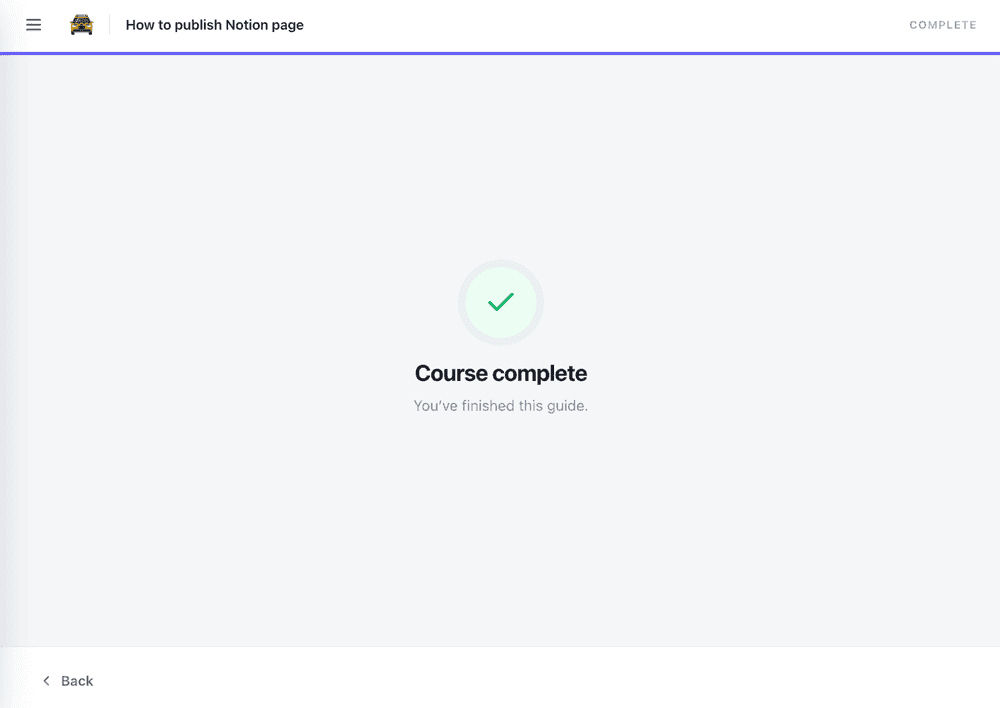
- A "Course complete" screen at the end.
If a learner opens the file directly (outside an LMS) it still plays as a normal web page - it just won't report anything back.
# What gets tracked
Reaching the final Course complete screen is what tells the LMS the learner is done. Folge reports:
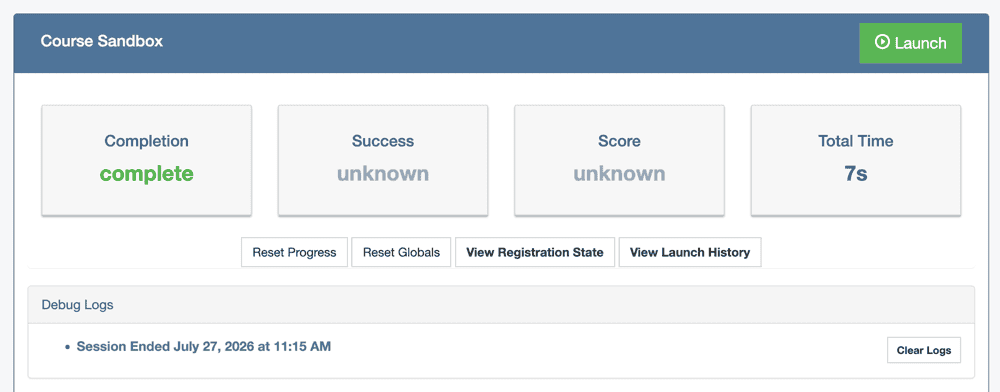
- Completion - set to completed when the learner reaches the end.
- Total time - the time spent in the session.
Folge does not report Success (passed/failed) or a Score. Those are assessment concepts - they only mean something when there's a quiz with a passing threshold. A guide is instructional content, so in your LMS those columns will show unknown, which is expected and correct.
TIP
Want to try the package before uploading it to your production LMS? Use
SCORM Cloud (free tier) - it launches your .zip
exactly like a real LMS and shows you the tracking it receives.
# What gets included
Every part of your guide renders in the player:
- Regular steps with their screenshots and annotations.
- Multi-image steps - all images appear on the step's screen.
- Substeps - each becomes its own screen, numbered
2.1,2.2, and so on. - Content blocks - shown as section screens.
- Text / alert blocks - rendered in place, styled as you authored them.
Hidden and deleted steps are excluded automatically.
# Settings
SCORM reuses the Rich HTML settings, so most options on the export screen apply to the package. The ones worth knowing:
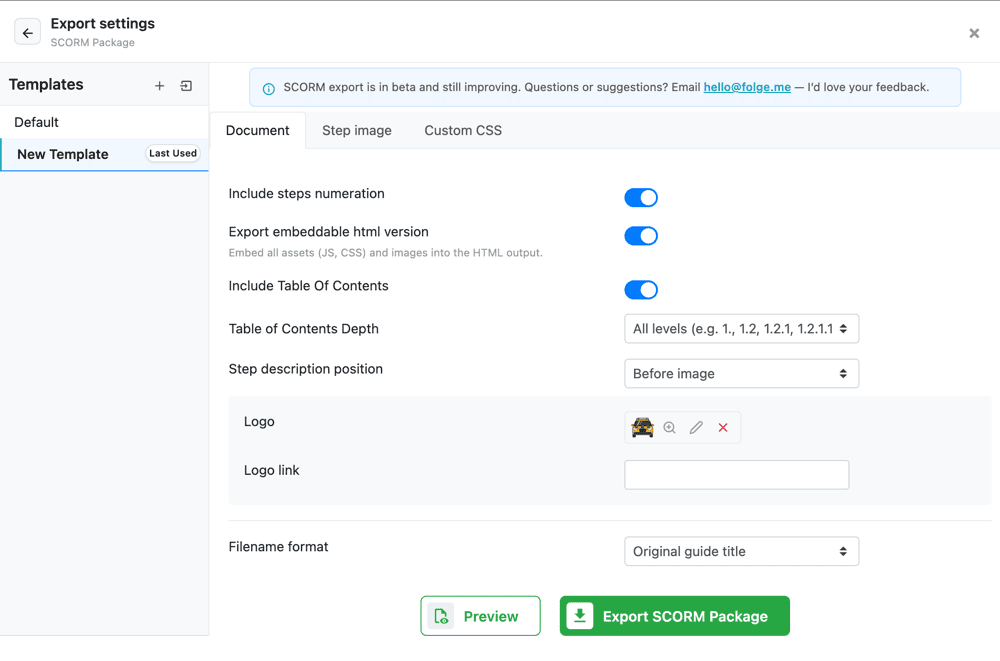
| Setting | Effect in the SCORM player |
|---|---|
| Include Table of Contents | Shows or hides the ☰ Contents drawer. On by default, and separate from the Rich HTML setting of the same name. |
| Table of Contents Depth | How deep substeps are listed in the drawer. |
| Include steps numeration | Step numbers (1, 2, 2.1, …) on screens and in the contents. |
| Step description position | Description above or below the screenshot. |
| Logo | Displayed in the player header, branding every screen. |
| Fonts & colors, Custom CSS, image size/format | Apply as they do to Rich HTML. |
Two Rich HTML options do not appear for SCORM because they can't apply:
- Export embeddable HTML version - a SCORM package always uses separate asset files inside the zip, so there's nothing to toggle.
- Completion checkboxes - the player marks completion by reaching the end, not with per-step checkboxes.
To style the guide and the player (header, buttons, progress bar, contents drawer, completion screen), see SCORM customization with CSS. See also Custom Watermark.
# Preview
The Preview button next to Export opens the player in a window so you can click through the exact learner experience before exporting. The preview uses the first few steps (the number is the Preview Steps value in Application settings, shared with the PDF and GIF previews).
# Free plan and watermark
SCORM export is available on the free plan - handy for educators and anyone who wants to try it. On the free plan, exported screenshots carry the Folge watermark. A paid plan removes the watermark and unlocks branding (your logo, custom colors, and custom CSS).
# SCORM version and compatibility
Folge exports SCORM 1.2, which is supported by essentially every LMS and is fully self-contained (no external server or Learning Record Store to configure).
xAPI and cmi5 are not currently supported - if your LMS workflow needs them, let us know at hello@folge.me.