# Image format & quality
Every export (except GIF) has an Image format & quality setting under Step image in the export settings. It controls how your step screenshots are encoded in the exported file, which is the main lever for the final file size.
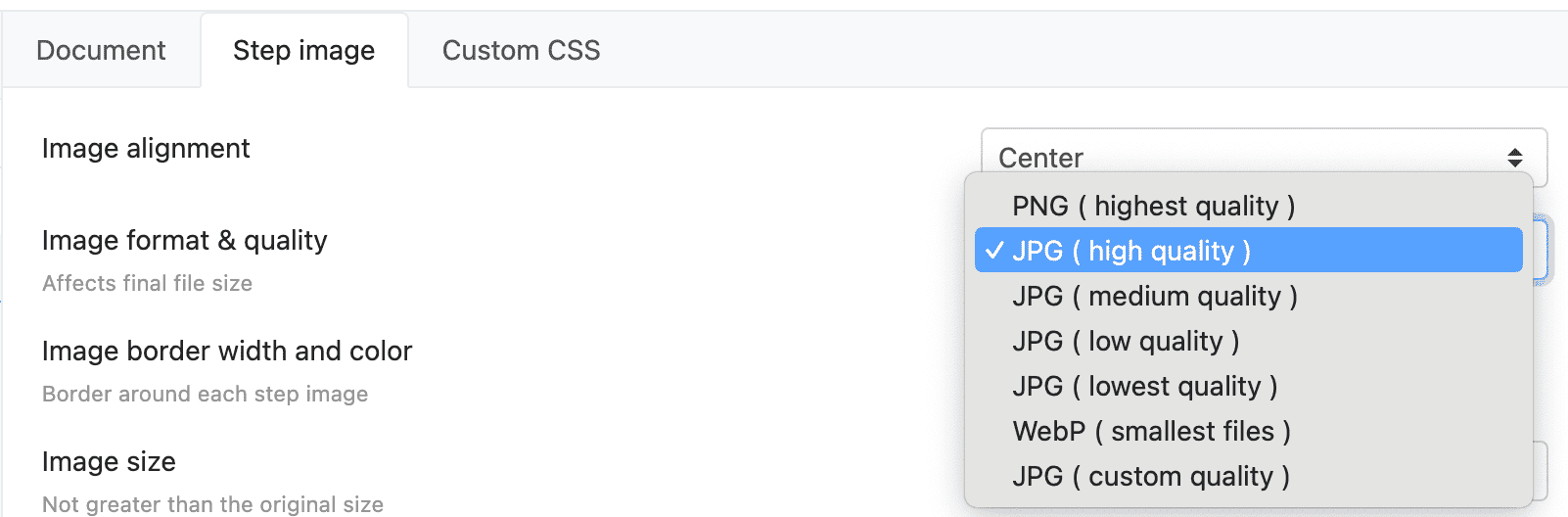
# The options
| Option | What it means |
|---|---|
| PNG (highest quality) | Lossless - pixel-perfect screenshots, largest files. |
| JPG (high / medium / low / lowest quality) | Lossy presets at quality 100 / 90 / 70 / 50. |
| JPG (custom quality) | Pick any quality from 1 to 100 yourself. |
| WebP (smallest files) | Roughly half the file size of JPG at the same visual quality. Available for Rich HTML, Simple HTML, and SCORM exports. |
The setting is saved per export format, so your PDF exports can use PNG while your HTML exports use WebP.
# Which one should I pick?
- PNG when quality matters more than size - archival exports, print, guides with fine text in screenshots.
- JPG (high quality) is a good default when file size matters: visually near-identical to PNG at a fraction of the size.
- WebP for HTML and SCORM exports that will be viewed in a browser or LMS - it gives the smallest pages with no visible quality loss. Marked experimental; if anything looks off, switch back to JPG.
TIP
WebP is only offered for HTML and SCORM because other targets (Word, older PowerPoint) can't display it.
Whatever you pick, screenshots are encoded from a lossless source, so annotations and text stay crisp even at lower quality settings. And in HTML exports, clicking a step image always opens it pixel-sharp at full resolution.