# Export to Hudu
TIP
Hudu exports are available from version 1.34.0. Publishing as a Process (checklist) is available from version 1.36.0.
Folge can natively publish any guide to your Hudu instance - either as a Knowledge Base article (a rich document people read) or as a Process (a step-by-step checklist your team runs over and over). Both include all of your step screenshots. Open any guide, click Export, and select Export to Hudu.
# Setting up the connection
You need two things from your Hudu instance:
- Hudu URL - your instance hostname, e.g.
https://docs.example.comorhttps://yourcompany.huducloud.com - API Key - generate one in Hudu via Admin → API Keys → New API Key
WARNING
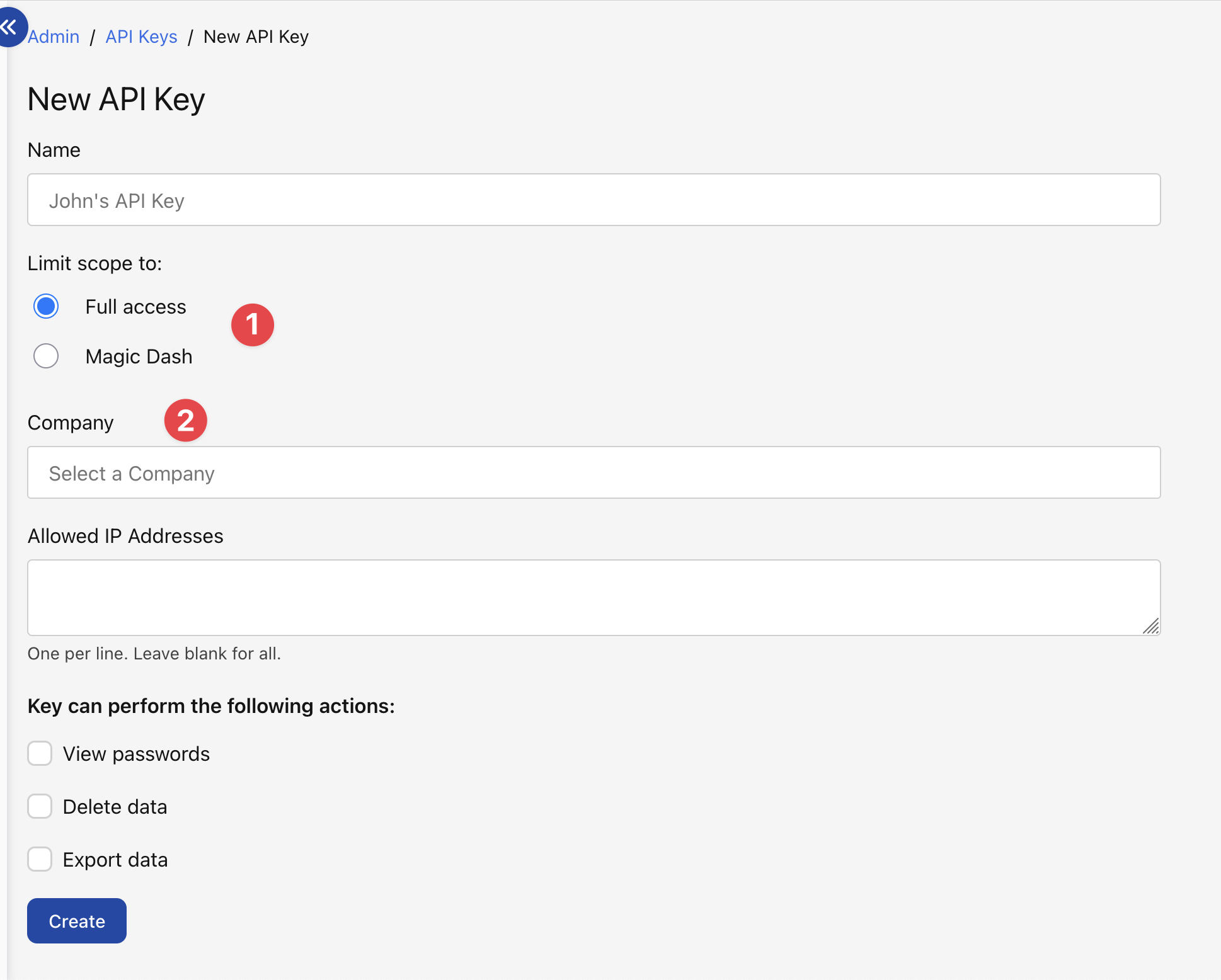
When creating the API key in Hudu, set (1) Limit scope to to Full access and leave the (2) Company selector blank. Company-restricted keys can browse folders and articles, but they can't upload images, so publishing will fail.
Once you have the URL and key, paste them into Folge:
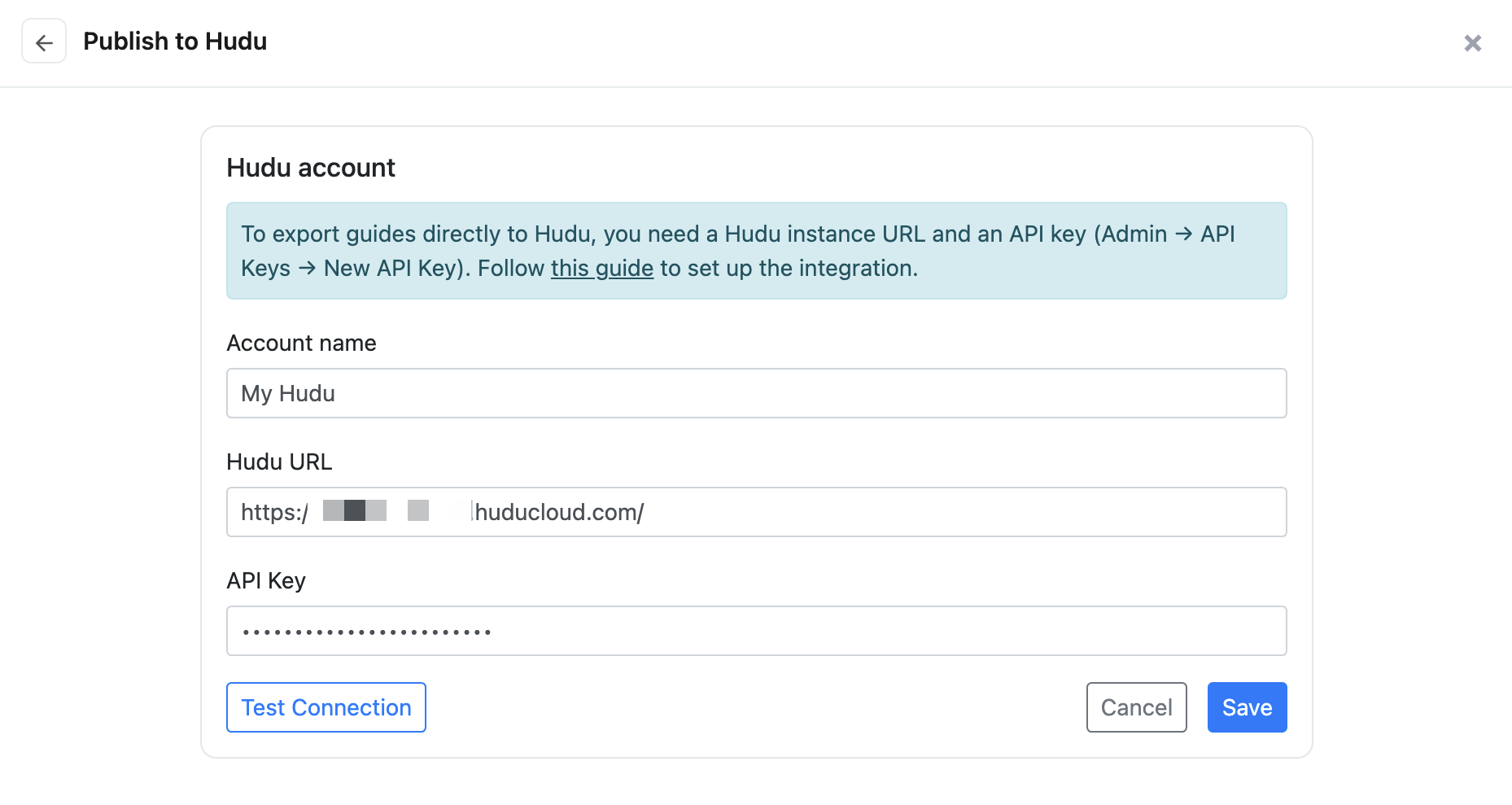
Click Test Connection to verify the credentials before saving.
# Multiple Hudu accounts
You can save more than one Hudu account (e.g. one for each instance you manage) and switch between them via the picker at the bottom of the export panel. Folge remembers which company you last picked per account, so the destination opens where you left off.
# Choosing what to export: Article or Process
At the top of the export panel there's a toggle:
- KB Article - publishes the guide as a Hudu Knowledge Base article: one page with every step's heading, text and screenshot laid out top to bottom. Best for reference documentation people read.
- Process - publishes the guide as a Hudu Process: a checklist where each step becomes a task (screenshot and notes included) that can be ticked off. Best for repeatable procedures your team runs - user onboarding and offboarding, account provisioning, software setup, and so on.
Folge remembers your choice per account, and keeps a separate "last published" destination for each mode.
# Publishing as an article
With the toggle on KB Article, you'll see a destination picker:
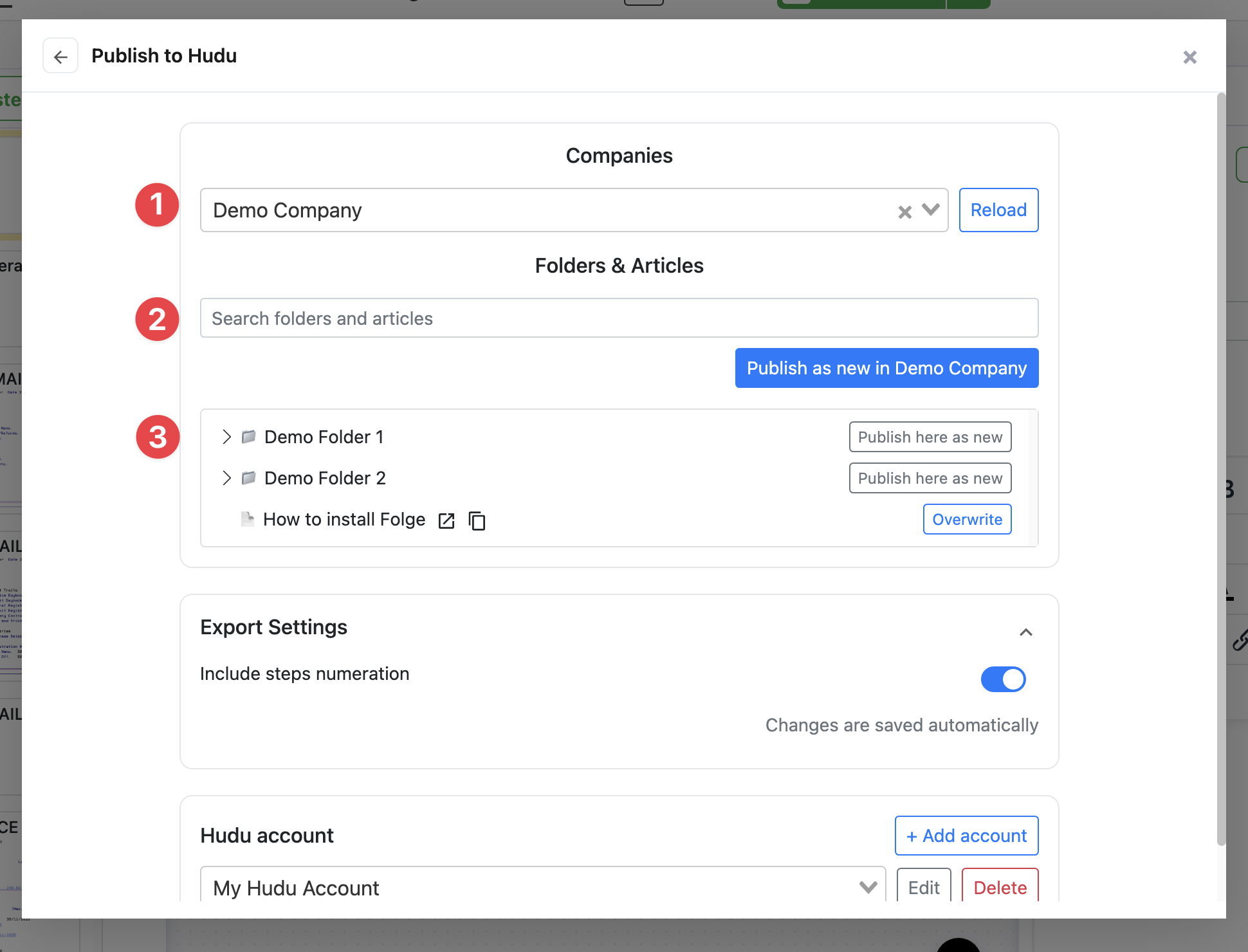
Choose where the article goes:
- Company picker - pick a specific company's Knowledge Base, or leave empty to publish into the Global KB
- Search - find an existing folder or article by name (use this to overwrite something already in Hudu)
- Folder tree - expand folders to drill down. Each row offers an action depending on its type:
- Folder → Publish here as new (creates a new article inside the folder)
- Article → Overwrite (replaces the article's content with this guide)
If Folge has previously published this guide to the selected account, you'll also see a Last published as box at the top with a one-click Update article button.
TIP
Overwriting an article takes ownership of it from this guide. Future re-publishes of the same guide will update that article rather than creating duplicates.
# Publishing as a process
Switch the toggle to Process and you'll get a simpler destination picker - processes don't use folders:
- Scope - choose a company to create the process under that company, or leave it on Global template to create a reusable template. Hudu files templates under Process Templates; these are the definitions your team kicks off (runs) per client.
- Create as new - creates a brand-new process in the selected scope.
- Existing processes - each process in the scope offers an Update button to overwrite it with the current guide.
As with articles, a Last published as box gives you a one-click Update for the process this guide was last published to.
# How steps become tasks
- Each guide step becomes one checklist task, in order.
- The step's screenshot, description, and note/tip/warning blocks go into the task body.
- With Include steps numeration enabled, the step number (e.g.
1.2) is prefixed to the task name, so nested steps still read in the right order.
# Re-publishing a process
Overwriting a process refreshes it in place: Folge updates each task's content and screenshots, keeps the task order in sync with the guide, and renames the process to match the current guide title. Future re-publishes of the same guide keep updating that process rather than creating duplicates.
WARNING
If your guide has fewer steps than the last time you published, Folge has to remove the leftover checklist items - and deleting requires a Hudu API key with delete permission. If your key can't delete, either enable delete on the key in Hudu admin, or publish as a new process instead.
# How images are handled
Folge uploads each step screenshot via Hudu's public_photos endpoint, which is also what Hudu's own editor uses for inline images. This means images render correctly in the authenticated view (article or process) and in any public-share link you generate from Hudu.
When you re-publish, Folge cleans up the previously-uploaded images first so they don't accumulate as orphan attachments.