Creating training videos is now easier with screencasting tools that let you record your screen and add narration. These tools are essential for onboarding, tutorials, and interactive learning. Here's a quick summary of the top 10 options for 2026:
Camtasia: Advanced editing, professional-grade, $299.99 one-time.
Loom: Simple, quick sharing, free (limited) or $12.50/month.
Screencast-O-Matic: Beginner-friendly, free or $3/month.
Movavi Screen Recorder: Balanced features, $44.95/year.
VSDC Video Editor: Advanced editing, free or $19.99/year Pro.
Snagit: Great for screenshots and simple videos, $62.99 one-time.
OBS Studio: Free, open-source, powerful but no built-in editor.
Bandicam: High-quality recording for Windows, $39.95 one-time.
ActivePresenter: Interactive e-learning, free or $399 Pro.
Folge: Focused on step-by-step guides, $78 lifetime.
Quick Comparison
| Tool | Best For | Pricing | Platform | Editing Features |
|---|---|---|---|---|
| Camtasia | Professional videos | $299.99 one-time | Windows, macOS | Advanced (multi-track) |
| Loom | Quick sharing | Free/$12.50 per month | Web, Windows, macOS | Basic |
| Screencast-O-Matic | Beginners | Free/$3 per month | Windows, macOS | Basic |
| Movavi Screen Recorder | Balanced features | $44.95/year | Windows, macOS | Intermediate |
| VSDC Video Editor | Advanced editing (Windows only) | Free/$19.99 per year | Windows | Advanced |
| Snagit | Screenshots + simple videos | $62.99 one-time | Windows, macOS | Basic |
| OBS Studio | Free, open-source | Free | Windows, macOS, Linux | None (external editor) |
| Bandicam | High-quality recording (Windows) | $39.95 one-time | Windows | Basic |
| ActivePresenter | Interactive e-learning content | Free/$399 Pro | Windows, macOS | Advanced |
| Folge | Step-by-step guides | $78 lifetime | Windows, macOS | Screenshot-based |
These tools cater to different needs, from beginners to professionals. Choose based on your goals, budget, and system compatibility.
The Best Screen Recording Tools For Every Budget
What to Look for in Screencasting Tools
When selecting a screencasting tool, focus on features that enhance both the creation process and the viewing experience of training videos.
Video and Audio Recording Quality should top your list. Clear visuals are essential, especially when demonstrating software interfaces or intricate processes. Opt for tools that can record in at least 1080p resolution to ensure text and UI elements remain sharp and legible. And don't overlook audio - poor sound quality can ruin even the best visuals. Choose a tool that captures clean, synchronized audio without lag or distortion.
Editing Capabilities are a game changer. Basic screen recorders might get the job done, but tools with robust editing options can elevate your content. Features like trimming, annotations, callouts, arrows, and text overlays help emphasize key steps, making your videos more engaging and informative. Adding captions is another must-have for making your content accessible to all learners.
Export Format Flexibility is critical for seamless sharing. A good screencasting tool should support multiple export formats, making it easier to distribute your videos - whether you're uploading to a learning management system, sharing via email, or hosting them on internal servers. The right formats ensure your content is compatible across platforms and devices.
Ease of Use can make or break adoption by your team. As Anatolia College Libraries at the American College of Thessaloniki (ACT) noted, "Screen recording software should save time by reducing extra communications". Intuitive tools encourage quick, consistent video creation, while overly complicated systems can discourage users and slow down production.
Platform Compatibility is another key factor. In diverse work environments, team members may use different operating systems or devices, such as Windows, Mac, or mobile platforms. A tool with cross-platform support ensures everyone can create and access videos without technical hurdles.
Security is just as important as functionality. Security Features like password protection, access controls, and secure sharing options are essential, especially when your videos contain sensitive or proprietary information. This is particularly crucial for compliance training or internal processes that need to stay confidential.
Finally, consider the Pricing Structure. The tool's cost should align with your budget and usage needs, including any potential extra fees for storage or customer support. Whether you're a small team or a large enterprise, finding a balance between features and affordability is key.
The best tools also prioritize easy sharing capabilities. Look for options like direct links, embed codes, or integrations with your existing communication tools to make your training content easily accessible. Integration with your current training infrastructure can further streamline workflows and boost adoption across your organization.
1. Camtasia
Camtasia is a desktop tool known for its reliable video and audio capture, paired with a robust editing suite. It's a favorite among training professionals for its ability to deliver consistent, polished results. Whether you're creating tutorials, software demonstrations, or other training materials, Camtasia checks all the boxes for producing professional-grade content.
Recording Quality (Video and Audio)
Camtasia stands out for its ability to maintain sharp, clear resolution throughout the entire recording and production process. By capturing and processing video at consistent dimensions, it avoids the blurriness that can occur with mismatched resolutions.
On the audio side, Camtasia uses AAC at 44.1 kHz, the industry standard for professional sound quality. It also features AI Noise Removal, which automatically reduces background noise, ensuring your voice remains crisp and clear, even in less-than-ideal recording conditions.
Editing Features (Annotations, Trimming, Overlays)
Camtasia's editing tools are designed to turn raw recordings into polished instructional videos. Its annotation toolkit includes callouts, blur and highlight effects, arrows, lines, and shapes, making it easy to emphasize key points or guide viewers through a process.
The 2025 update adds advanced cursor enhancement options, such as cursor isolation, zoom, and motion blur effects. These features make following mouse movements in software demos more intuitive for viewers.
With SmartFocus, Camtasia automatically applies zoom and pan animations based on your screen activity, creating a dynamic viewing experience without requiring manual adjustments. Accessibility is also a priority, with options to add closed captions and dynamic captions, ensuring your content is usable for all learners.
To streamline your workflow, frequently used effects can be saved as custom presets and organized in a dedicated "Favorites" tab for quick access during future projects.
Export Options (Formats, Resolutions)
Camtasia offers a variety of export options to suit different needs. You can export in formats like MP4, GIF, and M4A, and even include interactive features such as a table of contents, search functionality, and quizzes.
Batch exporting makes it easy to create multiple versions of your content for different platforms or quality requirements. You can also export specific sections of the timeline, which is perfect for generating shorter clips from longer recordings.
For seamless sharing, Camtasia integrates with YouTube, automatically including captions and a table of contents when available. Interactive elements work smoothly when exporting to Screencast or using the TechSmith Smart Player.
Platform Compatibility (Windows, Mac, etc.)
Camtasia supports both Windows and macOS, though there are some differences in capabilities. macOS users can record up to 5K resolution at 60FPS using H.264 or H.265 codecs, while Windows supports up to 4K at 60FPS with H.264.
The software is compatible with a wide range of file formats, including MP4 (AVC, H.264, and H.265 codecs), MOV (H.264, H.265, ProRes, JPEG, and PNG codecs), AVI, and WMV. Windows users also benefit from custom export presets, which allow teams to standardize output settings across projects for consistent results.
2. Loom

Loom is a widely-used tool for quick and easy screen recording, trusted by over 25 million users across 400,000 companies. Its appeal lies in its simplicity and availability across multiple platforms, making it an ideal choice for teams creating training videos without the hassle of mastering complex software.
Recording Quality (Video and Audio)
The quality of Loom recordings depends on your subscription plan and the capabilities of your device. For example, Loom Starter users can record in 720p, while Education, Business, Business+ AI, and Enterprise plan users can achieve up to 1080p through the Chrome extension and up to 4K using the desktop apps.
Loom automatically selects the best resolution based on your device and internet connection. To get the best results, you'll need a fast internet connection, an HD display, and a good camera for recording in full HD.
You can adjust the default recording quality in the settings menu. For the Chrome extension, click the three-dot menu, navigate to Settings, and select your desired quality under the Video quality dropdown. On the desktop app, similar options are available under the Video & Audio tab in the Settings menu.
Once your video is recorded, Loom's editing tools make it easy to refine your content into polished, professional training material.
Editing Features (Annotations, Trimming, Overlays)
Loom offers essential editing tools designed to enhance your videos without overwhelming you. Paid plans include features like trimming, stitching, and transcript-based editing, supporting videos up to 5 hours long. You can also add text overlays for annotations, helping to highlight key points in your training content.
However, some advanced features - such as built-in video blurring or permanent playback speed adjustments - are not available. Users can perform up to 300 trims per video. For recording limits, Business, Business+ AI, and Enterprise users can create single videos up to 5 hours and 30 minutes long, while Starter users are capped at 25 total videos.
Platform Compatibility (Windows, Mac, etc.)
Loom stands out for its compatibility across a variety of platforms, making it accessible on numerous devices and operating systems.
| Platform | Compatibility | Notes |
|---|---|---|
| Windows | Desktop app (Windows 10 64-bit+) | Supports 4K screen recording and 1080p camera |
| Mac | Desktop app (OSX 12.3+) | Allows up to 4K recording |
| Chrome Browser | Chrome extension | Works on any Chrome-compatible device |
| iOS | Mobile app (iOS 15+) | Dedicated recording app |
| Android | Mobile app (Android 10+) | Not compatible with Android Go edition |
The Chrome extension is especially versatile, functioning on Chromebooks, tablets, and any device that supports the Chrome browser. For video playback, Loom supports all major browsers, including Firefox, Safari, and Edge, ensuring your training content is accessible to viewers regardless of their preferred browser. Even without dedicated apps, Loom videos can be viewed on mobile browsers.
While desktop apps aren't available for Linux or Chrome OS, the Chrome extension effectively fills this gap. Mobile apps are available for both iOS and Android users, though Android devices must run Android 10 or higher, and the app does not work on Android Go edition devices.
3. Screencast-O-Matic

Screencast-O-Matic strikes the perfect balance between ease of use and powerful functionality, making it a go-to screen recording tool for trainers who want polished results without a steep learning curve.
Recording Quality (Video and Audio)
When it comes to capturing video and audio, Screencast-O-Matic delivers dependable results. It allows you to record your screen, webcam, and system audio seamlessly. The free version has a 15-minute recording limit, but even within that, you can record videos in resolutions up to 1080p, ensuring your content looks sharp and professional.
Editing Features (Annotations, Trimming, Overlays)
Screencast-O-Matic's editing tools transform raw footage into polished videos. You can trim, cut, and add transitions or effects, as well as include annotations, captions, and subtitles. Need to emphasize key points? Add overlays like images, text, arrows, highlights, or even blurs for sensitive information. The software also lets you tweak playback speed, add background music, and improve accessibility with subtitles. Paid versions unlock advanced features like pan and zoom for extra control.
The editing interface is straightforward. After finishing a recording, click "Done" and select "Edit" to access tools like a timeline, preview window, and options panel. You can independently adjust elements like cropping, zooming, layering, opacity, and visibility for both the main video and webcam feed. Once you're satisfied, exporting your video is quick and hassle-free.
Export Options (Formats, Resolutions)
Screencast-O-Matic offers flexible export options to suit your needs. You can save your videos in formats like MP4, AVI, FLV, or even as GIFs, making them easy to share across platforms. Additionally, you can send videos via email or create shareable links for social media.
Platform Compatibility
This software works seamlessly on both Windows and Mac, providing consistent performance regardless of your operating system. Its reliability is backed by strong user reviews, boasting a 4.5/5 rating on G2 and a 4.4/5 rating on GetApp. With its extensive features and user-friendly design, Screencast-O-Matic is a solid choice for creating modern, high-quality training videos.
4. Movavi Screen Recorder

Movavi Screen Recorder has made a name for itself among top screencasting tools by combining high-quality recording with intuitive editing and export options. Trusted by over 70 million users worldwide, it's a favorite among educators and trainers who need a straightforward yet powerful tool to create professional training videos.
Recording Quality (Video and Audio)
Movavi Screen Recorder delivers exceptional video and audio quality, supporting HD and 4K formats. You can record your screen, webcam, and microphone simultaneously, making it ideal for comprehensive tutorials. The software also features 48KHz stereo audio quality, ensuring clear and professional sound for voiceovers and commentary.
One user shared their experience:
"The quality of the recordings is magnificent. Image Capture is also extremely high quality too." - Marc, Marketing and Advertising
With an overall rating of 4.6/5 and an impressive 4.8/5 for ease of use, Movavi stands out for its user-friendly setup. Before hitting record, you can customize settings like video resolution and input preferences, ensuring your recordings meet your exact needs.
Editing Features (Annotations, Trimming, Overlays)
Movavi Screen Recorder doesn't stop at recording - it also offers built-in editing tools to refine your videos. You can trim clips, adjust audio levels, add annotations, and even incorporate special effects. The annotation tools are particularly handy for training videos, allowing you to add text, shapes, arrows, or freehand drawings to emphasize key points.
A Learning Experience Designer praised these features:
"I like the ease of use of this software. It provides lots of options from screen capture images to screen capture videos. You can highlight material, draw on the images, even put arrows on it. The program remains accessible on-screen for quick annotations." - Frances W., Learning Experience Designer
The software also supports webcam integration, letting you add a personal touch to your videos. With 15+ updates per year and access to 6,000+ effects, Movavi ensures your tools stay fresh and your videos stay engaging.
Export Options (Formats, Resolutions)
Movavi Screen Recorder offers versatile export options to suit various needs. It supports a wide range of formats, including MP4, AVI, MOV, MKV, GIF, and MP3, ensuring compatibility across devices and platforms. You can tweak resolution, frame rate, audio sample rate, and other settings for customized results. By default, the audio sample rate is set to 44,100 Hz, but advanced settings let you fine-tune further.
Sharing your work is effortless, with options to upload directly to cloud services, YouTube, email, or messaging apps. For those creating content for Smart TVs, Movavi includes export presets optimized for various brands and resolutions, such as "Other 1080p TVs" or "Other 4K TVs".
Platform Compatibility
Movavi Screen Recorder runs smoothly on both Windows and Mac, offering consistent performance no matter your operating system. It also integrates seamlessly with Movavi Video Editor, letting you transition from screen recording to editing without switching software.
Pascal A., a Freelancer, shared their positive experience:
"My overall experience using Movavi Screen Recorder has been pretty amazing. Especially because both the video and audio quality comes out really clear and vivid. I love it and would recommend it to course creators especially." - Pascal A., Freelancer
Pricing starts at $19.83 per year, with options for personal and lifetime licenses. The software boasts a Tekpon Score of 9.2, reflecting its reliability and user satisfaction. While some users have reported occasional crashes, these seem to be rare occurrences rather than a common issue.
5. VSDC Video Editor

VSDC Video Editor provides a robust, free video editing suite tailored for training video creators. With strong ratings on platforms like Capterra and Software Advice, this software offers a powerful set of editing tools while being budget-friendly, making it a popular choice for educators and trainers.
Recording Quality (Video and Audio)
When it comes to recording, VSDC Video Editor supports high-quality outputs, including 4K resolution and beyond, thanks to its advanced video proxy system. It handles a wide range of formats and codecs, ensuring compatibility across different devices. The Pro version steps things up with real-time voiceover capabilities and waveform audio editing. For those dealing with background noise, features like the Median filter and Audio gate come in handy, delivering cleaner audio - an essential for professional training videos.
Editing Features (Annotations, Trimming, Overlays)
VSDC is packed with advanced editing tools that allow creators to craft polished training videos. Highlights include motion tracking, a detailed color correction suite with tools like the LUT Editor and RGB Curves, and a mask tool for applying filters selectively. For green screen enthusiasts, the software offers multi-color chroma keying. Other features like multicam editing, a variety of video effects (filters, transformations, and OpenGL effects), and smooth transitions add to its versatility.
One lecturer shared their experience with the software:
"It saves time and easy handling with respect to trimming and splitting of the video. If I do any mistakes I can restart my editing and get finally finish the quality. It supports all types of videos and photos." - Masood S., Lecturer in English
Audio editing is equally impressive. Users can split video into separate audio and video layers, edit audio waveforms, apply effects such as normalization and noise reduction, and even synchronize video effects with music beats. Combined with its flexible export options, VSDC ensures your final product is polished and ready for any platform.
Export Options (Formats, Resolutions)
VSDC supports an extensive range of video, audio, and image formats, with presets optimized for platforms like YouTube, Instagram, Facebook, Twitter, and Vimeo, as well as for devices like iPhones, iPads, and Android smartphones.
| Supported Export Formats | Details |
|---|---|
| Video Formats | AVI, DVD, VCD/SVCD, MPEG, MP4, M4V, MOV, 3GP/3G2, WMV, MKV, RM/RMVB, FLV, SWF, AMV, MTV, WebM, Vp8, Vp9 |
| Audio Formats | MP3, M4A, AAC, OGG, AMR, WAV |
| Image Formats | BMP, JPEG, PNG, GIF, SVG |
| Device Support | PC, DVD players, iTunes, iPods, iPhones, iPads, Android smartphones, Sony PSP, PlayStation, Xbox, and various portable players |
The Pro version also includes hardware acceleration, which significantly reduces the time it takes to export 4K videos.
Platform Compatibility
VSDC is designed exclusively for Windows, allowing it to fully optimize system resources and integrate deeply with Windows hardware. The Pro version takes advantage of this with hardware acceleration, making it even more efficient for demanding tasks like 4K video exports.
"What I like most about VSDC Video Editor is its extensive features. It supports a wide range of formats and provides powerful tools for both basic and advanced video editing, all within a user-friendly interface." - Karen C., CEO
While users appreciate its value for money (4.6/5) and feature set (4.4/5), some note a steeper learning curve and an outdated interface. Despite these drawbacks, its extensive features and free pricing make it an excellent choice for training video creators working on a budget. With its strong editing and export capabilities, VSDC remains a top contender for producing professional training videos.
6. Snagit

Snagit stands out as a top-tier tool for creating training videos, offering a mix of screen recording and editing features that are both powerful and easy to use. It's a favorite among educators and trainers who want polished instructional content without needing to spend hours learning complex software.
Recording Quality (Video and Audio)
Snagit provides five different quality settings, allowing users to adjust resolution and frame rates to match their needs. The software uses variable frame rates, which means it can adapt during recording to maintain smooth performance.
| Quality Setting | Recording Resolution | Capture Frame Rate (up to) |
|---|---|---|
| Very Low | 4K/1080P | 5 FPS |
| Low | 4K/1080P | 10 FPS |
| Med | 4K/1080P | 15 FPS |
| High | 1080P | 30 FPS |
| High | 4K | 30 FPS (Snagit 2023.0.0 and later) |
| Very High | 4K/1080P | 60 FPS (Snagit 2024.2.0 and later) |
For audio, Snagit captures both system sounds and microphone input simultaneously. To get the best audio quality for your training videos, it's recommended to use a 16-bit/44.1 kHz setting. If you encounter audio issues, try updating your drivers, double-checking your input settings, or using a direct USB microphone paired with Krisp for noise reduction.
Once your recording is complete, Snagit's built-in editing tools make it easy to refine your content into clear and effective training materials.
Editing Features (Annotations, Trimming, Overlays)
Snagit's editing tools offer a variety of options to enhance your videos. You can add annotations like arrows, callouts, shapes, and stamps to highlight essential points. The trimming feature allows you to cut out unwanted sections, keeping your videos concise and focused. Other useful tools include smart redaction for hiding sensitive information, background removal, blur effects, and the "Simplify" tool, which eliminates distractions. Additional features, like adding borders, shadows, color filters, and watermarks, give your content a polished look.
For quick tutorials or bite-sized demonstrations, Snagit also lets you convert videos into GIFs - a great way to make your content more engaging.
Export Options (Formats, Resolutions)
Snagit supports a wide range of export options. For images, it handles 19 formats, including BMP, GIF, JPG, PNG, and PDF. Videos can be exported as MP4 files or animated GIFs. The native SNAGX format is especially useful for seamless collaboration between Windows and Mac users . If you need transparency, you can save images in formats like PNG, GIF, or TIF.
Platform Compatibility
Snagit works on both Windows and Mac, making it a versatile choice for organizations with diverse device setups or remote teams using different systems. The SNAGX format ensures smooth cross-platform editing, while the image cache system allows users to access unsaved screenshots when needed .
7. OBS Studio

OBS Studio is a free and open-source screencasting tool that delivers top-notch recording quality, making it a go-to choice for creating training videos. While setting it up can feel a bit technical, its customizable options and zero cost make it a favorite for users who want precise control over their recording settings without breaking the bank.
Recording Quality (Video and Audio)
When it comes to recording quality, OBS Studio shines thanks to its extensive customization features. You can tweak resolution, frame rate, encoder settings, and bitrate to achieve the exact quality you need for your training videos.
For professional-grade results, experts suggest using a bitrate between 10,000–20,000 kbps. If you're creating screen tutorials, a resolution of 1920×1080 or 1280×720 at 30 FPS, paired with a video bitrate of 2,500–3,000 kbps and an audio bitrate of 128 kbps, typically works well.
Audio settings are just as flexible. For full HD videos, an audio bitrate of 320 kbps is recommended, while 192 kbps is sufficient for 720p recordings. OBS Studio also lets you capture both system audio and microphone input, giving you full control over your sound sources. Advanced settings, like adjusting color format, color space, and range, help you fine-tune video quality while balancing file size and performance.
Platform Compatibility
One of OBS Studio's strengths is its broad compatibility. It's available for Windows, macOS, Linux distributions, and BSD, making it a versatile tool for users across different systems. Specifically, the Windows version works with Windows 10 and 11, while macOS users need macOS 11.0 or newer. For Linux, OBS Studio is accessible via Flatpak on Flathub or through a PPA for Ubuntu 24.04 and later versions.
This cross-platform availability is especially useful for organizations with diverse device setups or remote teams working on different operating systems. Built using C/C++ and Qt, OBS Studio ensures consistent performance across all platforms. Its adaptability makes it easy to integrate into various workflows, no matter the operating system.
Export Options (Formats, Resolutions)
OBS Studio focuses on delivering high-quality recordings in commonly used video formats that are widely compatible with most media players and editing software. However, its primary focus is on capturing and streaming, so it doesn't include built-in editing tools.
If you need to edit your videos - whether to trim clips, add annotations, or apply effects - you'll need external software like DaVinci Resolve, Shotcut, or Adobe Premiere Pro. By keeping its focus on recording, OBS Studio avoids the complexities of editing, ensuring smooth and efficient performance.
For those looking to streamline their workflow, OBS Studio supports plugins like Source Clone, Ashmanix Countdown Timer, and OBS Graphics Clocks to add functionality and reduce the need for post-production.
8. Bandicam

Bandicam is a popular screen recording tool designed exclusively for Windows, with a user base of over 10 million worldwide. It stands out for its ability to deliver high-quality recordings while keeping file sizes manageable, making it a great choice for creating detailed training videos that are easy to share and store.
Recording Quality (Video and Audio)
With Bandicam, you can record videos in 4K Ultra HD at a resolution of up to 3840×2160. The free version imposes a watermark and limits recordings to 10 minutes, but upgrading to the premium version removes these restrictions.
Users can adjust video framerates between 1 and 480 FPS. For smoother, higher-quality recordings, it's recommended to set the quality value between 80 and 100 and increase the FPS to 60 - provided your hardware can handle it.
Bandicam captures both system audio and external microphone input simultaneously. This dual audio recording ensures that software sounds and voice narration are recorded seamlessly.
The tool's codec options further enhance its performance. For instance, if you have a GeForce GTX 900 series or newer graphics card, selecting the "H264 (NVidia NVENC)" codec with the high 4:4:4 lossless profile provides excellent quality with efficient compression. While H.264 offers a good balance between quality and file size, lossless codecs like YV12 or RGB24 deliver flawless quality at the cost of much larger file sizes.
| Video Codec | File Size (1 min) | Quality Trade-off |
|---|---|---|
| AV1 (GPU) | 15–18 MB | Best compression with excellent quality |
| H264 (GPU) | 31–40 MB | Good balance of quality and size |
| H264 (High 4:4:4 Lossless) | 217 MB | Perfect quality, larger files |
| YV12 (Lossless) | 5,210 MB | Maximum quality, very large files |
Based on 1920×1080 resolution, 30 FPS, Quality: 80 [55]
These advanced settings make Bandicam a versatile tool for users who need precise control over video quality and file size.
Editing Features (Annotations, Trimming, Overlays)
Bandicam includes several real-time features that can save time during post-production. For instance, you can add annotations while recording, which is especially useful for highlighting key points in training videos. The webcam overlay feature allows you to include a video of yourself, adding a personal touch to presentations. Additionally, mouse click effects and animations help guide viewers through software demonstrations.
For basic editing tasks like trimming, cutting, and merging videos, Bandicam works seamlessly with its companion software, Bandicut. While Bandicam handles the recording, Bandicut simplifies quick edits, making the duo a convenient package.
Platform Compatibility
Bandicam is built exclusively for Windows. It does not support macOS or Linux, making it ideal for individuals or organizations that primarily work within the Windows ecosystem.
Export Options (Formats, Resolutions)
Bandicam supports a variety of codecs and formats. H.264 is a popular choice for balancing file size and video quality. For those prioritizing quality, the AVI format with lossless codecs like YV12 or H264 High 4:4:4 lossless is available, though these options result in significantly larger files.
The premium version, priced at $39.95 for a single-computer license, removes the watermark and the 10-minute recording cap found in the free version. Bandicam also allows users to adjust resolutions and framerates, enabling full 4K recording for high-quality projects or scaling down to conserve storage and system resources.
9. ActivePresenter

ActivePresenter is a versatile screencasting tool designed for creating professional training videos. Whether you're an educator or a corporate trainer, it offers a blend of powerful recording capabilities, advanced editing tools, and multi-platform compatibility, making it a go-to solution for diverse training needs.
Recording Quality: Video and Audio
ActivePresenter lets you record your entire screen or focus on a specific area, while simultaneously capturing content from your screen, webcam, microphone, and speakers. You can choose to record narration and webcam footage together or handle them separately. The software includes AI-driven noise reduction to improve audio clarity, though the recording quality can fluctuate at times. For video, it uses Flash Screen Video for lossless recording and H.264/MPEG-4 AVC for efficient compression. These features, paired with its advanced editing tools, ensure your training videos are polished and professional.
Editing Features: Annotations, Trimming, and Overlays
ActivePresenter shines in its editing capabilities, offering up to 19 annotation types like shapes, text captions, spotlights, zoom-and-pan effects, and closed captions. These annotations can be added automatically during recording using its Smart Capture mode or manually via the Timeline pane. Customizable style presets streamline the process, saving time and effort. You can even embed YouTube videos directly into your projects, which not only enhances accessibility but can also boost SEO.
Export Options: Formats and Resolutions
When it comes to exporting, ActivePresenter offers flexibility to suit a variety of distribution needs. Video projects can be exported in formats like MP4, FLV, AVI, WMV, WebM, and MKV. Beyond video, the software supports exporting to HTML5, SCORM, xAPI, Microsoft PowerPoint, Word, Excel, PDF, and even image formats such as JPEG and PNG. Users have full control over settings like video dimensions, frame rates, and quality to ensure high-resolution outputs that meet professional standards. For PDF exports, the tool embeds images and provides customizable templates for added convenience.
Platform Compatibility
ActivePresenter is available for both Windows and macOS, making it accessible to users across a variety of computing setups. This cross-platform functionality ensures that organizations with mixed device environments can seamlessly integrate it into their training workflows.
10. Folge

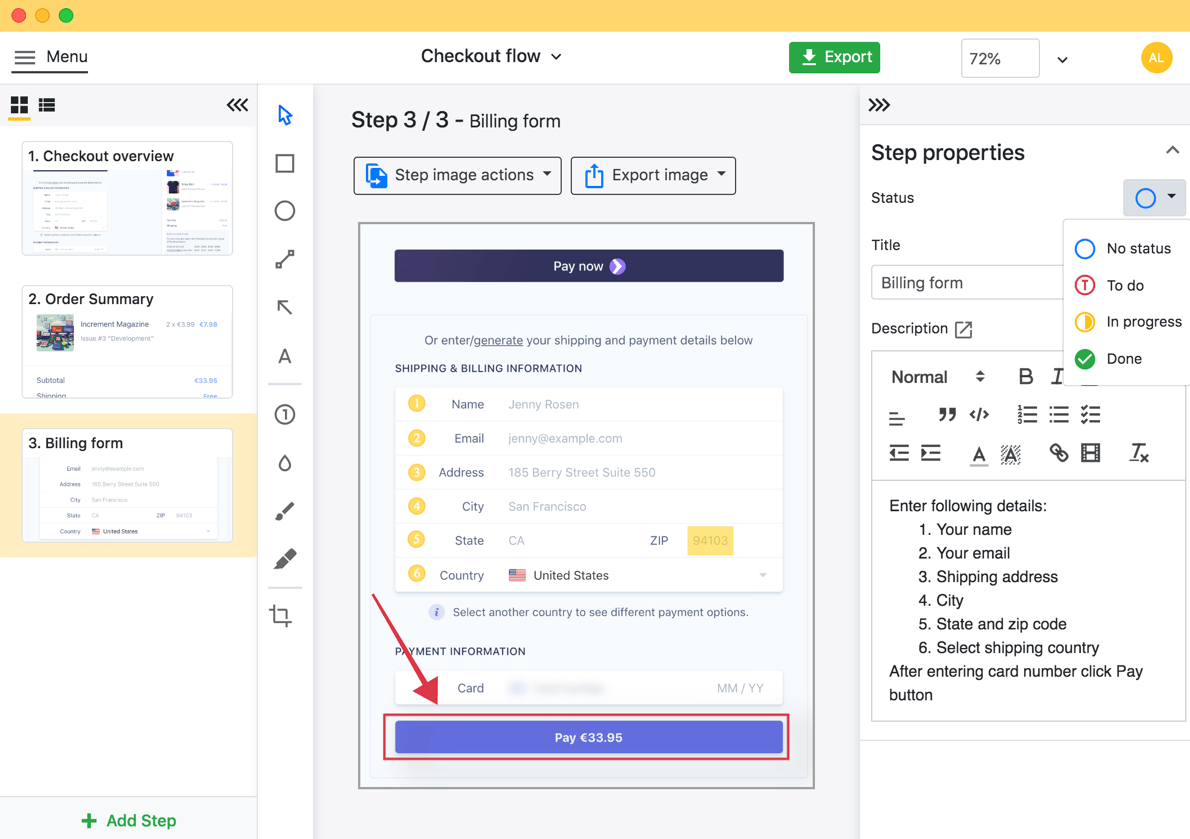
Folge takes a different approach to training documentation by focusing on screenshots rather than video captures. This desktop app is designed for creating step-by-step guides that transform workflows into polished training materials. Forget the hassle of recording lengthy videos - Folge makes it easy to document processes with clarity and precision.
With over 1,000 users and businesses relying on it daily, Folge has earned a 4.8/5 rating from 93 users. What makes it stand out? Its one-time licensing model. Unlike subscription-based tools, Folge offers a budget-friendly, long-term solution for creating professional guides.
Editing Features: Annotations, WYSIWYG Editor, and Nested Steps
The heart of Folge lies in its user-friendly editing tools, which make crafting training guides a breeze. You can capture screenshots with a single click, and the built-in WYSIWYG editor allows you to add annotations, blur sensitive details, and organize steps into a nested structure.
"Folge has a lot going for it! Made short work of importing a folder of screenshots and letting me organize into steps and substeps. Adding annotations and custom text blocks to each step is a cinch." – Peter D., Owner, Information Technology and Services
Recent updates have introduced handy features like an AI Helper, WordPress Export, and an enhanced Table of Contents, simplifying the guide creation process even further.
Export Options: Formats and Customization
Folge shines when it comes to exporting your work. It supports seven formats, including PDF, HTML, and Word. You can customize fonts, colors, layouts, and even CSS styling for HTML exports, ensuring your guides align with your brand. The embeddable HTML guides are especially useful for integrating training materials into websites or learning management systems.
"I like how simple and streamlined the process is to create pdf guides. The outputted PDF looks very professional and is very easy to customize too." – Charlie D., Design Engineer
Platform Compatibility and Pricing
Folge works seamlessly across Windows and Mac platforms, supporting Windows 7 through Windows 11 (64-bit only) and macOS versions 10.10 and higher. It also caters to international teams with support for multiple languages, including English, French, German, Dutch, Spanish, Portuguese, and Italian. Integration with popular tools like Microsoft SharePoint, Zendesk Suite, Confluence, and Help Scout adds to its versatility.
User reviews highlight its strengths, giving it a 4.7/5 for ease of use, 4.9/5 for value, and a perfect 5.0/5 for customer service. Security is another key feature - Folge operates entirely on your local machine, keeping sensitive content safe.
Pricing starts at $78 for a personal lifetime license and $134 for a business license, offering a cost-effective option for organizations looking to create high-quality training documentation without recurring fees.
Tool Comparison Chart
Picking the right screencasting tool is much simpler when you can compare options side by side. Below is a detailed chart highlighting essential features, pricing structures, and platform compatibility to help you choose the best tool for your training video needs.
| Tool | Platform Support | Editing Capabilities | Export Formats | Pricing | Best For |
|---|---|---|---|---|---|
| Camtasia | Windows, macOS | Advanced (multi-track) | MP4, GIF, M4A (Windows), MOV (Mac) | $299.99 one-time purchase | Professional video production with extensive editing needs |
| Loom | Web-based, Windows, macOS, iOS, Android | Basic | MP4, GIF | Free (25 videos, 5 min each); Business $12.50/month/user | Quick business communication and sharing |
| Screencast-O-Matic | Windows, macOS, Chromebook | Basic | MP4, AVI, FLV, GIF | Free (15 min recordings); Paid from $3/month | Beginners and budget-conscious users |
| Movavi Screen Recorder | Windows, macOS | Intermediate | MP4, AVI, MOV, MKV, WebM | $44.95/year; Lifetime available | Balanced features and competitive pricing |
| VSDC Video Editor | Windows | Advanced | MP4, AVI, MOV, WMV, FLV | Free version; Pro $19.99/year | Windows users needing advanced editing |
| Snagit | Windows, macOS | Basic | MP4, GIF, WMV | $62.99 one-time purchase | Screenshots and simple instructional content |
| OBS Studio | Windows, macOS, Linux | None (requires external editor) | MP4, FLV, MOV, MKV, TS | Free and open-source | Live streaming and professional recording |
| Bandicam | Windows | Basic | MP4, AVI | From $2.78/month | Game recording and high-performance capture |
| ActivePresenter | Windows, macOS | Advanced for learning | MP4, AVI, WMV, WebM, HTML5 | Free version; Pro $399 one-time | Interactive e-learning content |
| Folge | Windows, macOS | Screenshot-based with annotations | PDF, HTML, Word, PowerPoint | Personal $78; Business $134 (lifetime) | Step-by-step documentation and guides |
This table outlines the key features, but let's dive deeper into how these tools differ in pricing, ratings, compatibility, and capabilities.
Pricing and Value
Prices vary significantly, from free options like OBS Studio to premium one-time purchases such as Camtasia at $299.99. OBS Studio is ideal for those on a tight budget, though it requires separate editing software. On the other hand, Camtasia justifies its higher cost with professional-grade editing tools, making it a solid choice for serious creators.
For users seeking a middle ground, Movavi Screen Recorder offers a yearly plan for $44.95 or a lifetime license, providing a mix of affordability and functionality. Meanwhile, Folge focuses on documentation rather than video, with lifetime pricing starting at $78, making it a practical option for creating detailed guides.
User Ratings and Reviews
User feedback helps validate these tools. Loom, for example, boasts a 4.7/5 rating from over 1,800 G2 reviews and 400+ Capterra reviews, reflecting its popularity for quick and easy video sharing. Similarly, Camtasia holds a strong 4.6/5 rating from more than 1,200 G2 reviews and 300+ Capterra reviews, underlining its reliability for professional use.
Platform Compatibility
Most tools support both Windows and macOS, but some stand out for broader compatibility. OBS Studio extends its reach to Linux users, while Loom, being web-based, ensures accessibility across devices, including iOS and Android.
Editing and Export Features
For advanced editing, tools like Camtasia and ActivePresenter provide multi-track editing and a variety of export formats, making them ideal for complex projects. Simpler tools like Screencast-O-Matic, Snagit, and Loom focus on ease of use, catering to those who need quick, straightforward solutions.
Export format flexibility is another critical factor. Most tools support MP4, a standard format for sharing across platforms. However, tools like Movavi Screen Recorder and ActivePresenter go further, offering options like AVI, MOV, and HTML5, which can be useful for specific needs.
Specialized Tools
Folge deserves a special mention for its unique focus on screenshot-based documentation. Instead of competing in the video recording space, it excels at turning screenshots into polished training materials. With a 4.8/5 rating from 93 reviews and lifetime licensing options, it's a standout choice for organizations prioritizing written guides.
Whether you're looking for simplicity, advanced features, or specialized tools, this comparison highlights options for every need and budget.
Final Thoughts
Choosing the right screencasting tool boils down to understanding your specific needs, budget, and level of technical expertise. Since 83% of people prefer learning through video content, selecting the right tool can make a huge difference in how effective your training program turns out. Here's a breakdown of some top picks for different users:
For beginners, Loom is a standout choice. With a 4.7/5 rating from over 1,800 G2 reviews, it's praised for being incredibly user-friendly. Its free plan allows you to record up to 25 videos, each up to five minutes long, making it perfect for those wanting to experiment without spending money. If you need longer recording times, there are other free options worth exploring.
If you're budget-conscious, you don't have to sacrifice quality. OBS Studio is a fantastic free option, offering professional-grade recording capabilities. It holds a 4.7/5 rating from more than 1,000 Capterra reviews. While it takes a bit of effort to set up, the results are worth it. Plus, there are other free alternatives available that don't impose watermarks or time limits.
For professionals looking for advanced features, Camtasia is a top-tier choice. Priced at $299, it's a solid investment for those creating polished training videos. Its 4.6/5 rating from over 1,200 G2 reviews reflects its robust editing tools and ease of use, even for users without extensive technical skills.
If your focus is on documentation, Folge is worth considering. This tool specializes in creating detailed, screenshot-based guides and is a great companion for video content. With lifetime licensing starting at $78, it's an affordable way to produce step-by-step training materials.
Before making your final decision, take advantage of free trials to see how each tool fits into your workflow. The screencasting world is evolving, with many tools now offering cloud-based solutions and integrations with productivity apps. Whether you go for a free option like OBS Studio or invest in a premium tool like Camtasia, the key is to ensure the tool aligns with your training goals and video requirements.
FAQs
What should I look for in a screencasting tool for creating training videos?
When choosing a screencasting tool for training videos, prioritize user-friendliness, compatibility with your operating system, and must-have features such as editing tools, annotation capabilities, and sharing options. It's also important to ensure the tool supports high-quality video recording, offers multiple format options, and provides customizable export settings to match your needs.
Don't forget to check if the tool fits your budget by comparing free and paid plans. Additionally, look into whether it offers secure storage for your recordings. Keeping these factors in mind will help you select a tool that meets your technical needs and allows you to produce polished, professional training videos.
Why are editing features important for creating effective training videos?
Editing features are essential for crafting training videos that are clear, engaging, and easy to follow. With tools that provide smooth transitions, sharp visuals, and well-timed pacing, viewers can grasp and retain information more effectively.
Good editing also ensures key points stand out, distractions are minimized, and interest is maintained throughout the video. The right tools can transform your training videos into polished, professional, and highly effective learning materials.
What are the benefits of using Camtasia for creating high-quality training videos?
Camtasia stands out as a go-to tool for creating professional training videos, offering features that simplify the process for users at any skill level. Its user-friendly interface and drag-and-drop editing make it accessible, even for those new to video production. You can easily add transitions, effects, and annotations to make your content more engaging and visually appealing.
Another standout feature is its robust screen recording capabilities. You can record your screen, webcam, and audio all at once, making it a breeze to create dynamic, multi-layered videos that keep viewers engaged. On top of that, Camtasia ensures top-notch video quality and allows for quick sharing to platforms like YouTube and Vimeo, streamlining the distribution of your polished training materials.
Get started with Folge today for free.