# Apply styles across steps
When working with annotations like tooltips, arrows, or shapes, you often want a consistent look across all steps in your guide. Folge lets you apply style changes from one annotation to all matching annotations across your guide in one click.
# How it works
- Select an annotation on any step (e.g., a tooltip)
- Change its style in the Object Properties panel (color, border, font, etc.)
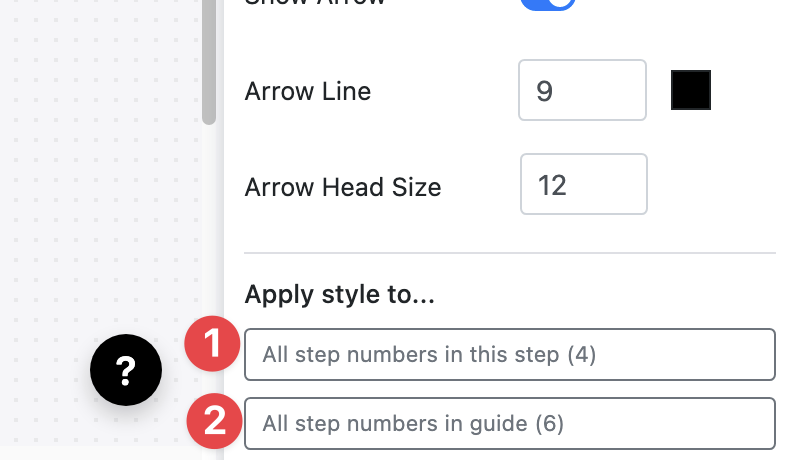
- At the bottom of the Object Properties panel, you'll see an Apply button showing how many matching annotations exist across your guide
# Apply to current step
Click Apply to current step to update all annotations of the same type on the current step to match the selected annotation's style.
# Apply to all steps
Click Apply to N steps to update all annotations of the same type across every step in the guide. The button shows the exact number of steps that contain matching annotations.
TIP
This works for all annotation types - tooltips, arrows, rectangles, text, blur areas, and spotlights. Folge matches by annotation type, so applying a tooltip style will only affect other tooltips, not arrows or rectangles.
# What gets applied
The bulk apply copies all visual properties of the selected annotation:
- Fill color and opacity
- Border color, width, and style
- Font settings (size, family, color)
- Corner radius
- Tail color and width (for tooltips)