# AI Step Descriptions
Folge can write a step's description for you from its screenshot and the surrounding context, so you don't have to type out what each step does. You can do this one step at a time, or fill an entire guide at once.
Like the rest of Folge's AI, this uses a BYOK (Bring Your Own Key) model: Folge talks directly to the AI provider you configure with your own API key, and nothing is sent anywhere until you ask it to. See AI Helper for how to set up a provider and key.
Requires a vision-capable model
Writing descriptions from a screenshot needs a model that can read images (a "vision" model), for example gpt-4o, claude-3.5-sonnet, or a vision model on OpenRouter. A text-only model will not work - Folge will tell you if the selected model can't read images.
You don't have to use the vision model for everything: tick Use a different model for AI Guide Writer in AI Settings and set it there, and it will be used only for step descriptions, while the cheaper Model keeps handling the text writing actions. See AI Guide Writer Model.
# Describe a single step
Open a step and find the Write description (AI) 🪄 button in the Step Description editor's toolbar.
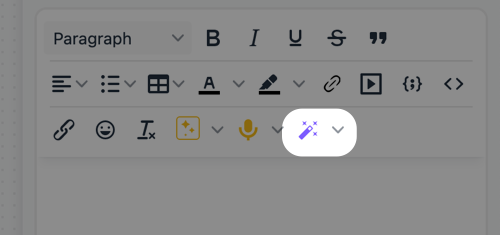
Click it, and Folge sends the step's image (just as you see it in the editor, with the click highlighted) along with its title and the steps around it to your AI provider, then writes the result straight into the description field. If the step already has a description, it is replaced.
If a step's title is still blank or a generic placeholder like "Click here", Folge may also fill in a proper title for it while it's at it. Titles you've written yourself, or ones already parsed from the clicked element, are never changed.
The first time you use it, Folge asks for confirmation that the screenshot will be sent to your provider. This is remembered afterwards.
# Fill descriptions for the whole guide
To describe every step at once, click the AI 🪄 button in the top toolbar of the guide editor.
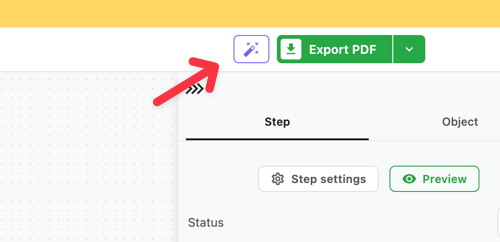
A dialog opens where you choose what to generate and review the cost before anything runs.
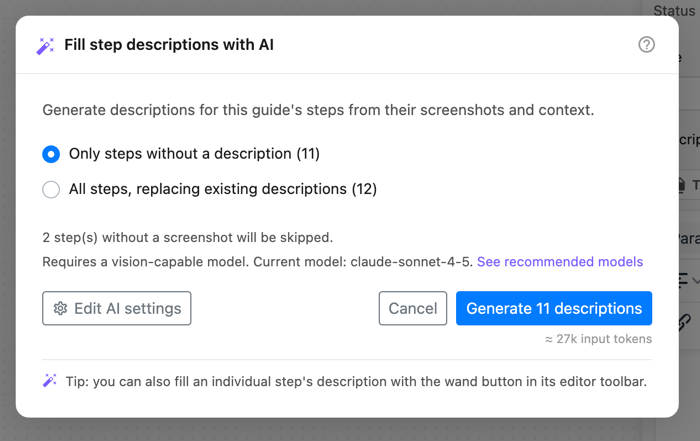
You can choose to:
- Only steps without a description - fills the blanks, leaves your existing text untouched.
- All steps, replacing existing descriptions - regenerates every step.
Press Generate to start. A progress bar shows the progress, and you can Stop at any time. If your model can't read images, Folge stops right away and lets you know.
# What the AI sees
To write a good description, Folge shows the AI the same picture you see for that step - the screenshot with the click highlighted - plus the step's title and the titles of the steps around it. That's usually all it needs to understand what's happening.
# Your data stays yours
- Your own AI, your own account. Descriptions are written by the AI provider you connect, using your key. Folge never sends anything on its own.
- What you see is what's shared. Folge sends the step image as it looks in the editor. If you've blurred something, it stays blurred - hidden details are never shared.
- Only when you ask. Nothing is sent while you record or edit, only when you press the button.
# Tips
- Always give your guide a proper title and description. This helps the AI a lot in understanding what you want to achieve.
- Capture your guide with Automated Annotations enabled so Folge records what element you clicked. This gives the AI richer context and produces better descriptions. See Automated Annotations.
- By default, descriptions are written in your Guide language (the same setting that controls step titles, see Automated annotations). Want a different language, or a specific tone? Use the Custom Instructions field in AI Settings - for example
Always use Ukrainian language- which overrides the default. See Custom Instructions. - Re-running "Only steps without a description" after adding new steps is cheap, since it skips steps you've already described.
← AI✨ AI Voice Input 🎙 →