Blur Text, Faces & Sensitive Info in Images
Draw boxes by hand or auto-detect secrets and faces - then blur, pixelate or black them out. Free and private in your browser; your image is never uploaded.
🔒 100% client-side - your image never leaves your browser · No watermark · Free forever
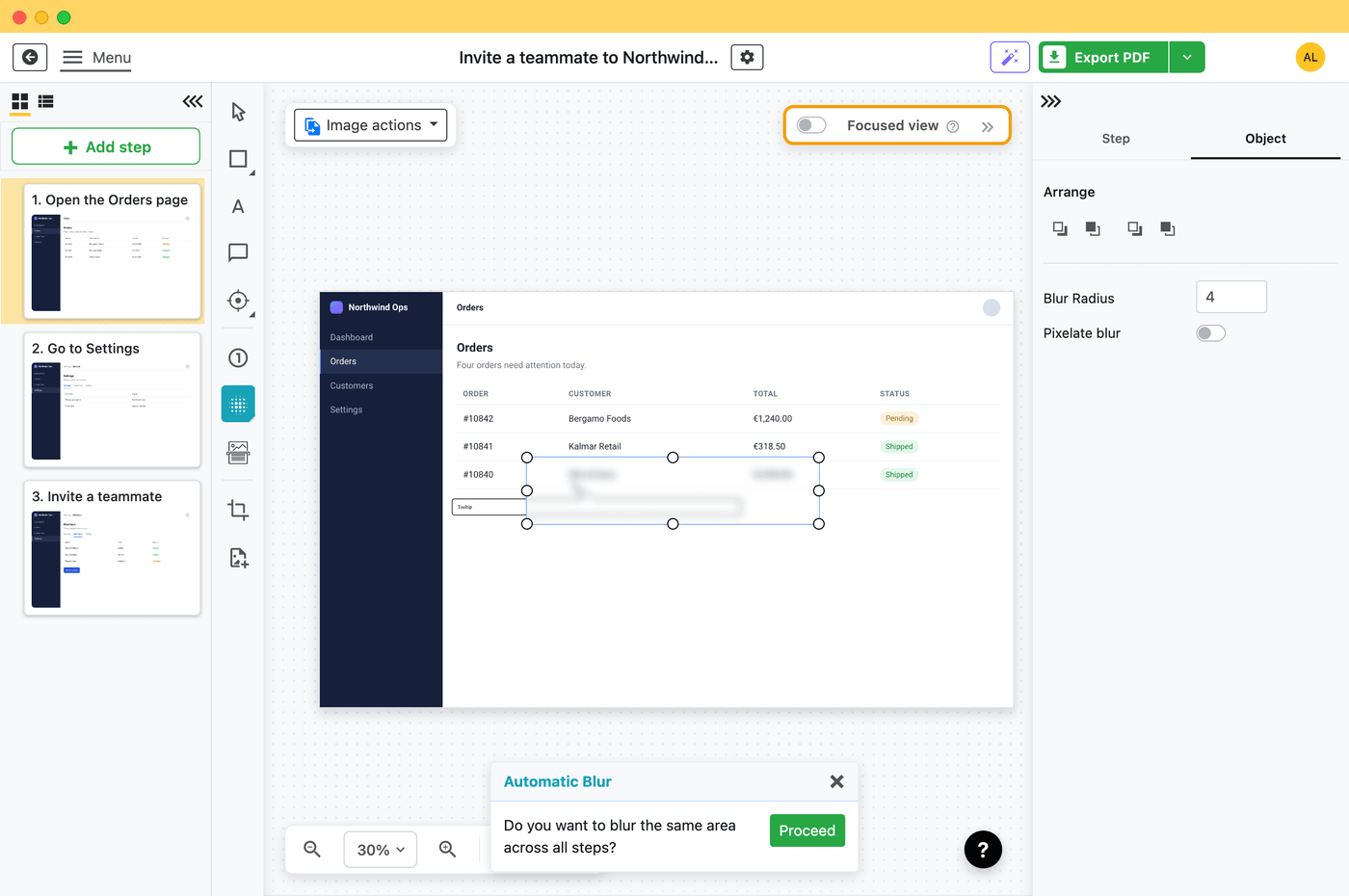
Blurring screenshots for documentation?
Folge - the step-by-step guide maker for Mac & Windows - captures a screenshot on every click and has one-click blur built right into the guide editor. Document a whole process, redact sensitive data, and export to PDF, Word, or HTML.
Try Folge free →Blur text in a screenshot before you share it
Sharing a screenshot in Slack, an email, a bug report, or on social media often means part of it - an email address, an API key, a customer name, a bank balance - shouldn't be public. Drop the image here, drag over what needs hiding, and download a clean copy. Nothing is uploaded, so even confidential screenshots are safe to redact this way.
Redact customer data in documentation
When you build SOPs, training guides, or help articles from real screenshots, you frequently need to hide personal data before publishing. Blur it here first, then drop the clean image into your guide. Starting from a screen recording instead? The free video to step-by-step guide tool extracts a screenshot per step first. If you create a lot of documentation, screenshots with sensitive areas blurred keep your guides usable without exposing private information.
Blur faces in photos - automatically
Posting a photo online? Click Auto-detect → Faces and the tool finds every face and covers it with a pixelated box, so you can share pictures without exposing people who didn't consent. You can also draw a box by hand to hide a licence plate, a house number, or a name badge. Downloaded images are re-rendered from pixels, so location and camera metadata (EXIF) are stripped automatically too.
Everything this free blur tool does
- Three redaction styles - soft blur, pixelate, or a solid black box, with adjustable strength.
- Editable boxes - move, resize, or delete any box; nothing is baked in until you download, so you can fine-tune every redaction.
- Auto-detect sensitive text - finds emails, API keys, credit-card numbers, SSNs and IP addresses for you.
- Automatic face detection - blurs faces in one click.
- 100% private - everything runs in your browser; your image is never uploaded, and EXIF/location metadata is stripped on export.
- Free & unlimited - no signup, no watermark, PNG and JPEG in and out.
How to blur an image
- Drop, paste, or choose an image - it loads instantly, right in your browser.
- Drag over the areas you want to hide, or hit Auto-detect to find sensitive text and faces for you. Pick Blur, Pixelate, or Black box, and adjust the strength. Each box can be moved, resized or deleted.
- Click Download image. Done - nothing was ever uploaded.
Auto-detect sensitive information
Click Auto-detect → Sensitive text and the tool reads the text in your image and boxes anything that looks like a secret - email addresses, API keys, credit-card numbers, SSNs and IP addresses. Faces finds and covers faces in photos. Detected areas appear as normal boxes you can adjust or remove, so you stay in control. The detection engine downloads once on first use and then runs entirely on your device - your image is never uploaded. It catches structured secrets and faces well; always give the result a quick review before sharing.
Frequently asked questions
Is the image uploaded to a server?
No. Blurring happens in your browser using the HTML canvas, and your image never leaves your device. Auto-detect downloads its detection engine from a CDN the first time you use it, but even then the image itself is processed locally and never uploaded.
How do I automatically blur sensitive information in a screenshot?
Load your screenshot and click Auto-detect → Sensitive text. The tool reads the image and automatically places blur boxes over emails, API keys, credit-card numbers, SSNs and IP addresses. Each box is editable, so you can adjust or remove any before downloading.
Can it blur faces in a photo?
Yes. Click Auto-detect → Faces and every detected face is covered with a pixelated box. It runs entirely in your browser, so the photo is never uploaded.
Can blurred text be recovered?
Light blur on large text can sometimes be partially reconstructed. For truly sensitive data, use the Pixelate mode at high strength or the Black box mode, which are irreversible.
Does it remove metadata (EXIF, location)?
Yes. The downloaded image is re-rendered from pixels, which strips EXIF data - including GPS location - automatically.
Is it really free? Is there a watermark?
It's free, with no watermark, no signup, and no limits. It's a free tool by the makers of Folge, a step-by-step guide creator for Mac and Windows.
What image formats are supported?
PNG, JPEG, WebP, BMP and single-frame GIF go in; PNG or JPEG come out.