Export to PDF
Turn a guide into a PDF anyone can open, with a cover page, page numbers and your screenshots at a sensible size.
Choose PDF
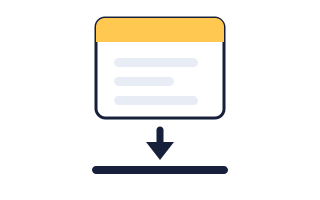
- Open the guide and click Export PDF in the header.
- Under Documents, click PDF.The settings screen opens on the Document tab.
If PDF is not the right answer, the other fourteen formats are here, and you can see a sample of each before you commit.
Find Your Way Around the Tabs
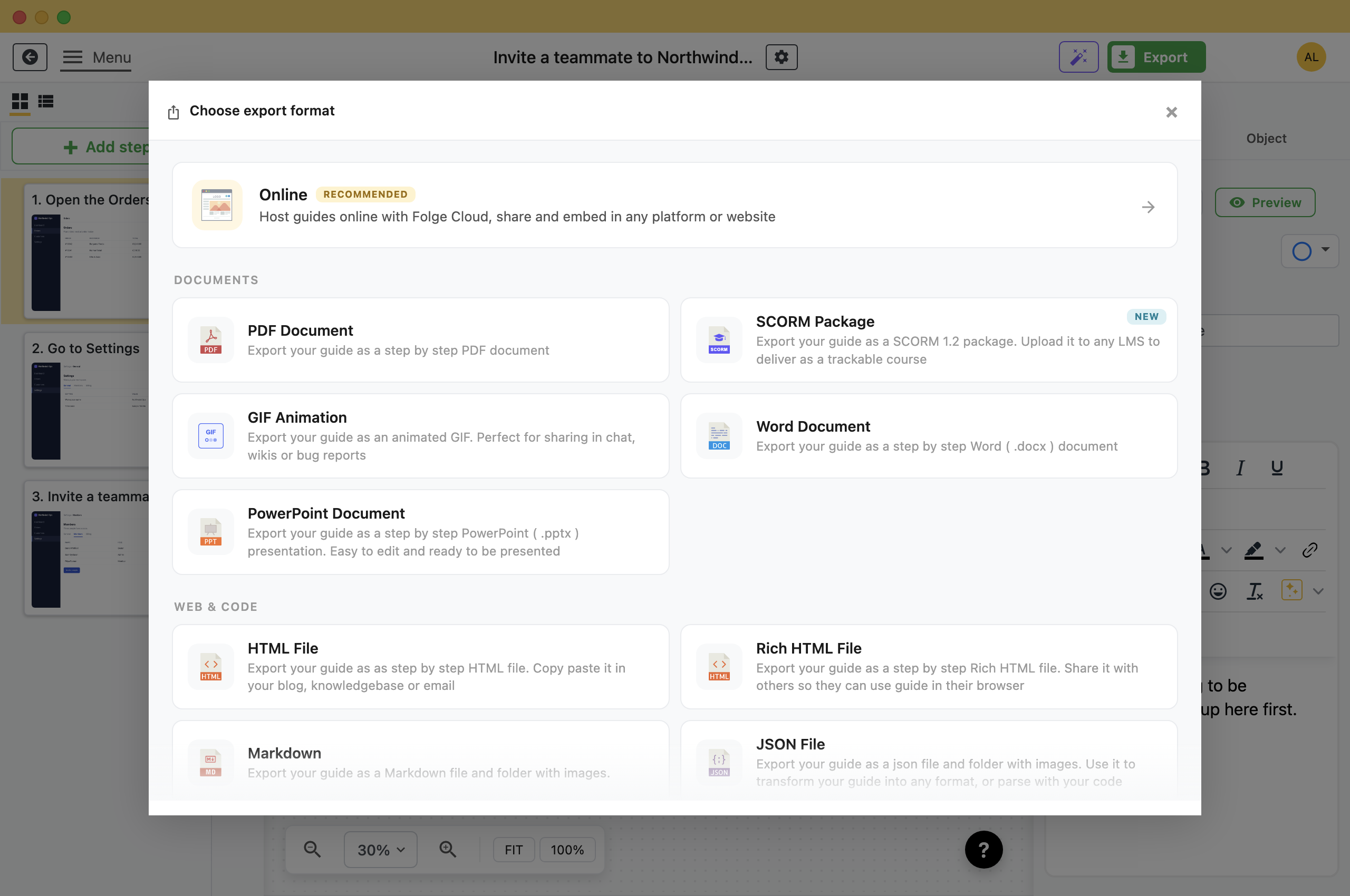
You can click Export PDF Document now and get a perfectly good file. Everything below is for when you want it to look a particular way.
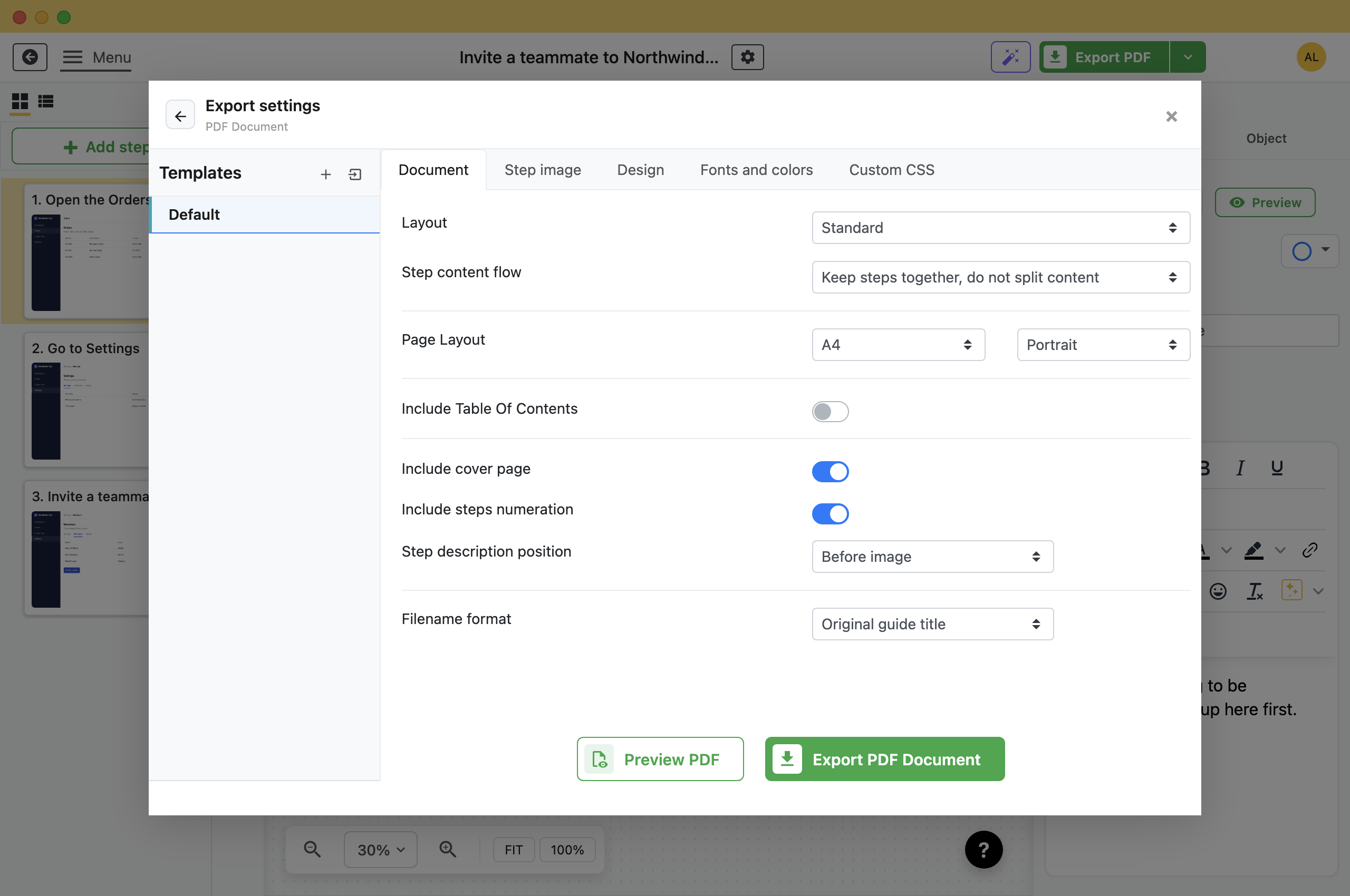
- Document: Page size, orientation, table of contents, cover page and step numbering.
- Step image: How big the screenshots are and how much quality you trade for file size.
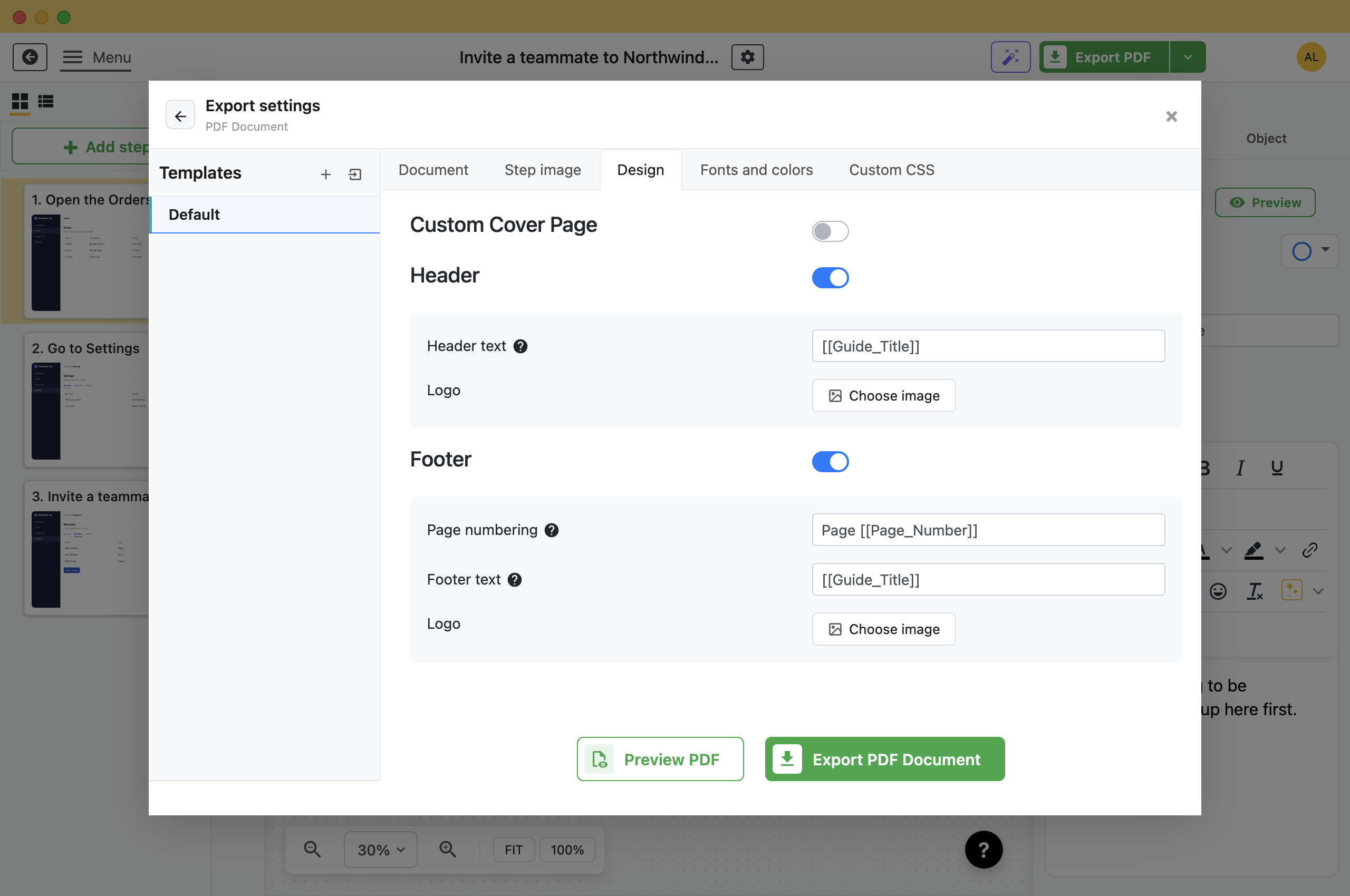
- Design: Header, footer, page numbering, and your logo on both.
- Fonts and colors: Typeface and colours for titles, descriptions and the cover page.
- Custom CSS: Write your own CSS for styling the other tabs do not cover.
Set Up the Document
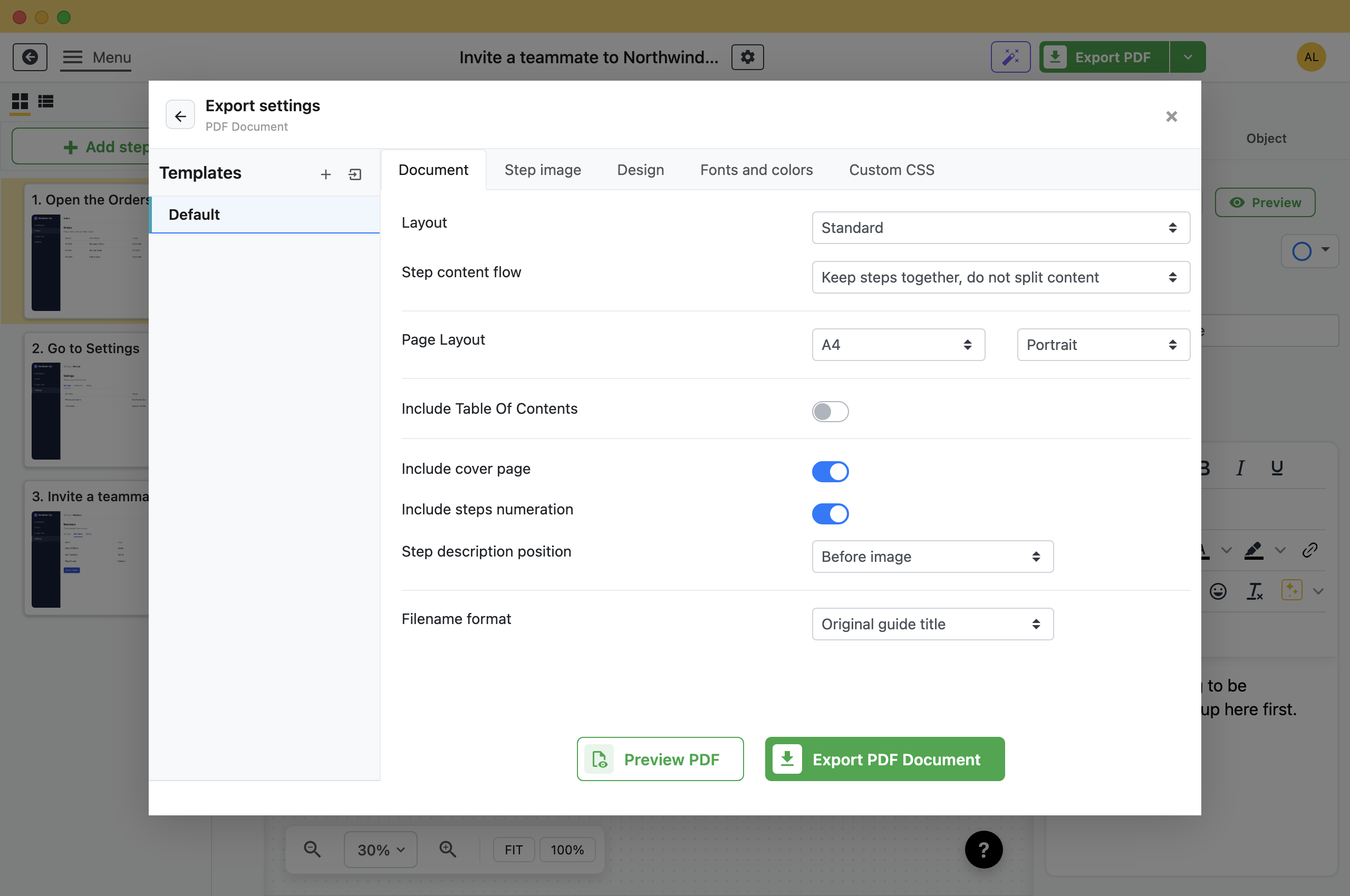
The settings on the first tab, and what each one changes.
- Layout: Standard puts each step under its heading, down the page. Two-column puts the screenshot beside the text instead, which fits more steps on a page. Two-column is still in beta.
- Step content flow: Whether a step may be split across a page break. One step per page suits printed training material. Keep steps together, do not split content suits most guides. Fit as much content per page as possible uses the fewest pages.
- Page Layout: A4 or Letter, portrait or landscape. Try landscape if your screenshots are wide, so they are shrunk less.
- Include Table Of Contents: Adds a contents page. Turn it on for long guides; short ones do not need it.
- Include cover page: The guide title, description and date on a page of their own.
Decide How Big the Screenshots Are
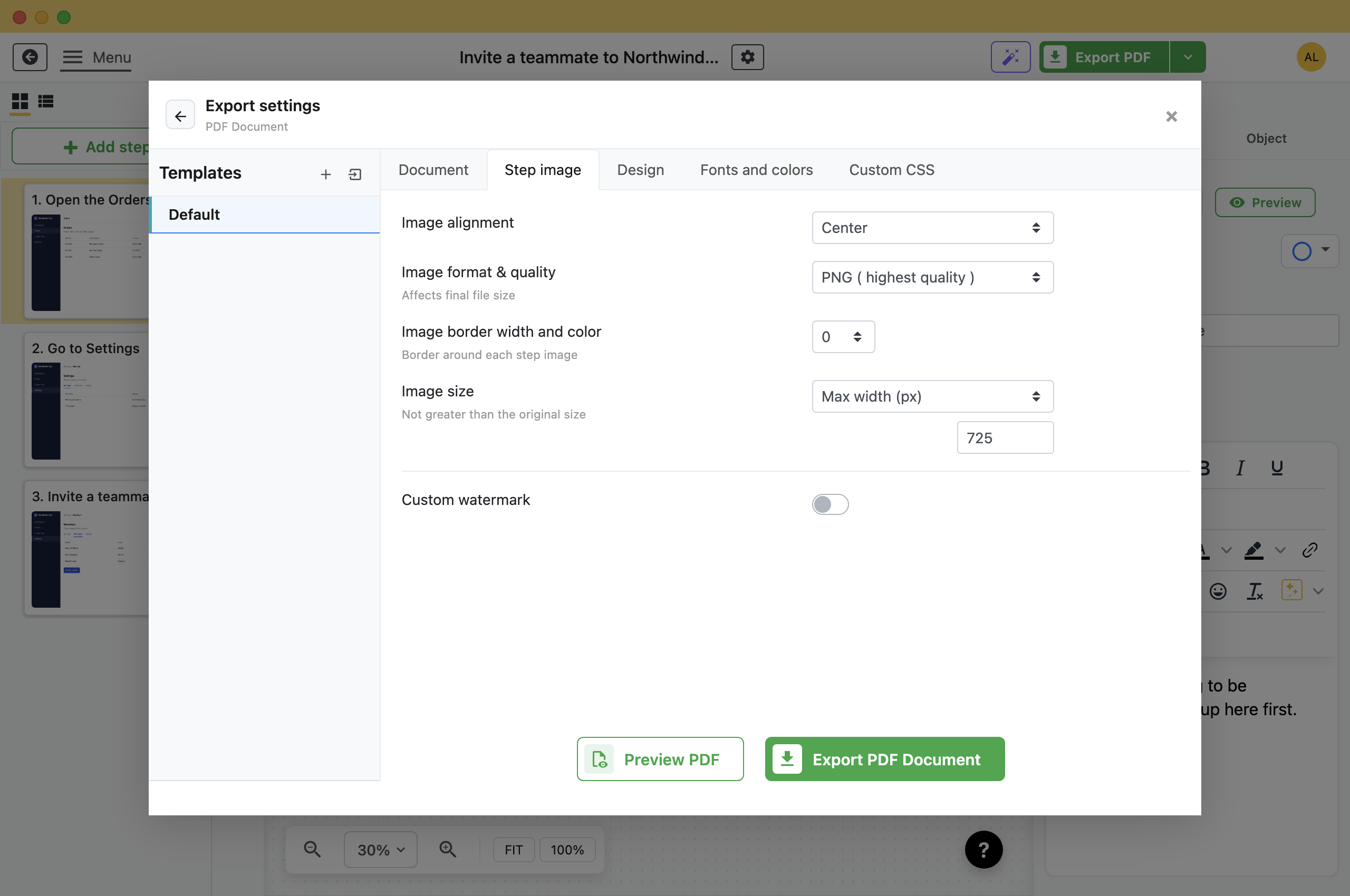
The Step image tab decides how readable the screenshots are and how big the file gets. Two settings do most of the work.
- Image format & quality: PNG keeps text in the screenshots crisp and makes a large file. The JPG options make a much smaller one, at the cost of softening fine text. For UI screenshots full of small labels, stay on PNG unless the file has to go by email.
- Image size: Cap the width in pixels, or scale by percent. Folge never enlarges a screenshot past its original size.
Image alignment and Image border are cosmetic. A one pixel border helps when a screenshot has a white background and blends into the page.
Add a Header, a Footer and Your Logo
The Design tab handles everything that repeats on every page. Header and footer are on by default. Both accept placeholders, which Folge replaces with real values when it exports.
- [[Guide_Title]]: The title of the guide.
- [[Page_Number]]: The page number, for footer numbering.
- [[Date]]: The date the file was exported.
Add your logo to the header, the footer or both. To design your own cover, switch on Custom Cover Page and click Open Cover Page Editor.
Preview, Then Export
- Click Preview PDF.Folge shows the first few steps of the PDF.
- Fix anything that looks wrong, then preview again.
- Click Export PDF Document and choose where to save.Folge writes the file and opens the folder it saved to.
To preview more steps, raise Preview Steps in Settings → Application.
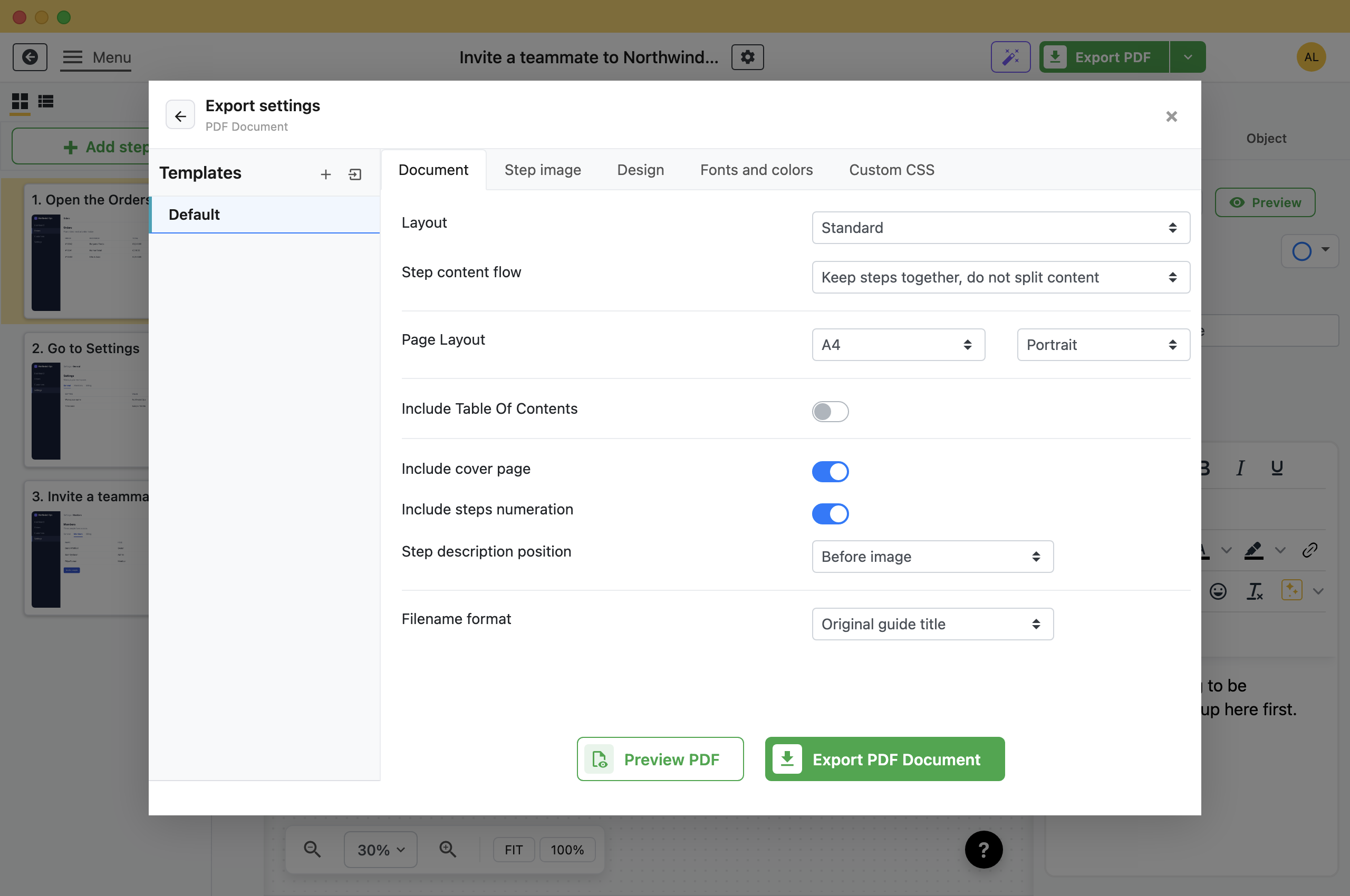
- 1 Preview PDF Shows the first few steps so you can check the layout.
- 2 Export PDF Document Saves the file and opens the folder it is in.
Save the Settings as a Template
Once the document looks right, save the settings as a template from the Templates column. The next guide exports with the same cover page, fonts, header and image sizes.
What this is good for
- Send a process to someone who will not install anything.
- Print a checklist for a desk or a training room.
- Attach a guide to a ticket, a contract or an audit.
Make guides like this one
Folge takes a screenshot on every click, so you make a guide by doing the task once.