Video to Step-by-Step Guide
Upload a screen recording and get a numbered guide with a screenshot for every step, automatically. Free, and your video never leaves your browser.
Analysis settings
🔒 100% private: your recording is analyzed entirely in your browser, nothing is ever uploaded
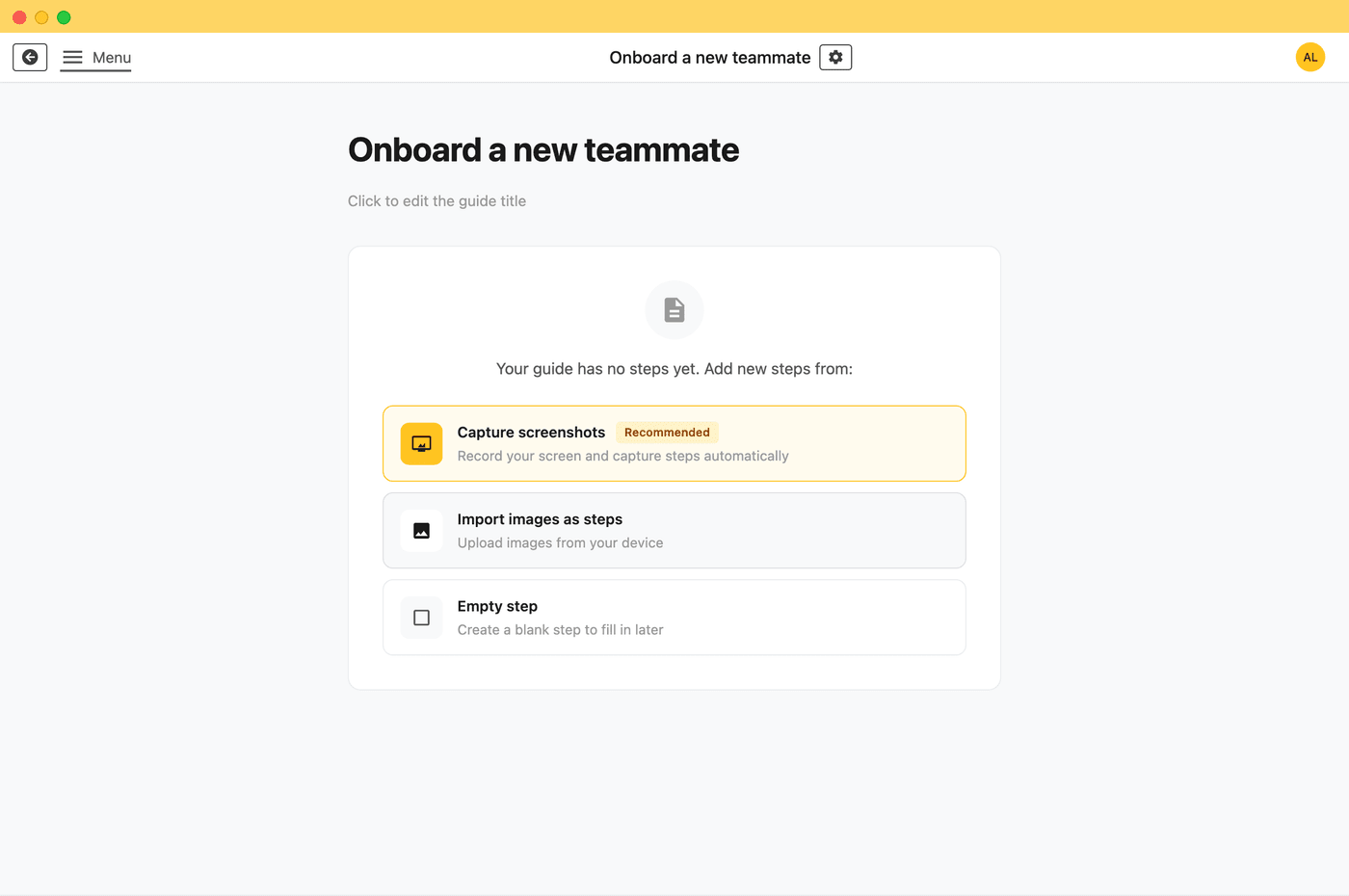
Skip the recording: Folge builds the guide while you click
Folge, the step-by-step guide maker for Mac and Windows, captures a screenshot on every click as you work, no recording and no scene-detection guesswork needed. Document a process live and export to PDF, Word, HTML and more.
Try Folge free →Turn a screen recording into a written guide
You already have the screen recording, now you need a written guide with a screenshot for every step. Doing that by hand means scrubbing back and forth, pausing, taking a screenshot, cropping it, and repeating that dozens of times. This tool automates the tedious part: upload a screen recording and it watches for the moments where the screen actually changes, such as a click that opens a menu, a page navigation, or a new dialog appearing, and turns each of those moments into a numbered step with its own screenshot. From there you fill in short titles and instructions, reorder or delete steps, and export a finished guide as HTML, Markdown with a ZIP of images, or a printable PDF, all without the video or a single frame ever leaving your device.
This is the same problem Folge, our desktop app, solves live: instead of recording a video and processing it afterward, Folge watches your clicks as you work and builds the step-by-step guide in real time, with clean screenshots, automatic click highlights, and no scene-detection guesswork needed because it knows exactly when you interacted with something. If you already have a recording sitting on your disk, this free browser tool turns it into a guide right now. If you are about to record a new walkthrough, Folge can build the guide as you go instead.
How it works
The tool samples your video at a fixed interval (every 0.25, 0.5, or 1 second) and draws each sample onto a tiny, downscaled grayscale canvas for comparison. When a sampled frame differs enough from the last frame it kept, based on the sensitivity you choose, it captures a full-resolution screenshot at that timestamp and adds it as a new step. A short cooldown after each capture prevents a single transition, like a panel sliding open, from being chopped up into multiple near-identical steps. Because only the comparison happens on a tiny canvas and full-size images are only generated for frames that actually get kept as steps, the analysis stays reasonably fast even on longer recordings.
How to use Video to Step-by-Step Guide
- Drag in your screen recording, or click to select it from your device.
- Check the duration and resolution shown, then adjust the analysis settings: sensitivity, sample interval, maximum steps, and whether to ignore tiny changes like cursor movement.
- Click "Analyze video" and let the tool scan through the recording; you can cancel at any point if it is taking longer than expected.
- Review the generated steps, edit each title and description, reorder or delete steps, and use "Recapture at" to fine-tune a screenshot's timestamp.
- Scrub the video preview and use "Add step at current time" for any moment the automatic detection missed.
- Export your guide as a self-contained HTML file, a Markdown-plus-images ZIP, or print it straight to PDF.
Tips for a recording that converts well
- Keep recordings under 10 minutes when possible: shorter videos analyze faster and are easier to review.
- Pause briefly on each screen after an action, a half-second of stillness gives the detector a clean frame to compare against.
- Avoid constant on-screen motion such as auto-playing animations or video previews, since those can register as scene changes even with the tiny-change filter on.
- Record at a reasonable resolution: very large 4K captures take longer to sample and rarely improve step clarity in a written guide.
- If the tool creates too many steps, lower the sensitivity or increase the sample interval. If it misses steps, raise the sensitivity or switch to the 0.25s interval.
- Got sensitive info on screen? Run your exported screenshots through blur screenshot to blur sensitive details before publishing.
Everything this free tool does
- Automatic scene detection: samples your video and captures a screenshot every time the screen meaningfully changes.
- Adjustable sensitivity, sample rate and step cap: tune how many steps you get without re-recording anything.
- Editable steps: titles, descriptions, reordering, deleting, and manual "add step" or "recapture at" controls so automatic detection never has the final say.
- Three export formats: a self-contained HTML file, a Markdown file plus a ZIP of numbered images, or a direct print to PDF.
- 100% private: everything runs in your browser, your recording is never uploaded.
- Free & unlimited: no signup, no watermark, no step limit beyond what you set.
Prefer to start from a template instead of a recording? Check out our SOP templates or the AI SOP generator, or read how to create your first guide for more on structuring a walkthrough people can actually follow.
Frequently asked questions
Does this tool upload my screen recording anywhere?
No. The video never leaves your device. It is loaded into your browser as a local object URL, and every frame comparison, screenshot capture, and export happens with JavaScript running on your own machine.
How does the tool decide where a new step starts?
It samples the video at a regular interval, draws each sample onto a tiny 64x36 grayscale canvas, and compares it with the last frame it kept. When the average pixel difference passes your sensitivity threshold (and, if enabled, at least about 1.5% of the frame has actually changed), it captures that moment as a new step. A short cooldown after each capture stops one transition, such as a menu sliding in, from being split into several steps.
My recording has a lot of mouse movement. Will that create extra steps?
Turn on "Ignore tiny changes such as cursor blinks" (on by default). It requires a meaningful share of the frame to change before a new step is registered, so a moving cursor, a blinking caret, or a subtle hover effect will not trigger a step on its own.
What if the tool misses a step or adds one I do not need?
Use the video scrubber and "Add step at current time" to capture any moment the detector skipped, and delete any step you do not want. Each step also has a "Recapture at" field so you can nudge its screenshot to a slightly different timestamp without starting over.
What can I export the guide as?
Three options: a single self-contained HTML file with the images embedded and print-friendly styling, a ZIP containing a steps.md file plus a numbered images folder, or plain Markdown with image placeholders copied to your clipboard. There is also a "Print / Save as PDF" button that opens the HTML version and triggers your browser's print dialog.
Is there a limit on video length or file size?
You can upload files up to 500MB, but recordings under 10 minutes analyze the fastest since everything runs on your CPU in the browser tab. Longer or very high-resolution recordings will still work, they will just take longer to step through and may use more memory.