Quick Guides: Paste a Few Steps into an Email or Chat
Writing a full guide is too much when you only need to show a few clicks. A quick guide turns your screenshots into one picture you can paste into an email or a chat. No guide to set up and no export screen.
Capture Steps
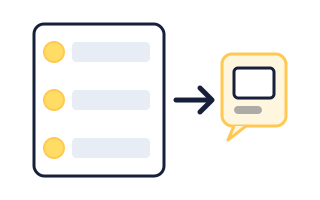
- Press Cmd+Shift+2 on a Mac or Ctrl+Shift+2 on Windows, from any app, while Folge is running.
- Drag over the part of the screen you want to show. That selection becomes step one.
- Press the shortcut again for the next step. Each capture is added to the same quick guide.
Press Esc to cancel a selection. You can also start from the Folge tray icon with New Quick Guide. After the first capture a small card in the corner of the screen shows your latest step and how many you have taken.
Tidy Up and Annotate
Click Edit on the card to open the review window. Every step gets a number.
- Captions: Type a short line next to each step.
- Order: Drag steps up or down.
- Delete: Remove a step. Undo brings it back.
- Annotate: Click a step picture for arrows, rectangles, ellipses, lines, blur or pixelate, callouts, text and a spotlight.
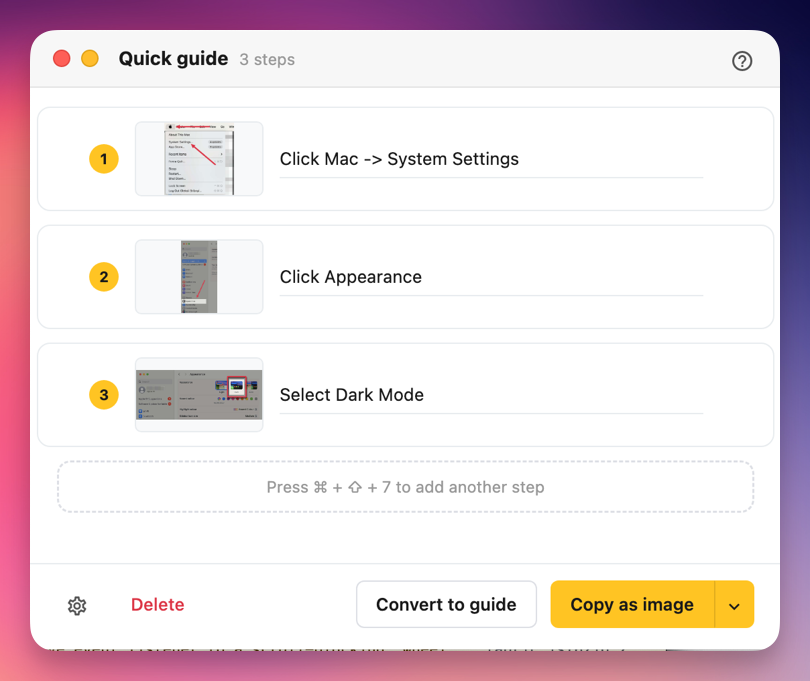
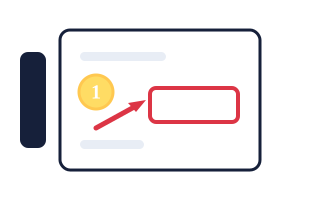
- 1 Caption What the reader should do in this step.
- 2 Copy as image Copies the whole quick guide as one picture. The arrow beside it has the other formats.
Paste It Anywhere
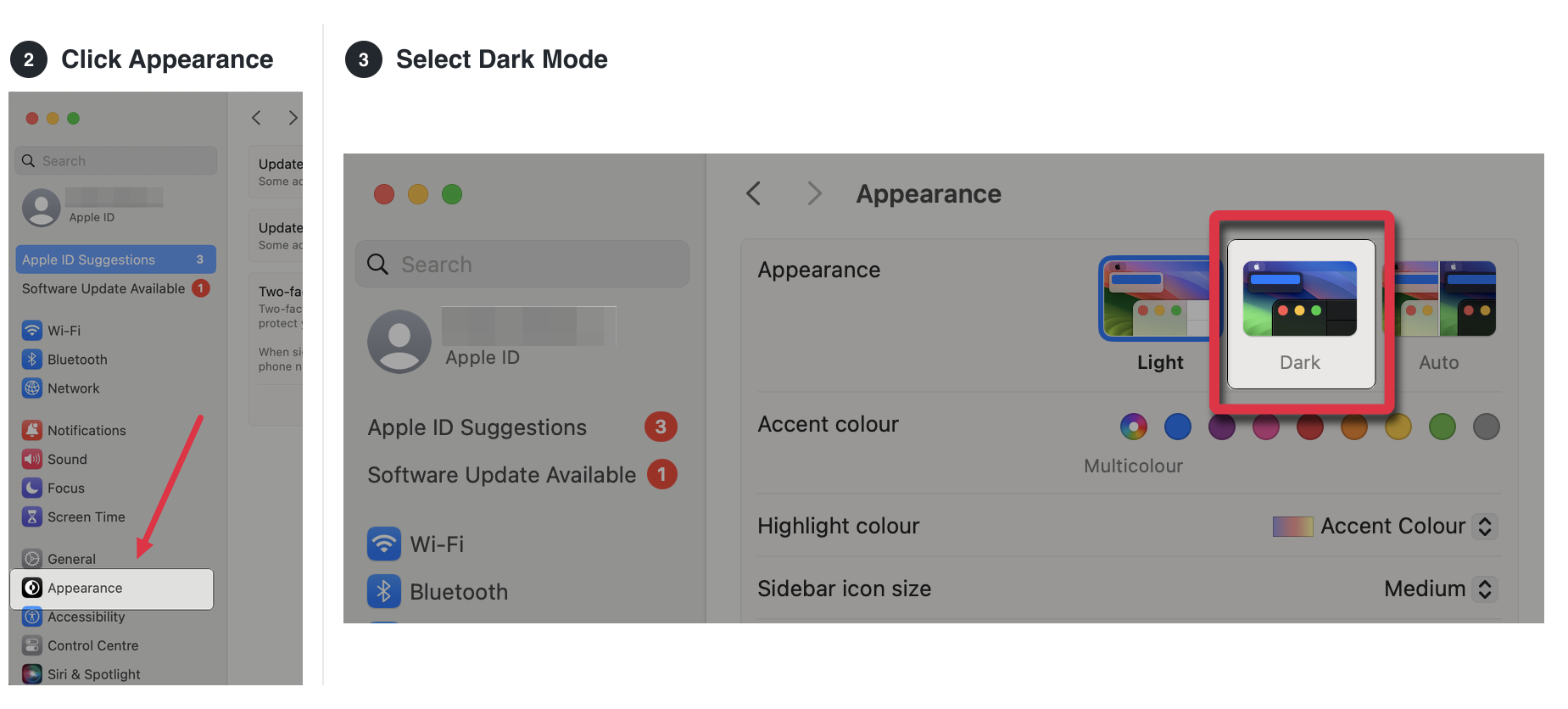
The main button copies a single image you can paste straight into Gmail, Slack, Teams or a document. The arrow next to it picks a different shape:
- Copy as image: Steps stacked top to bottom. Best for email.
- Copy wide image: Steps side by side, like the picture below. Best for chat.
- Copy as HTML: Text and pictures, for editors that accept rich content.
- Save as PNG and Save wide as PNG: The same two images, as files.
Come Back to One Later
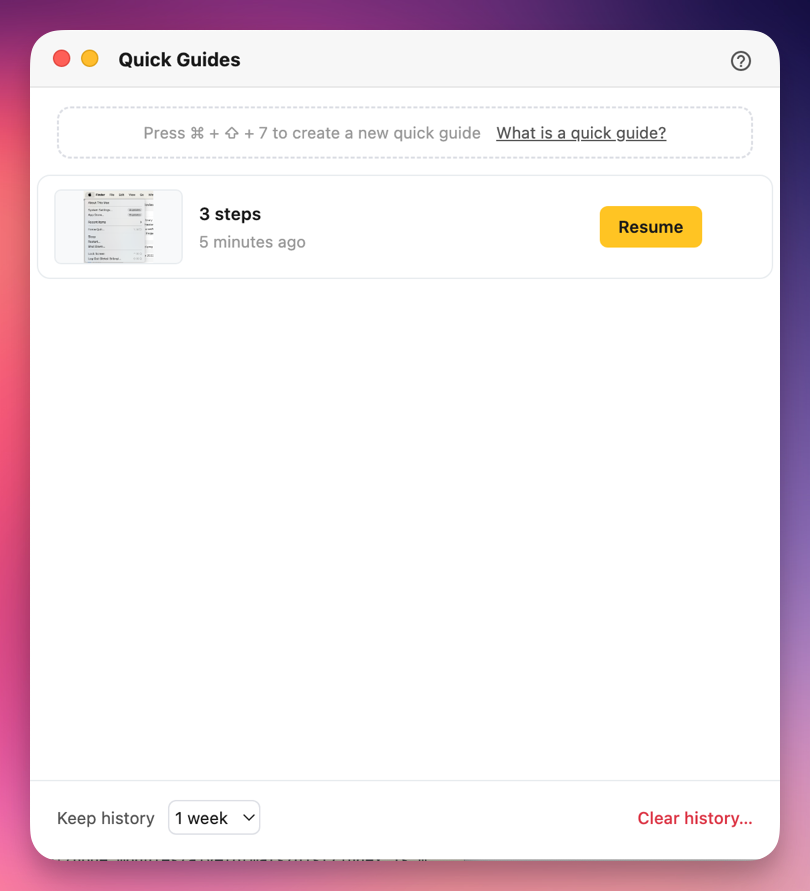
Quick guides stay out of your guides list. Open them with the Quick Guides button next to Create Guide, then Resume one to add more steps.
Keep history decides how long old ones are kept: never, 1 day, 3 days, 1 week or 1 month. Clear history removes the lot, except the one you are working on.
What this is good for
- Answer "where is that setting?" in chat with pictures instead of a paragraph.
- Show a customer three clicks in an email without writing a whole guide.
- Grab a few steps now and turn them into a proper guide later if they grow.
Make guides like this one
Folge takes a screenshot on every click, so you make a guide by doing the task once.