← All tutorials
Rewrite and Improve Text With AI
Expand a half-written note, shorten a rambling one, or make a description read like the rest of your guides.

Five Actions
- Select the text you want changed, in a step description.
- Click the arrow next to the ✨ button in the description toolbar.
- Pick an action.
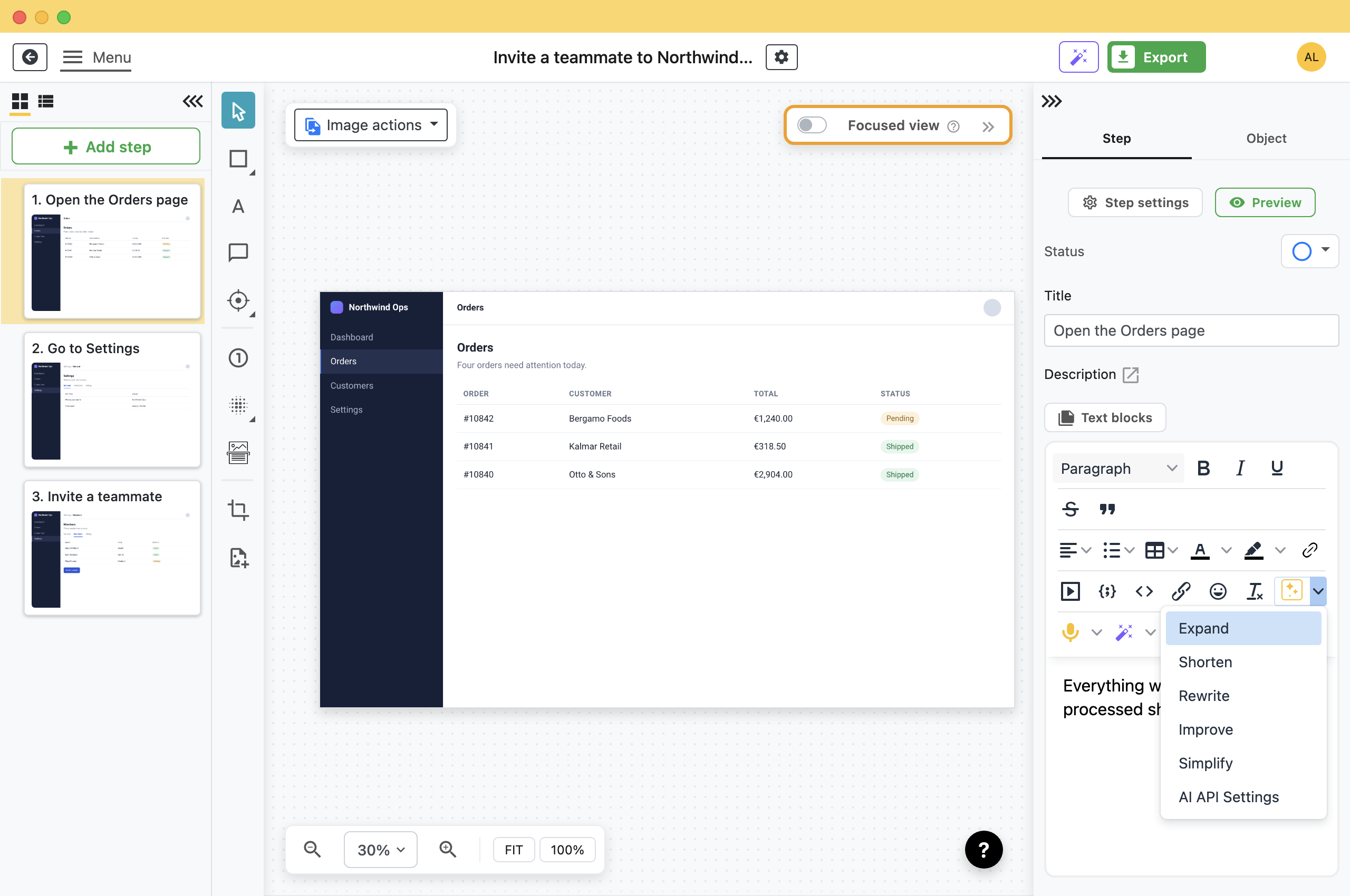
- Expand: Adds detail, examples and context. The one to use on a note you left yourself while recording.
- Shorten: Condenses while keeping the information. Use it on a description that has grown too long.
- Rewrite: Says the same thing more clearly.
- Improve: Fixes grammar, style and structure, without changing the length much.
- Simplify: Plainer words and shorter sentences. Useful when the reader is not technical.
Tip: Clicking the button runs ExpandThe ✨ button and its arrow do different things. The arrow opens this menu; the button itself always runs Expand, whichever action you used last.
What Gets Sent
Only the text you selected. These actions send no screenshot. AI step descriptions do send one.
That also means a text-only model works fine here. If you are paying for a vision model to generate descriptions, the writing actions do not need one. Setup is the same provider and key: see Set Up AI in Folge.
Make It Sound Like You
Without instructions, AI output is often wordier than documentation needs. Custom instructions in AI settings is added to every one of these actions.
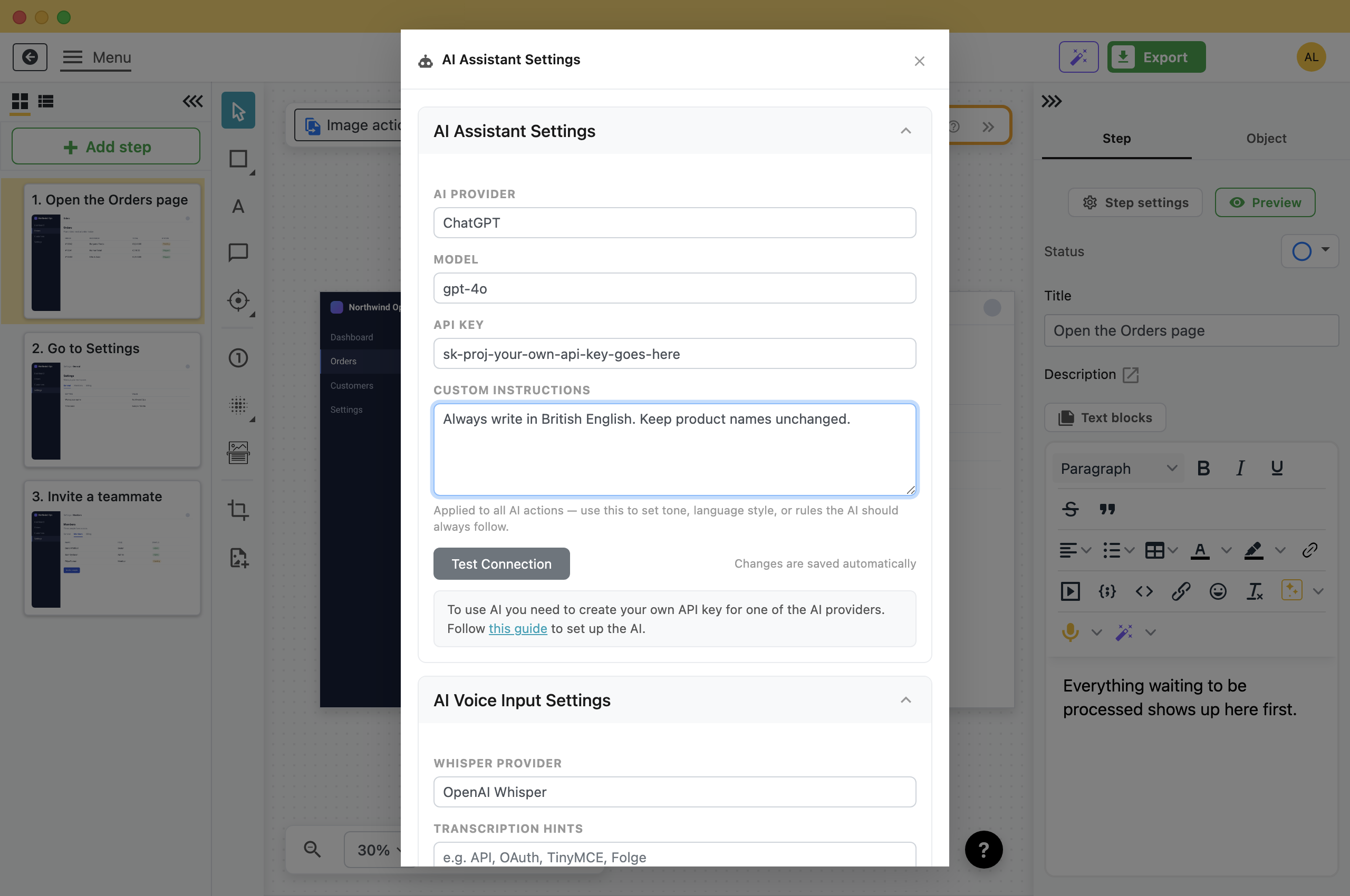
- Length: Never make a description longer than two sentences.
- Voice: Write in the imperative. Address the reader as "you".
- Language: Always use German. The action then translates as it rewrites.
- Vocabulary: Never write "simply" or "just".
Instructions matter most for Expand, because it adds text you may then need to delete.
When Not to Use It
- It cannot see the screen: These actions get your words and nothing else. If the text is wrong about what the step does, Expand makes it longer and it stays wrong.
- Anything with a number in it: Timeouts, port numbers, amounts. A rewrite can change a number and still read well. Check every number afterwards.
- Text that is already right: A short, clear instruction does not need improving into a paragraph.
What this is good for
- Turn the three words you typed while recording into a real instruction.
- Shorten a description that is much longer than it needs to be.
- Give steps written by different people the same style.


Make guides like this one
Folge takes a screenshot on every click, so you make a guide by doing the task once.
System Requirements: Windows 7 (partial support), 8, 8.1, 10, 11 (64-bit only). OSX > 10.10. Available in 🇬🇧, 🇫🇷, 🇩🇪, 🇪🇸, 🇮🇹, 🇳🇱, 🇵🇹/🇧🇷 and 🇯🇵 languages.