Dictate Descriptions Instead of Typing
Say what the step does, and Folge transcribes it into the step description.
Set Up the Transcriber
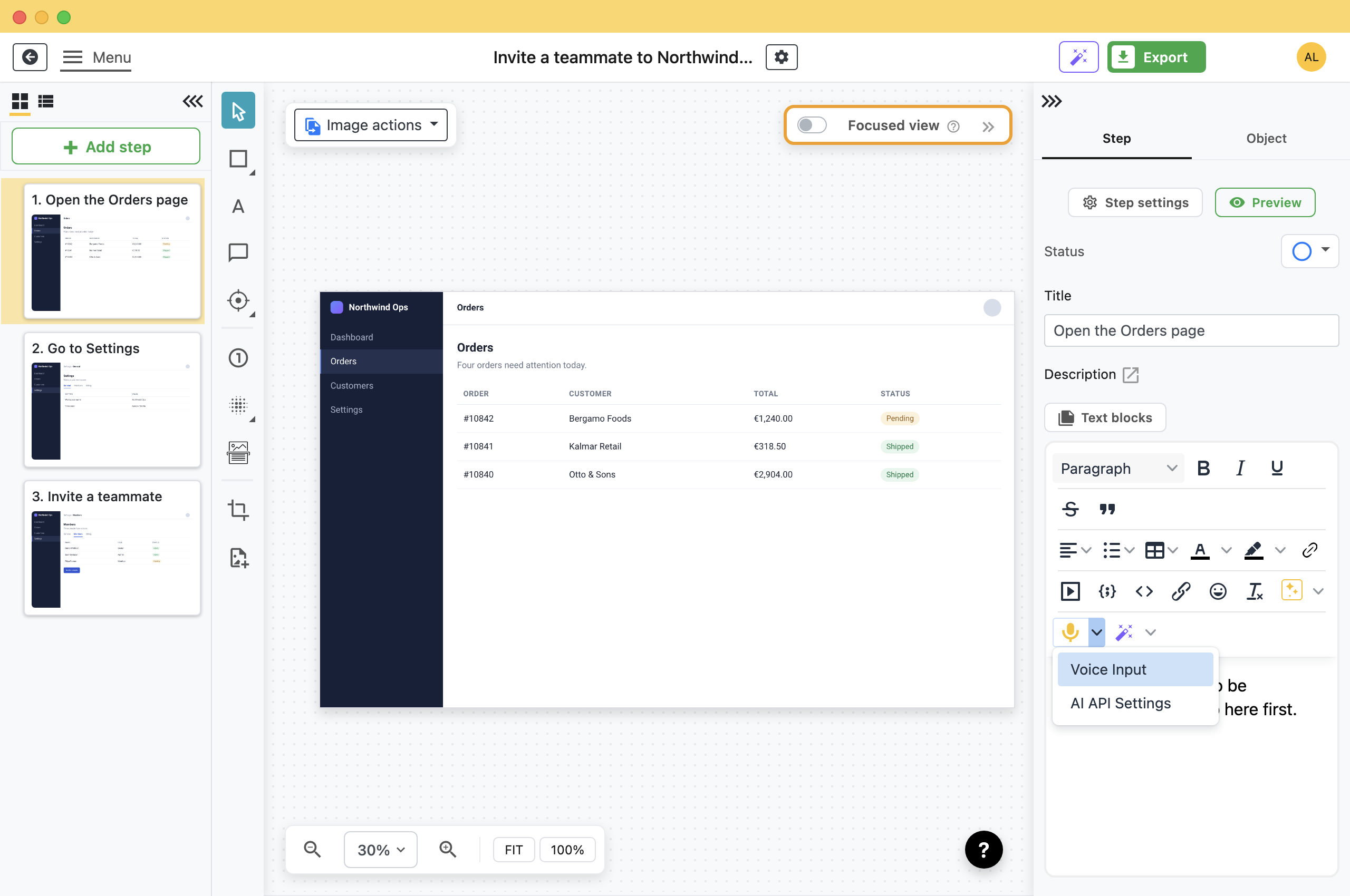
Voice input has its own provider and its own key, separate from the one the writing actions use. Both live in the same dialog: open the menu next to the ✨ button in a step description and choose AI API Settings, then scroll to AI Voice Input Settings.
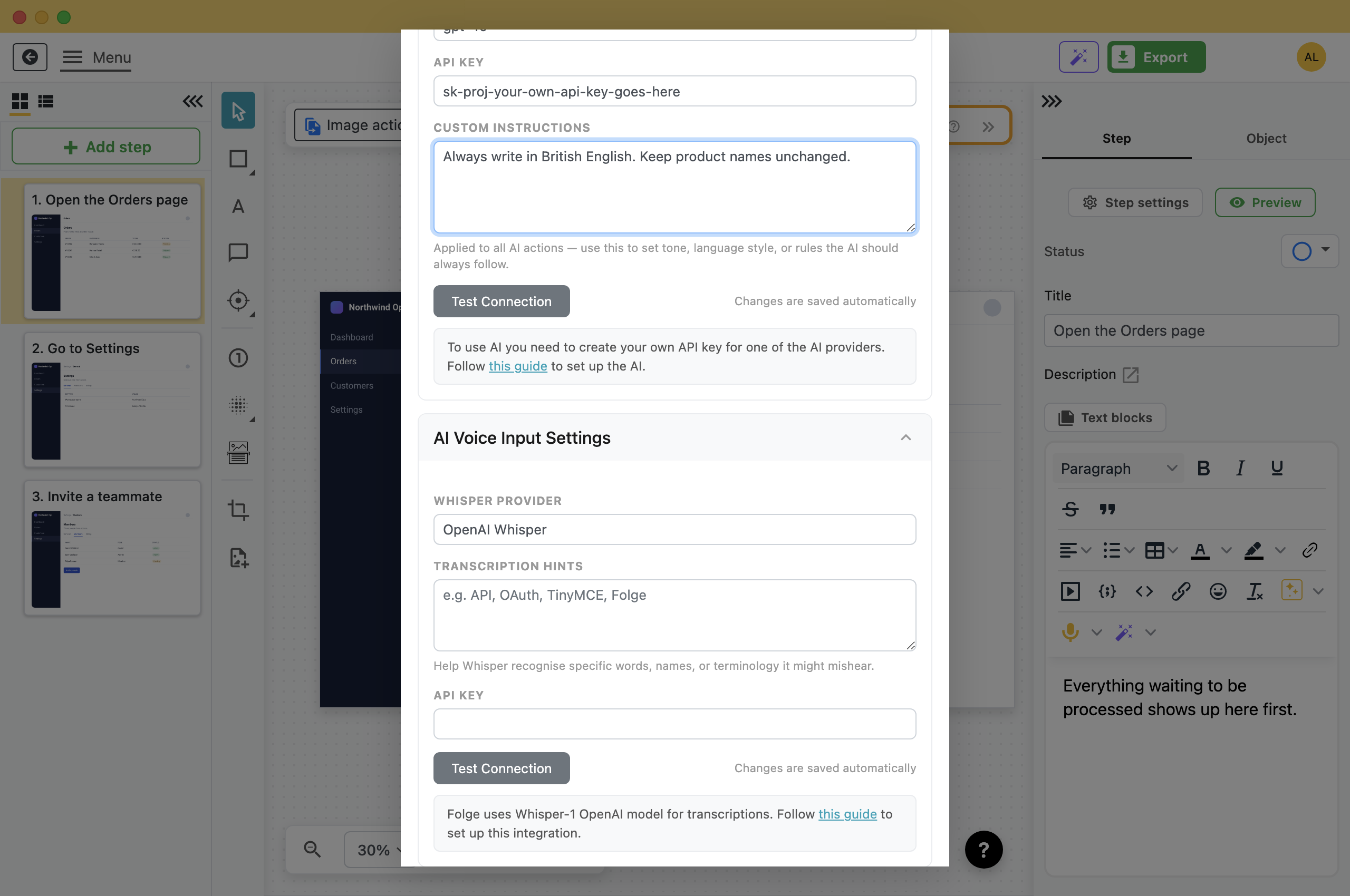
- OpenAI Whisper: Your OpenAI key. Folge uses the Whisper model for the transcription.
- Custom Whisper API Compatible: A Whisper server of your own, given an API Host and an API Path. The key is optional, so a local server works without one. The writing actions still require a key.
Click Test Connection to check the settings. Changes save automatically.
Dictate a Description
- Select the step.
- Click the microphone button in the description toolbar.
- Press the record button and say what the step does.A waveform shows while Folge records.
- Click the record button again when you are done.Folge sends the audio for transcription and puts the text into the description.
Your operating system will ask for microphone permission the first time. On macOS the prompt appears only once. If you deny it, turn Folge on in System Settings > Privacy & Security > Microphone.
Teach It Your Vocabulary
Whisper handles ordinary speech well but often misspells names and acronyms it does not know. Transcription hints is a list of those words, so Whisper can spell them correctly.
Put your product names, systems, colleagues and acronyms in there, separated by commas: AcmeCorps, OAuth, Roadrunner Freight, SKU, Bedrock.
What Leaves Your Computer
The audio you record, your speech language and your Transcription hints. No screenshot is sent.
It goes to the provider you configured, on your key and your account. If recordings must not go to an outside provider, point the custom provider at a Whisper server you run: see Set Up AI in Folge.
What this is good for
- Explain a step out loud instead of typing it.
- Describe every step in a long guide without using the keyboard.
- Get a first draft in a language you speak better than you type.
Make guides like this one
Folge takes a screenshot on every click, so you make a guide by doing the task once.