Focused View: Crop Every Step to the Click
Crop every step to the area around the click, so text in the export stays readable and steps from the same window come out the same size. The screenshot underneath does not change.
What Focused View Changes
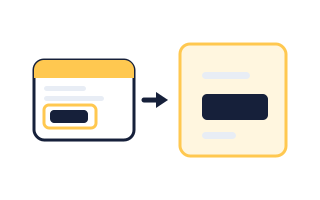
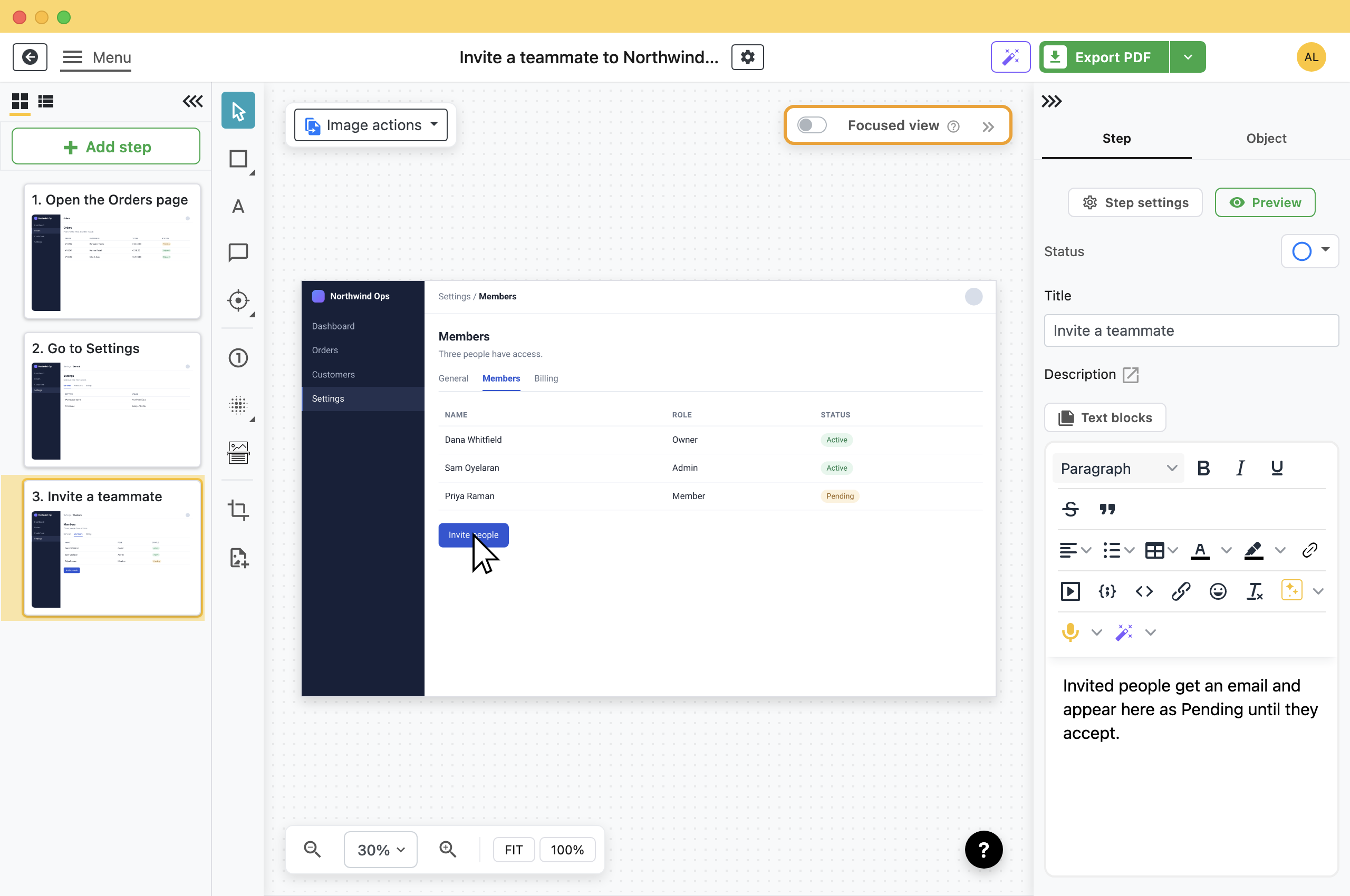
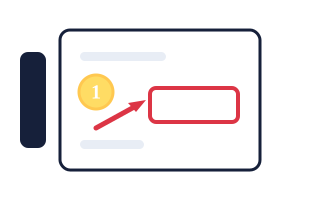
A screenshot of a full screen holds the one control the reader needs and everything else on the screen. Focused view crops each step to the area around the click.
With it on, the same step shows the button and enough around it to know where you are.
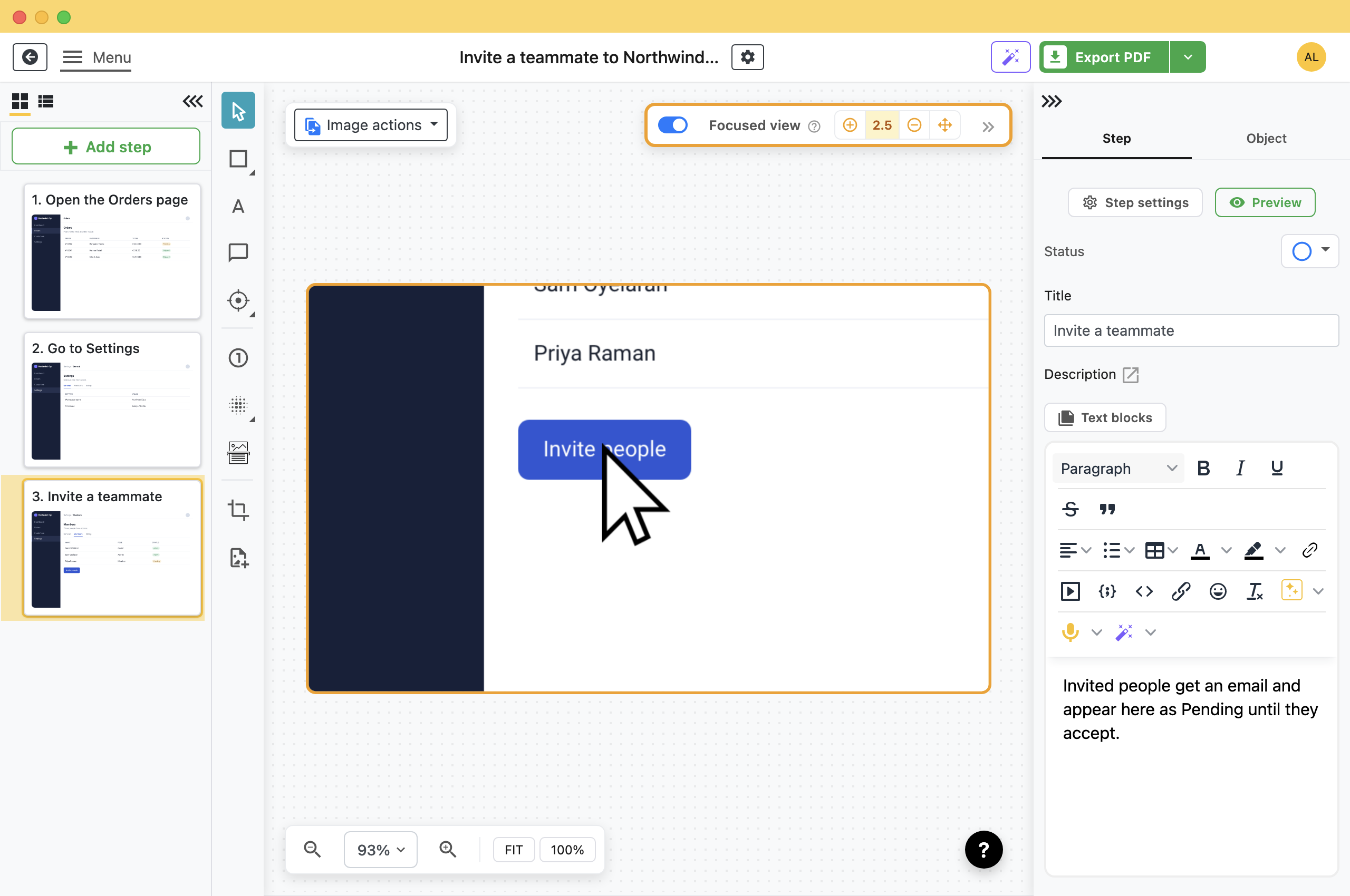
Folge crops the step when it renders it for export, so the captured file is never touched. Switching focused view off brings the whole screenshot back, and the crop is taken from the original pixels rather than scaled up, so zooming in does not soften anything.
Every Step the Same Size on the Page
In a PDF or a Word document every step image is scaled to the same column width. Without focused view, a step captured from a 4K browser window and a step captured from a small dialog are shrunk by very different amounts, so the text in one comes out half the size of the text in the next.
Focused view crops instead of shrinking. Folge sets the zoom from the size of the capture, aiming for the same working area on every step, so the content arrives on the page at a comparable size.
Steps captured from the same window are cropped identically, so a guide recorded in one application exports as a set of images that are all the same shape and the same dimensions. The crop keeps the capture's own aspect ratio, so a tall dialog stays tall.
Export two or three steps to PDF and look at them side by side before you record the rest of the guide.
Turn It On for One Step
- Select the step in the list on the left.
- Click the switch in the Focused view panel above the canvas.Folge centres the frame on the click mark and picks a zoom level for you.
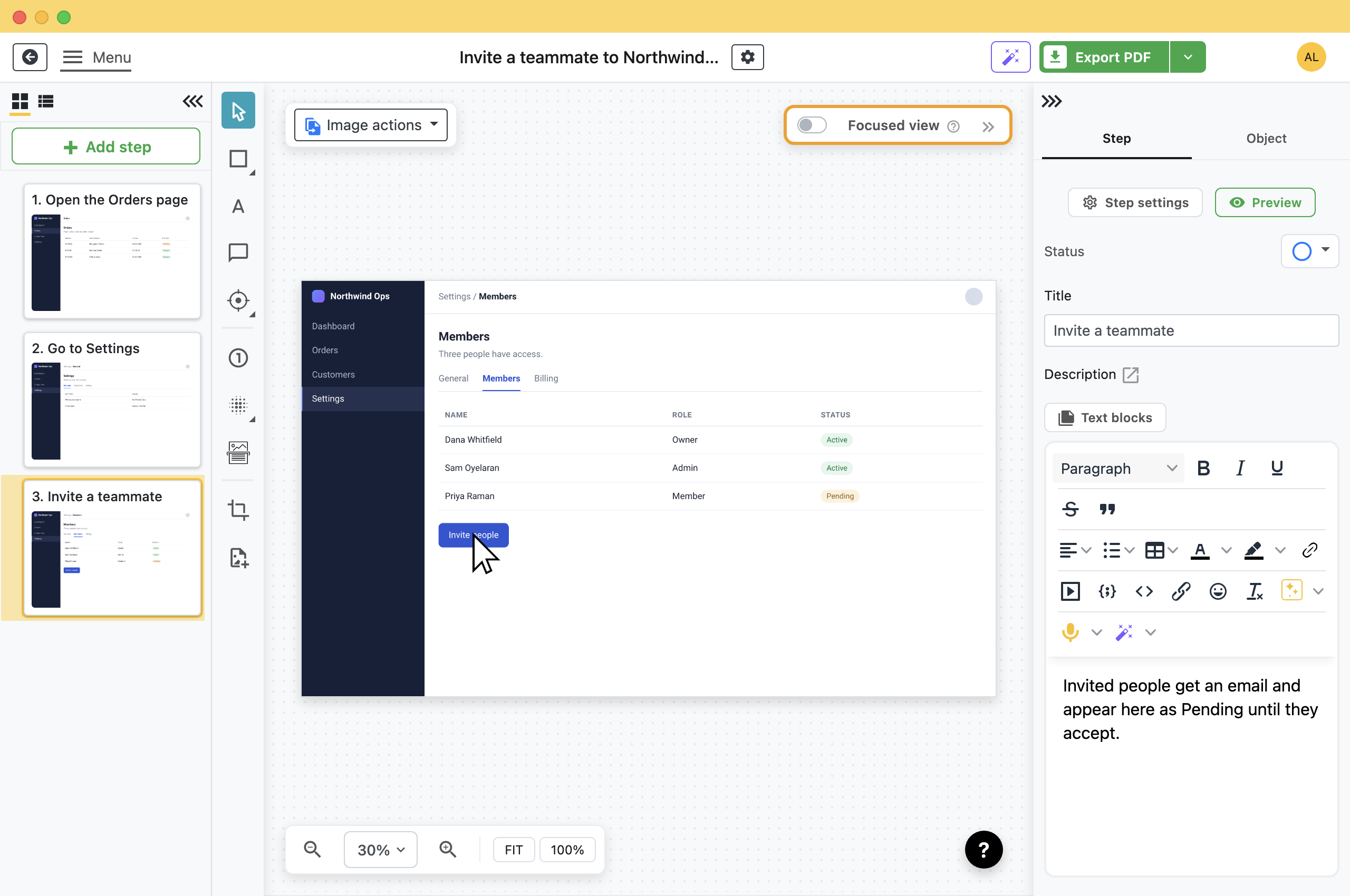
Click it again for the full screenshot. Nothing is lost either way.
Zoom and Move the Frame
The controls appear next to the switch once focused view is on.
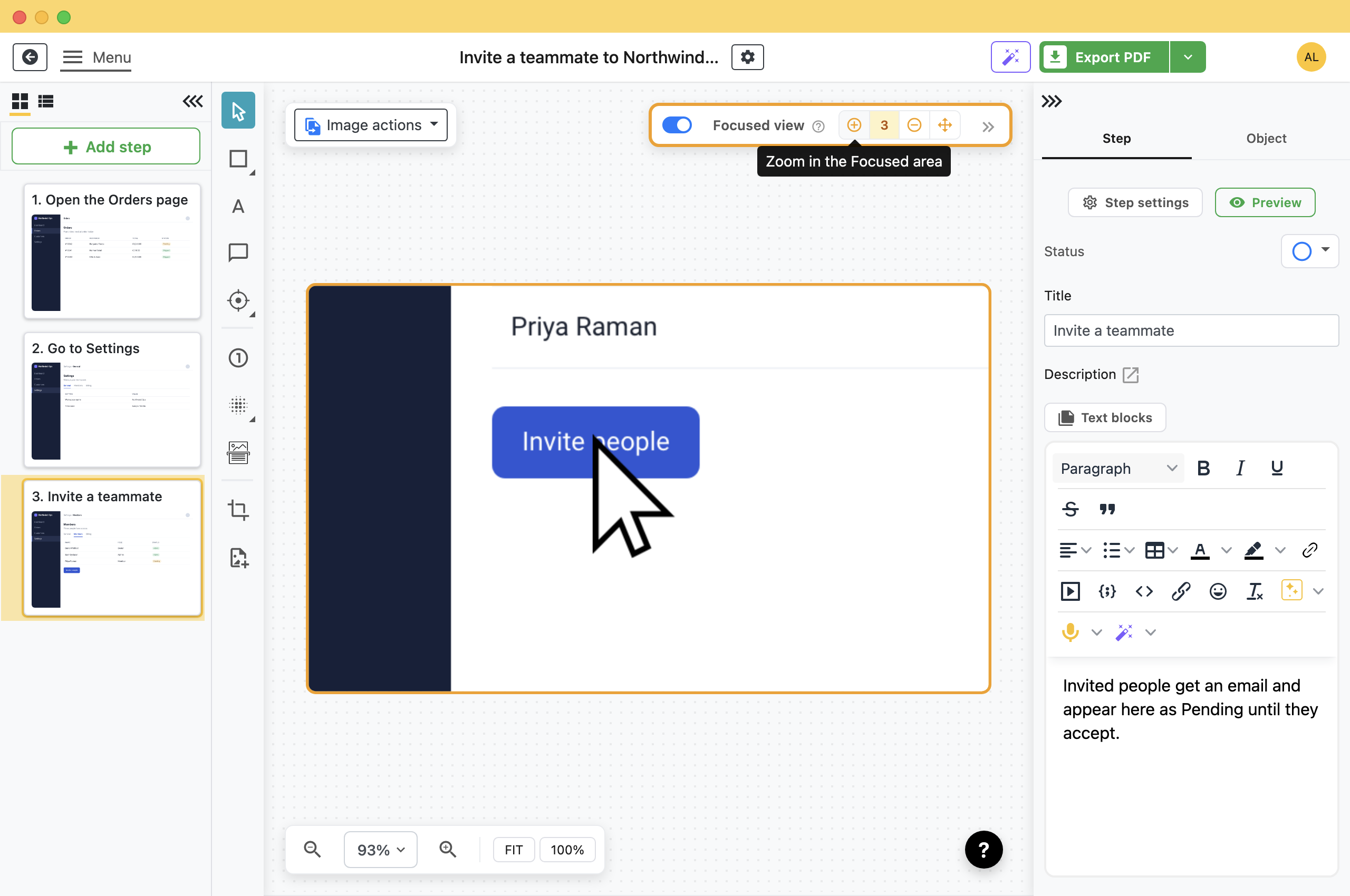
- Plus and minus: Zoom in and out in steps of 0.25, between 1 and 5. The number between them is where you are now.
- Hold Space and drag: Moves the frame over the screenshot. The four-arrow icon is the reminder for it, not a button to click.
Zoom and position are stored on the step, so setting one step does not move the frame on any other.
Every Step at Once
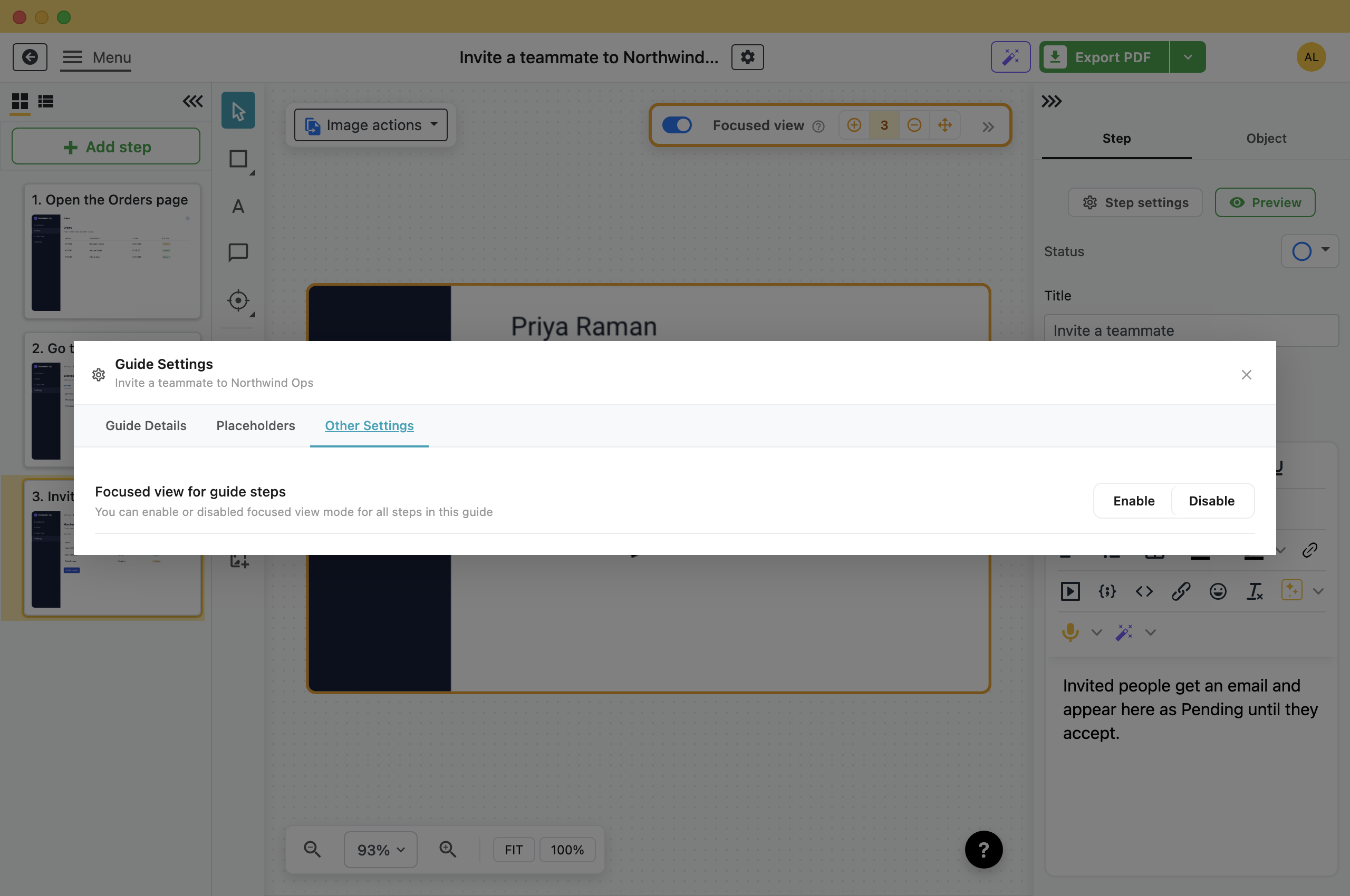
- Click the guide title at the top of the editor.
- Open the Other Settings tab.
- Click Enable or Disable.Folge applies it to every step in the guide, then reloads the editor.
New Steps, Automatically
Focused view is already on for steps you capture. The switch is in Settings, on the Application tab, under Focused view for new steps.
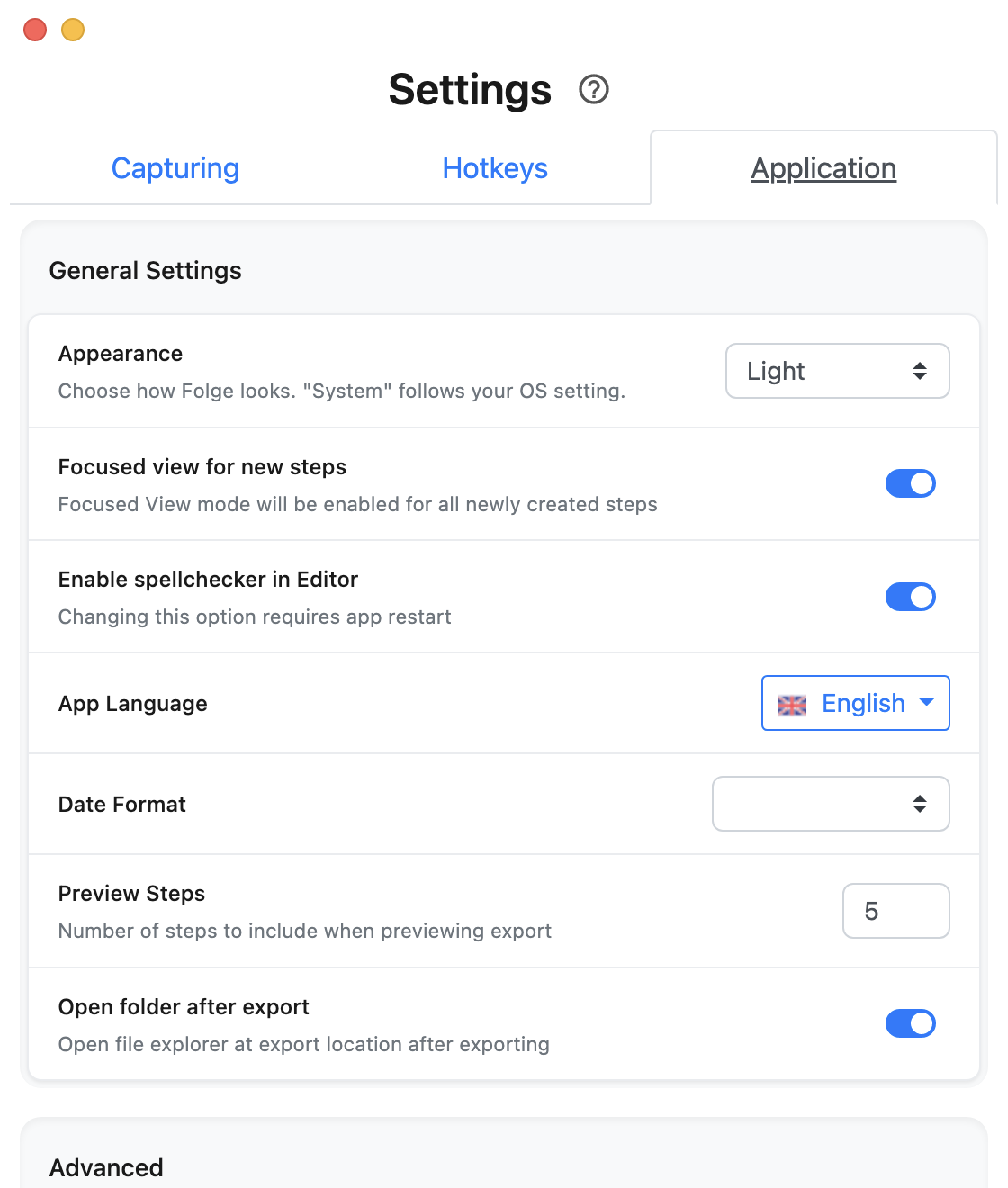
Changing it does nothing to guides you have already made. It decides how the next capture starts.
When to Turn It Off
- The layout is the point: If the step is "the filters are down the left-hand side", cropping to the click removes the answer.
- Dashboards and reports: A reader comparing figures across a screen needs the screen.
- Small windows: A dialog that is already the size of the thing it shows gains nothing from being cropped further.
The setting is per step, so leaving it on for the guide and switching it off on the three steps where the whole screen matters is the usual way to work. Those three will export wider than the rest.
What this is good for
- Get step images of a similar size, instead of whatever size each window was.
- Keep text legible in a PDF, where a whole 4K screen gets shrunk to page width.
- Stop readers hunting for one button in a full-screen screenshot.
Make guides like this one
Folge takes a screenshot on every click, so you make a guide by doing the task once.