Control How Your PDF Pages Break
Decide how many steps go on a page, whether the picture sits above the text or beside it, and what the contents page lists.
Where the Settings Are
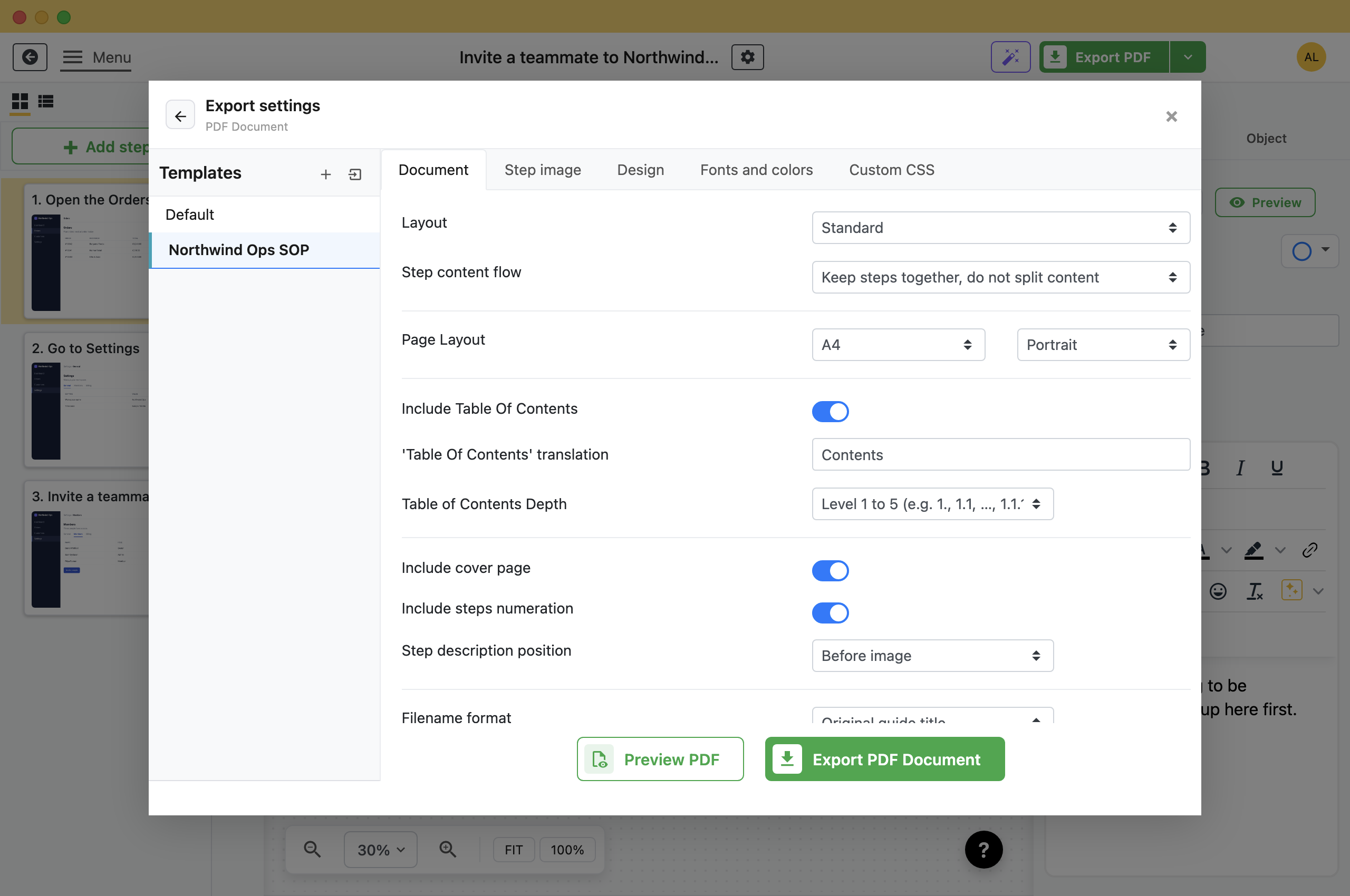
Everything on this page is on the Document tab of the PDF export settings, reached by clicking Export and choosing PDF.
How Steps Fall on the Page
Step content flow decides where page breaks fall. It has three modes.
- One step per page: Every step starts a new page, so no step is split. It uses the most pages. Use it for printed procedures.
- Keep steps together, do not split content: Fits several steps per page, but moves a step to the next page rather than split it. Use it for most guides.
- Fit as much content per page as possible: Uses the fewest pages, but a step can start on one page and end on the next.
Page Layout sets the paper size, and there is a separate orientation control beside it. Landscape suits wide screenshots.
Picture Beside Text Instead of Above It
Setting Layout to Two-column (image + text) puts each screenshot next to its description rather than under it, which suits short instructions and wide pictures.
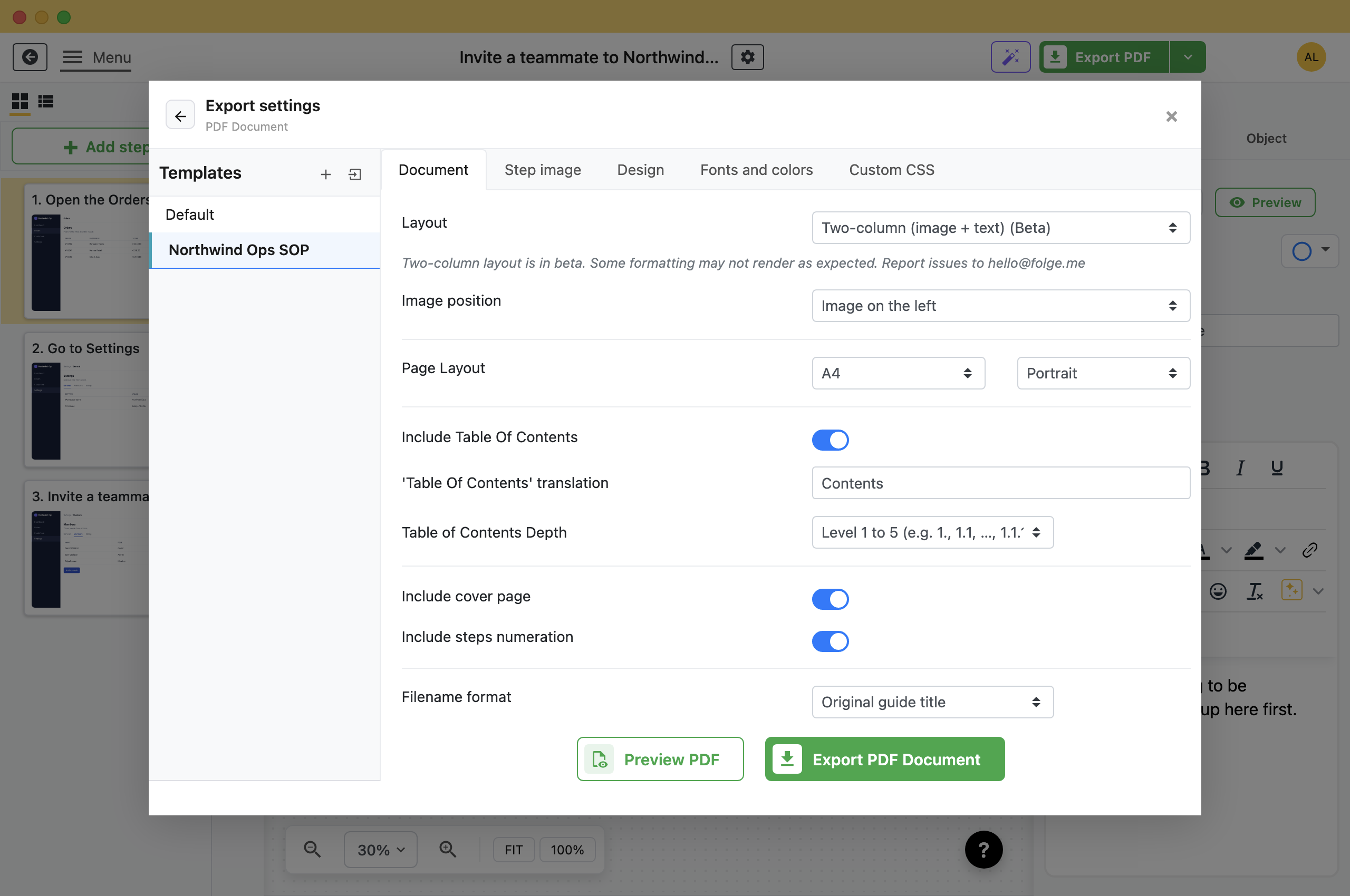
Image position then decides which side the screenshot sits on. Choosing two columns hides Step content flow.
Add a Table of Contents
- Switch on Include Table Of Contents.Two more settings appear underneath it.
- In Table of Contents Depth, choose how many levels to list.
- Change the 'Table Of Contents' translation if the guide is not in English.
Depth runs from a single level up to all of them. The levels come from the nesting in the editor: a guide with substeps has levels to show, a flat one does not. For a long guide with substeps, a depth of 1 or 2 keeps the contents page short.
Include steps numeration is a separate setting. It controls whether steps are numbered in the body of the document.
What this is good for
- Stop a step splitting across two pages in a printed procedure.
- Print a forty-step guide on fewer pages.
- Give a long guide a contents page that lists only the main steps.


Make guides like this one
Folge takes a screenshot on every click, so you make a guide by doing the task once.