Export a Guide to PowerPoint
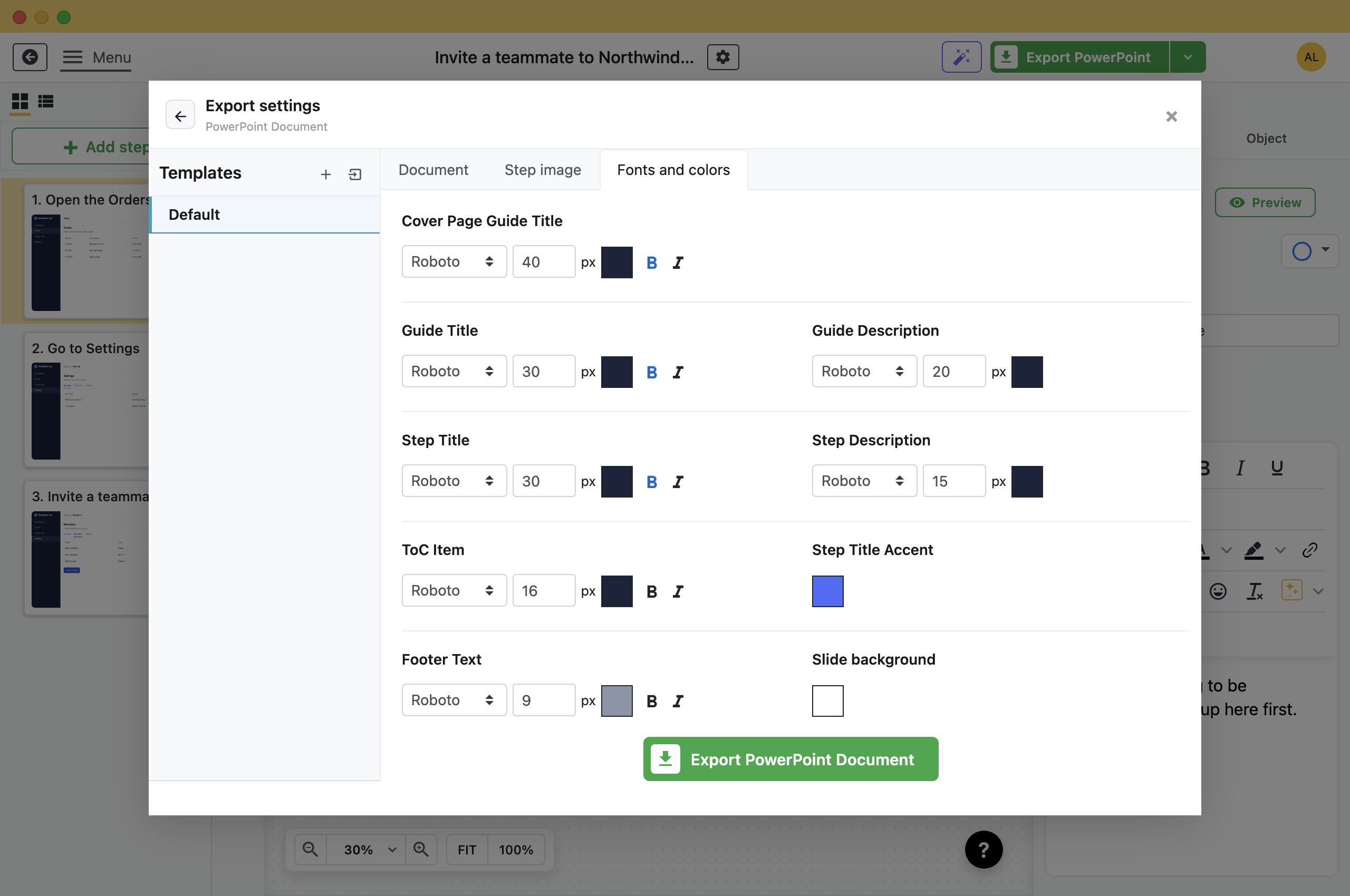
Rebuilding a guide as slides means pasting every screenshot into PowerPoint by hand. Folge exports the guide as a .pptx with one slide per step, and puts each description in the speaker notes.

Export the Slides
- Open the guide and click Export in the header.
- Pick PowerPoint Document.
- Click Export PowerPoint Document and choose where to save.Folge writes one .pptx file with a 16:9 slide for every step.
The defaults give you a cover slide, numbered steps and a footer. The sections below change them.
What Each Slide Contains
- Title: The step title, with its number in front.
- Description: Beside the screenshot, in the fonts you set.
- Screenshot: With your annotations and blur, as in the editor.
- Speaker notes: The full description again, so the presenter has it while the slide stays readable.
Substeps get slides of their own. A step you set to Skip step when exporting is left out.
Add a Cover, Agenda and Footer
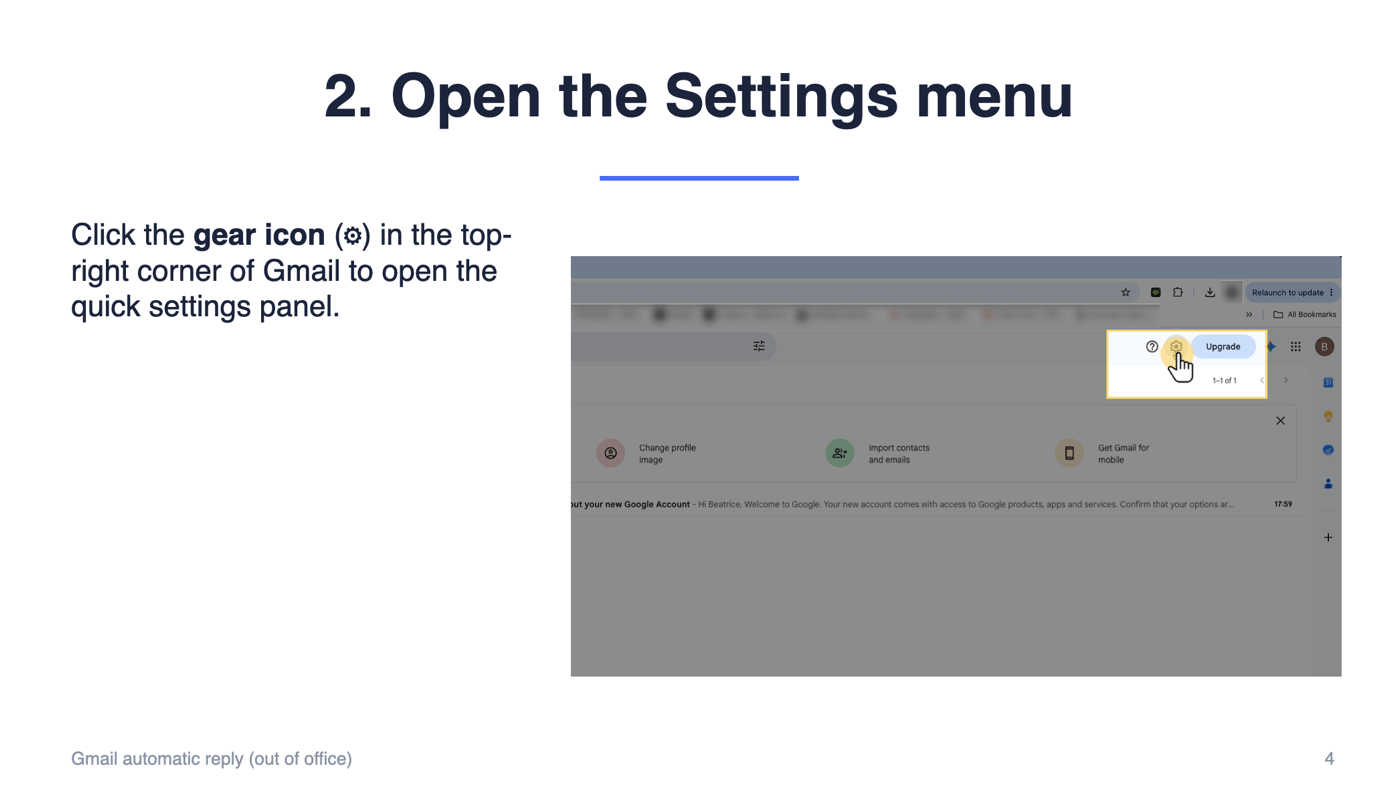
These are on the Document tab.
- Include cover page: A title slide with the guide title and your Logo, then an overview slide with the guide description, if the guide has one.
- Include steps numeration: The step number in front of each slide title.
- Guide Title Alignment and Step Title Alignment: Left, center or right.
- Include Table Of Contents: An agenda slide listing the steps. Change its heading with 'Table Of Contents' translation.
- Footer: Your Footer text on the left of every slide after the cover, and the slide number on the right. A footer Logo replaces the text.
The footer text starts as [[Guide_Title]]. Placeholders work here the same way as in a PDF footer: see Reuse text with placeholders.
Match Your Colors and Fonts
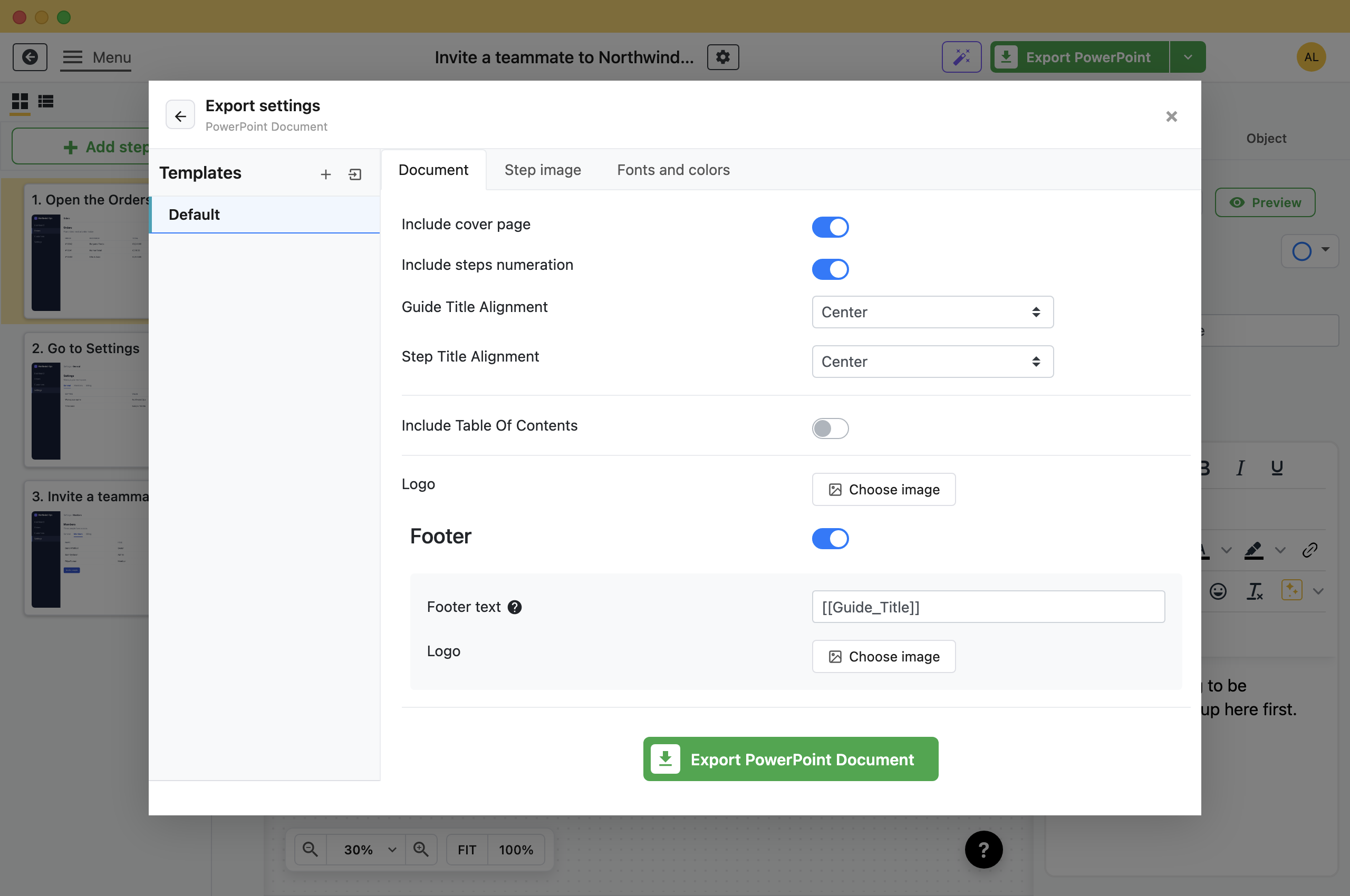
The Fonts and colors tab sets the font, size and color of each kind of text: cover title, guide title and description, step titles and descriptions, the agenda and the footer.
- Step Title Accent: The line under each slide title and the band on the cover slide.
- Slide background: One color behind every slide. White by default.
Light screenshots can disappear on a light background. Image border width and color on the Step image tab draws a frame around each one.
Present It or Keep Editing
The file is ordinary PowerPoint: text boxes and pictures you can move, restyle or delete. It also opens in Keynote and Google Slides.
Edits made in PowerPoint stay in that file. When the process changes, update the guide in Folge and export again.
What this is good for
- Walk a team through a process in a meeting or a training session.
- Give a trainer slides they can present and edit.
- Match your company's colours, fonts and logo on every slide.


Make guides like this one
Folge takes a screenshot on every click, so you make a guide by doing the task once.