← All tutorials
Turn Your Guide into a Video
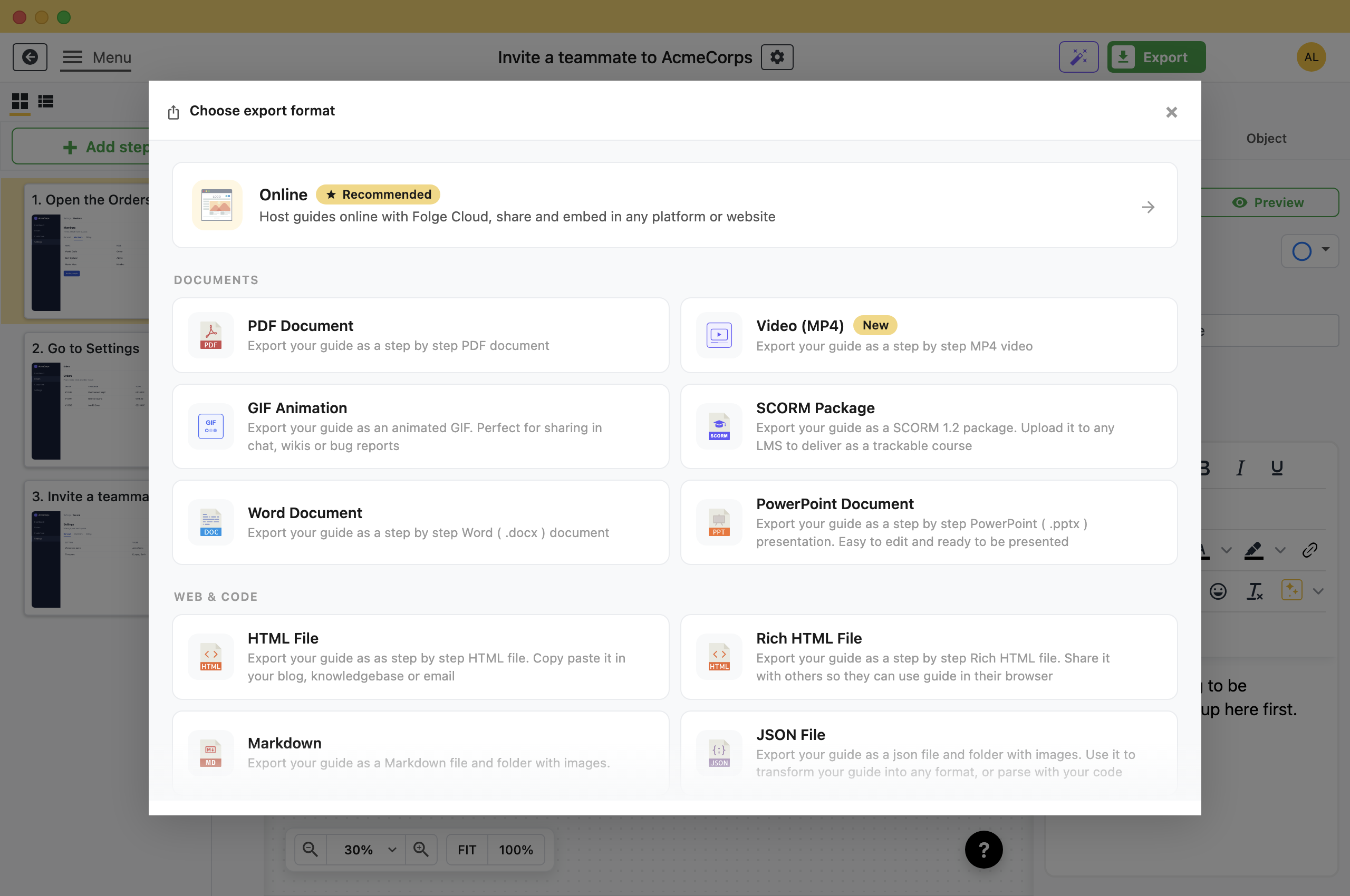
Export any guide as an MP4 video, with zoom-ins on your clicks and your step titles as captions. Nothing to record.

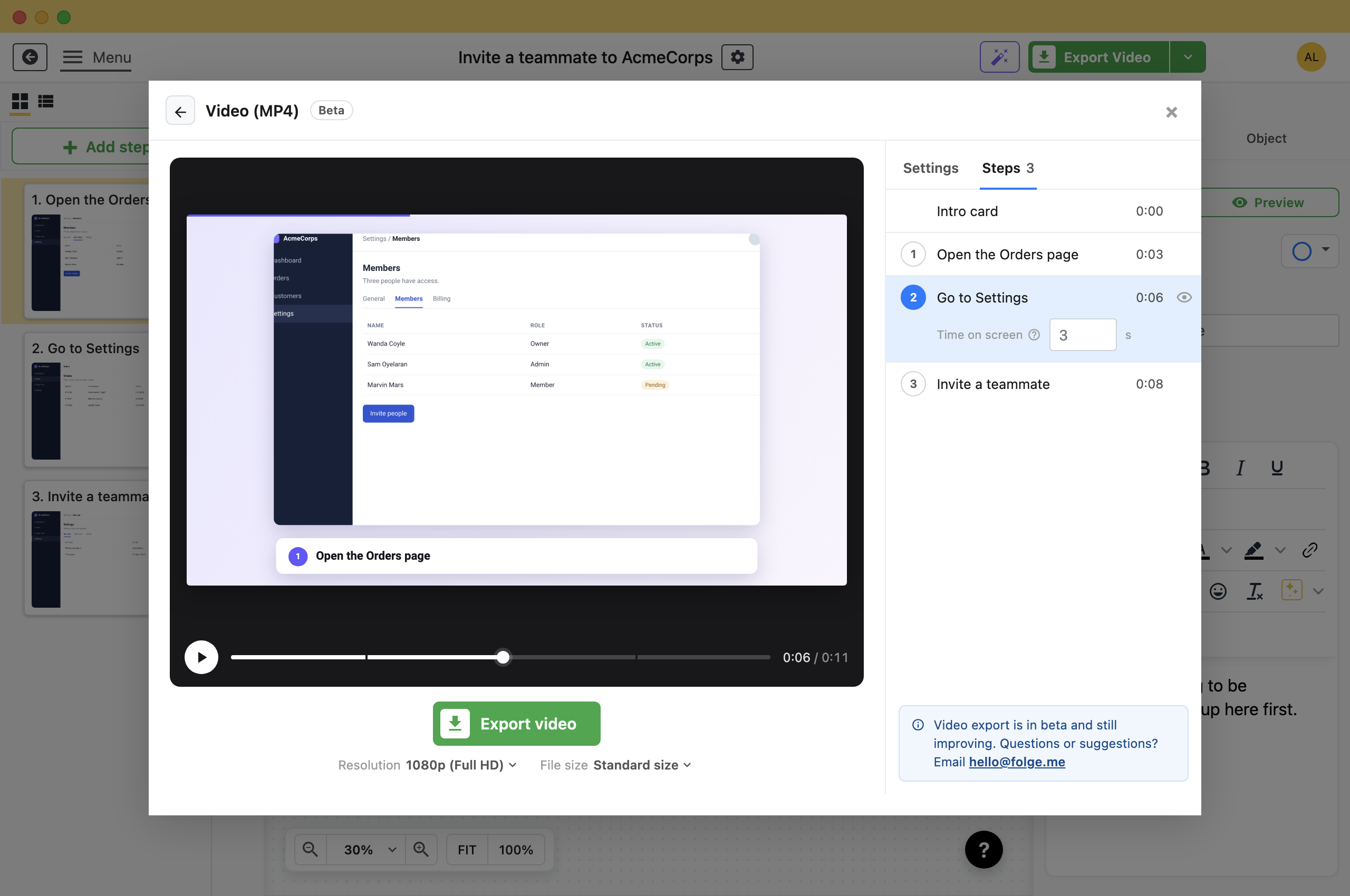
Open the Video Screen
- Click Export in the header.
- Pick Video (MP4).
Overview
- Clicks: Your video zooms in on each one.
- Focused view and crops: Kept as you set them. See focused view.
- Annotations: Kept, and blurred areas stay blurred.
- Skipped steps: Left out.
Choose a Format and Style
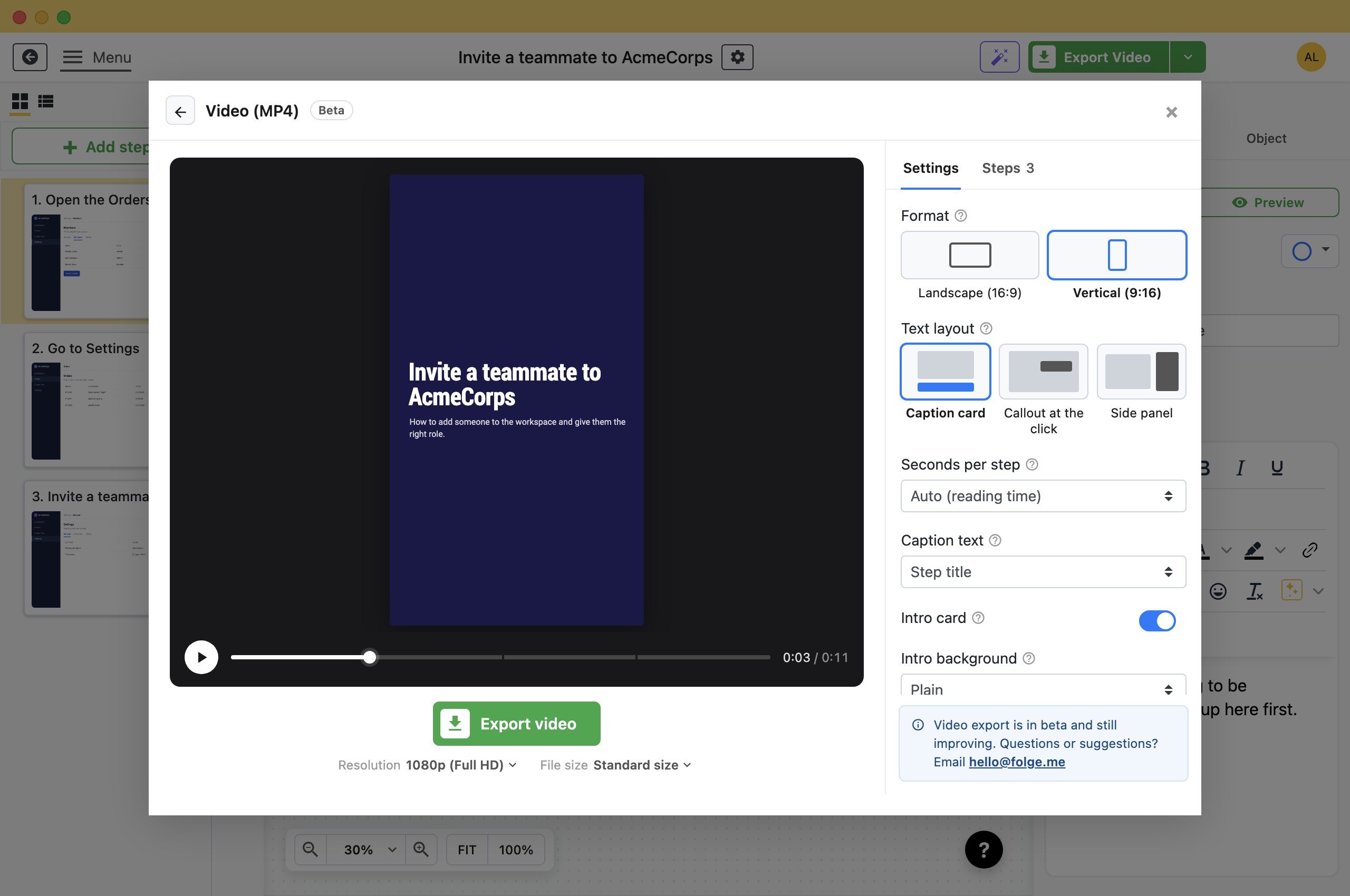
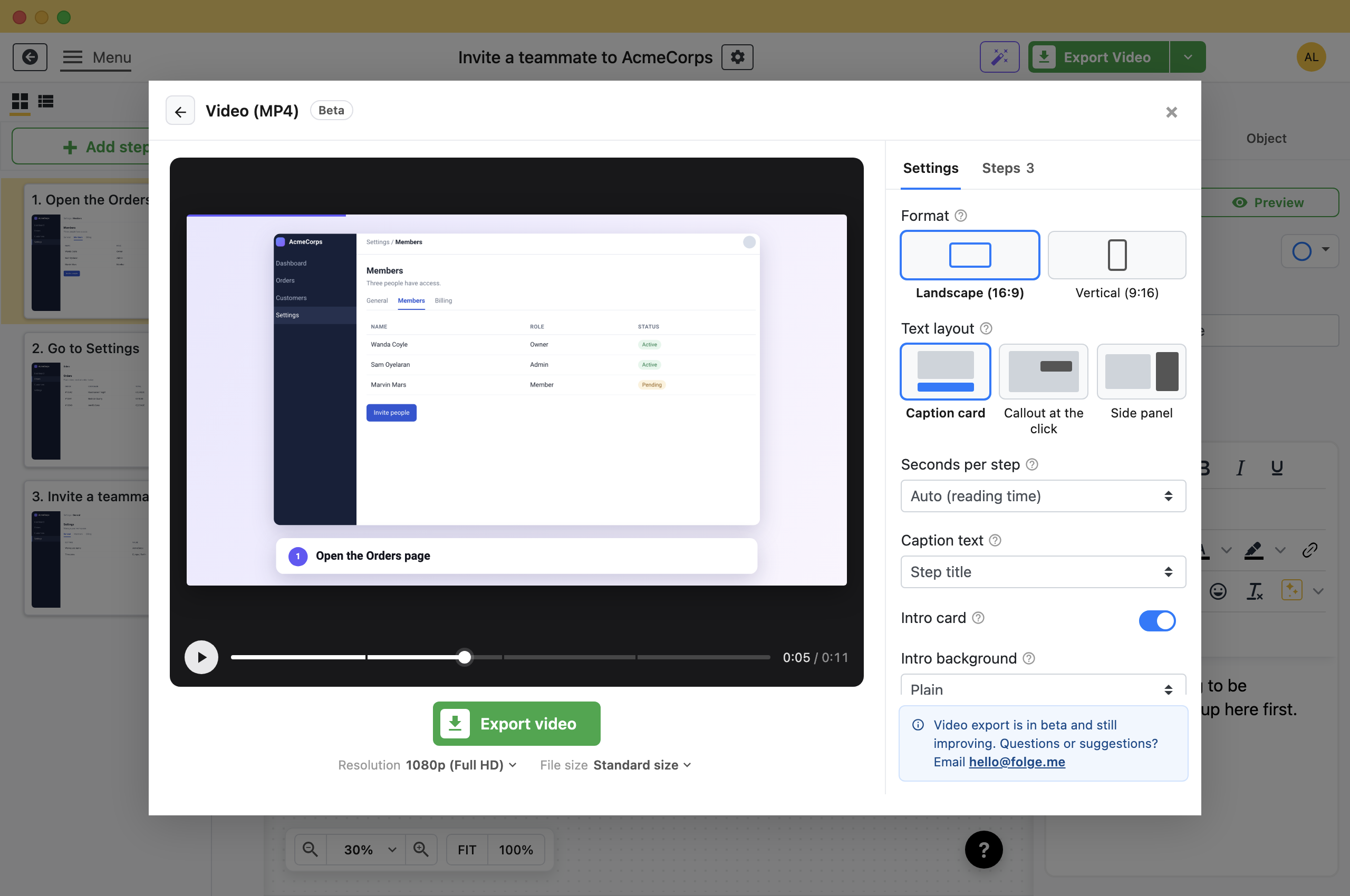
- Format: Landscape for YouTube and courses, Vertical for phone apps.
- Text layout: Caption card, Callout at the click or Side panel.
- Seconds per step: Auto gives viewers time to read.
- Caption text: Step title, or Title and description.
- Intro card: The guide title at the start.
- Accent color and Background: Your brand colors.
Adjust a Step
Open the Steps tab and click the step.
- Time on screen: More seconds for a busy screen.
- The eye button: Leaves the step out of the video, not the guide.
Export the Video
- Pick the Resolution and File size under Export video.
- Click Export video and choose where to save.
Tip: Subtitles on YouTubeTurn on Captions file and upload that file with the video.
What this is good for
- Post a how-to on YouTube or in a course.
- Send a short clip in chat instead of a long document.
- Make a vertical video of a phone app.

Make guides like this one
Folge takes a screenshot on every click, so you make a guide by doing the task once.
System Requirements: Windows 10 or 11 (64-bit). macOS 13 Ventura or newer. Available in 🇬🇧, 🇫🇷, 🇩🇪, 🇪🇸, 🇮🇹, 🇳🇱, 🇵🇹/🇧🇷 and 🇯🇵 languages.