Share a Guide With Your Team or Another Computer
This guide shows you how to share a guide between your computers, or with your whole team, and how to take turns so nobody's work gets lost.
Overview
Maybe you start a guide on your work laptop and want to finish it on your desktop at home. Or you wrote the onboarding guide, and now a teammate needs to update it. Either way, you want everyone working on the same guide, not on copies flying around in email.
The answer is a shared folder, the same way you'd share a Word file. You save the guide there once, open it from any computer, and take turns editing it.
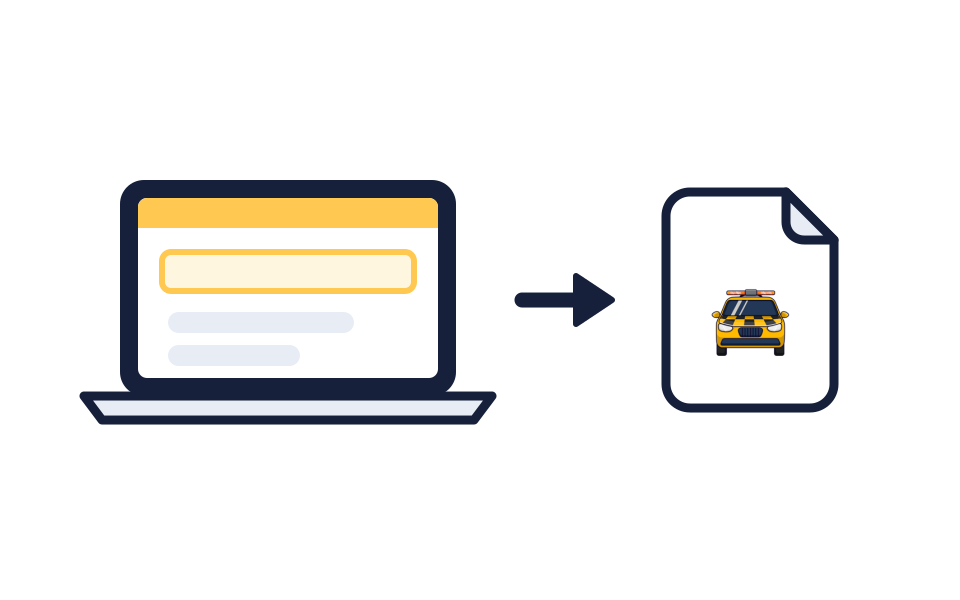
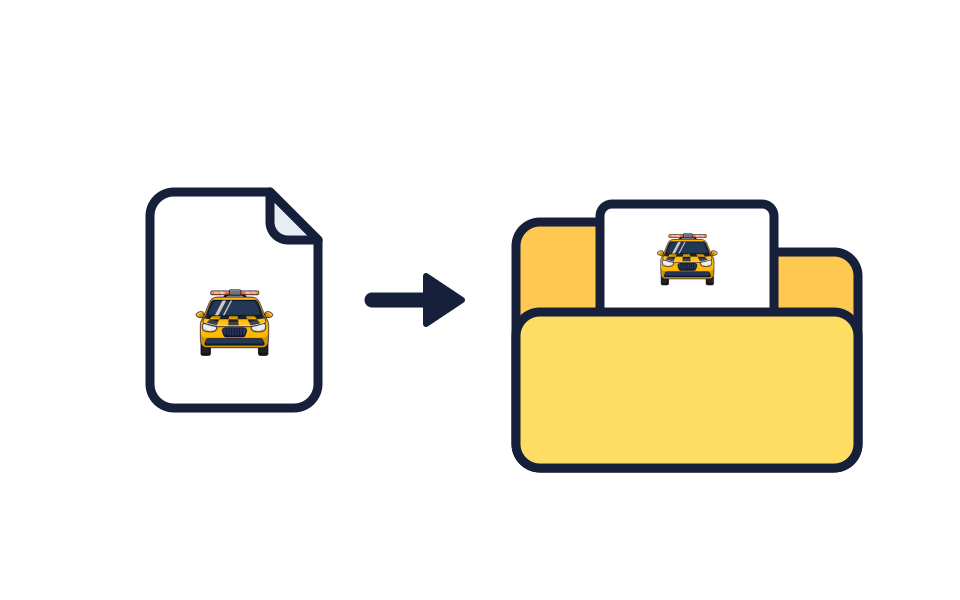
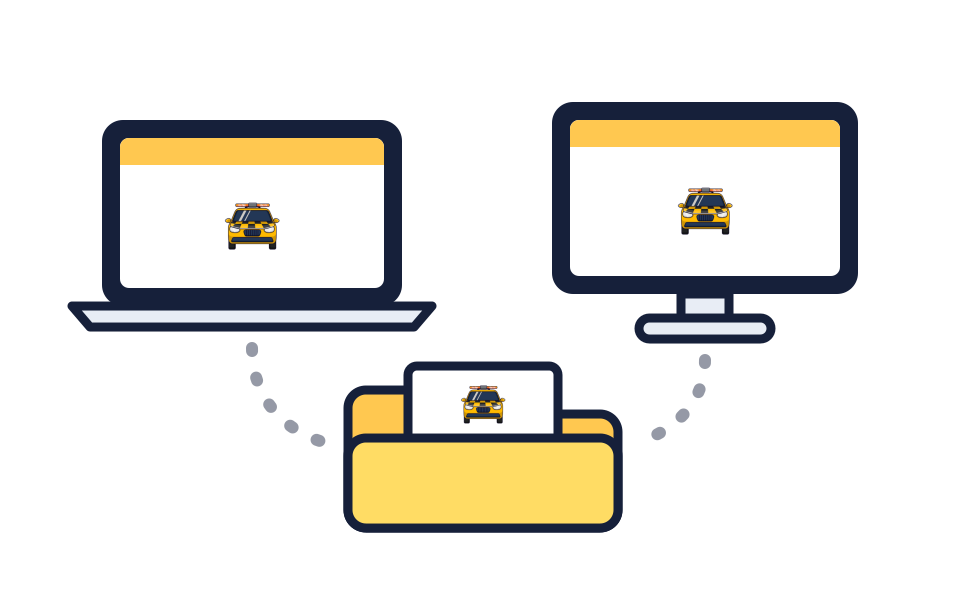
From then on, that .flgg file is your guide. When you save, your changes go into it, and everyone else sees them the next time they open it.
Below, you'll set it up step by step, see how taking turns works, and find out what to do when two people need the guide at the same time.
Take Turns
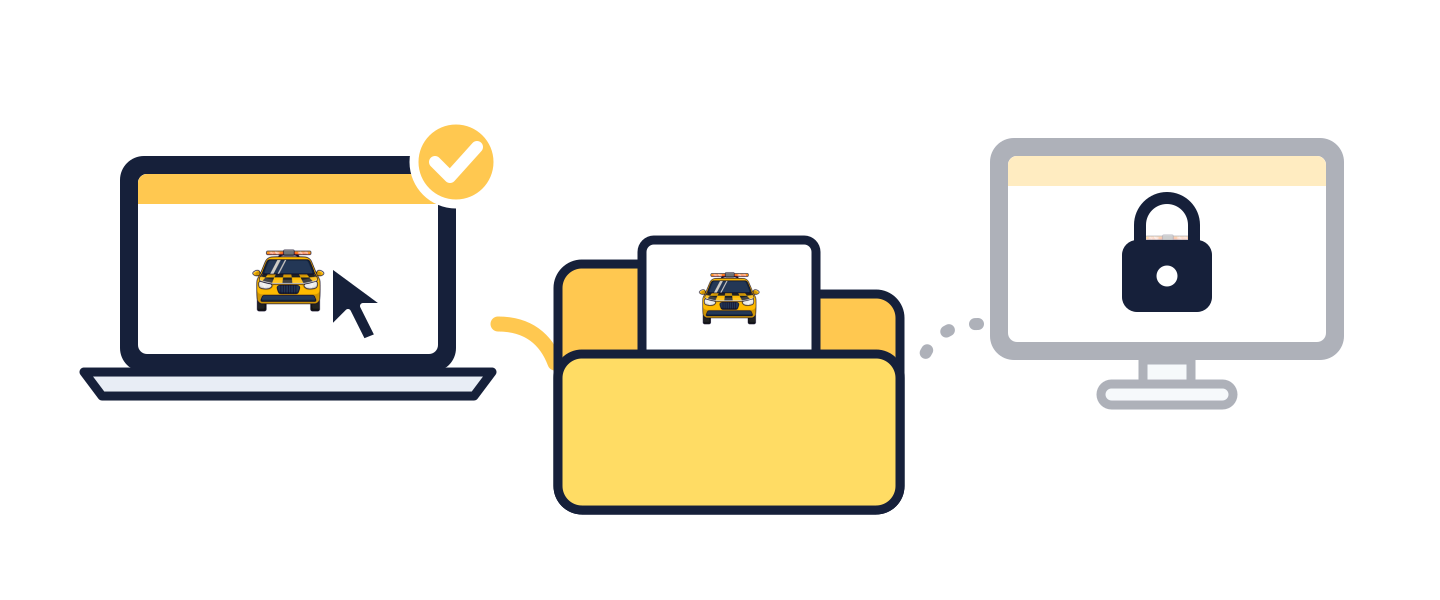
One thing to know before you start: this isn't Google Docs, where everyone types at once. Like a Word file on a shared drive, only one person should have the guide open at a time.
Your changes reach the .flgg file when you press Cmd + S (Ctrl + S on Windows), and your teammates see them the next time they open the guide.
If someone already has it open, you'll see who. Give them a minute and try again.
Share Your Guide as a File
Start on the computer where the guide lives now.
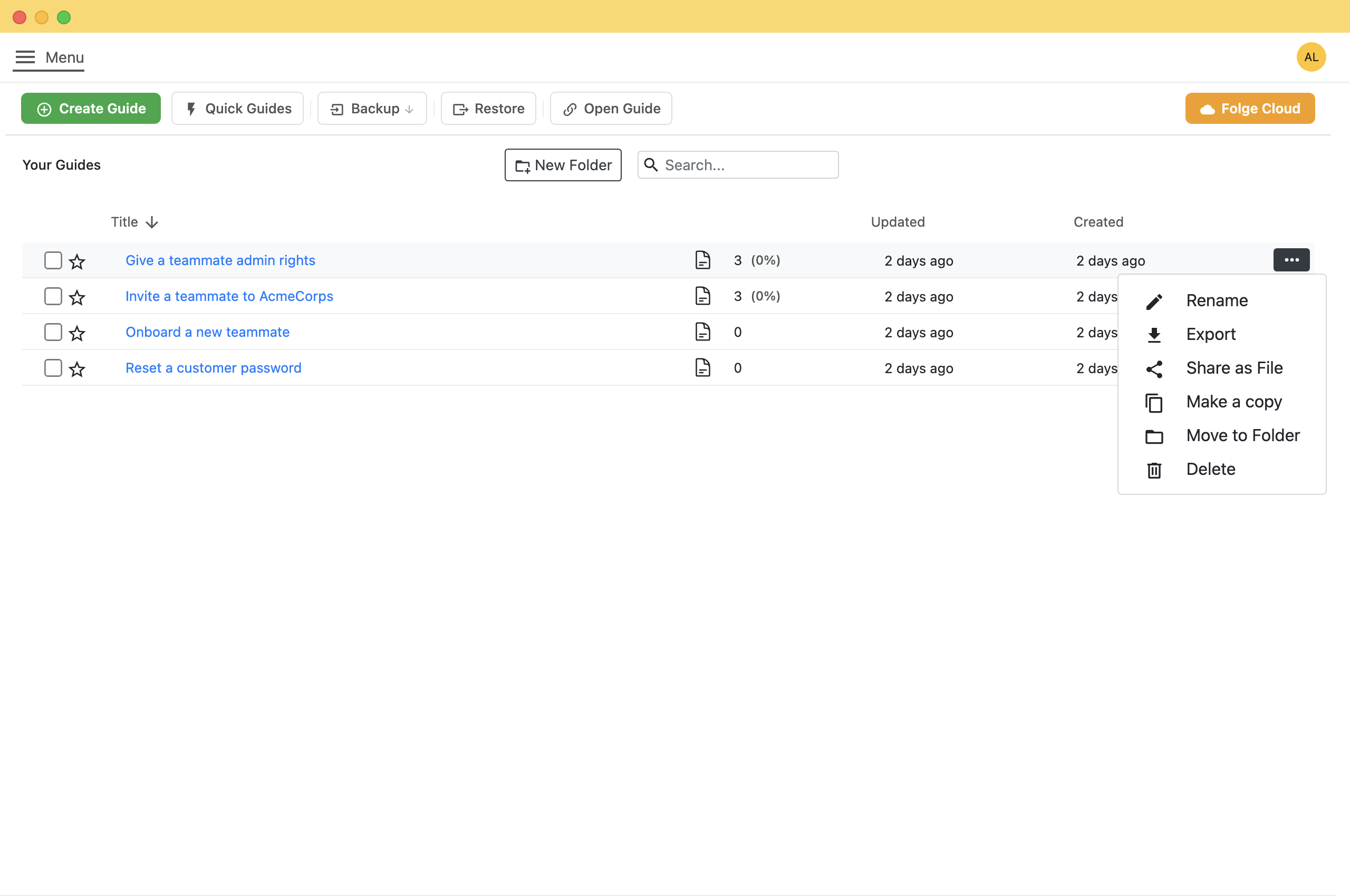
- In your guides list, click ... next to the guide.
- Choose Share as File.
- Pick your shared folder.Your guide is exported there as a .flgg file.
Open the .flgg File
Now open the .flgg file, including on the computer you shared it from.
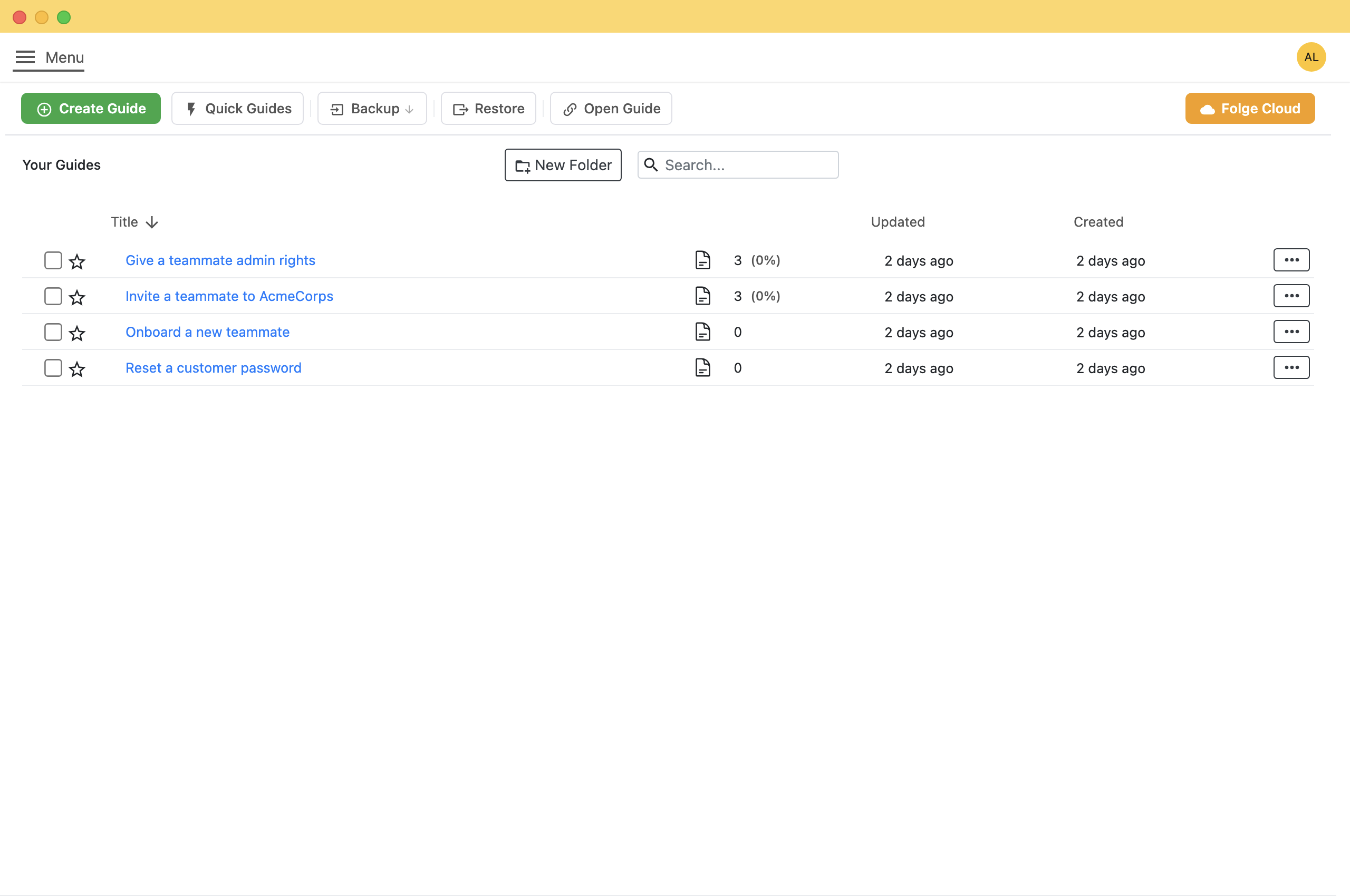
- Click Open Guide at the top of your guides list.
- Pick the .flgg file from the shared folder.The guide opens, ready to edit.
- Do the same on any other computer that needs the guide. You only do this once per computer.
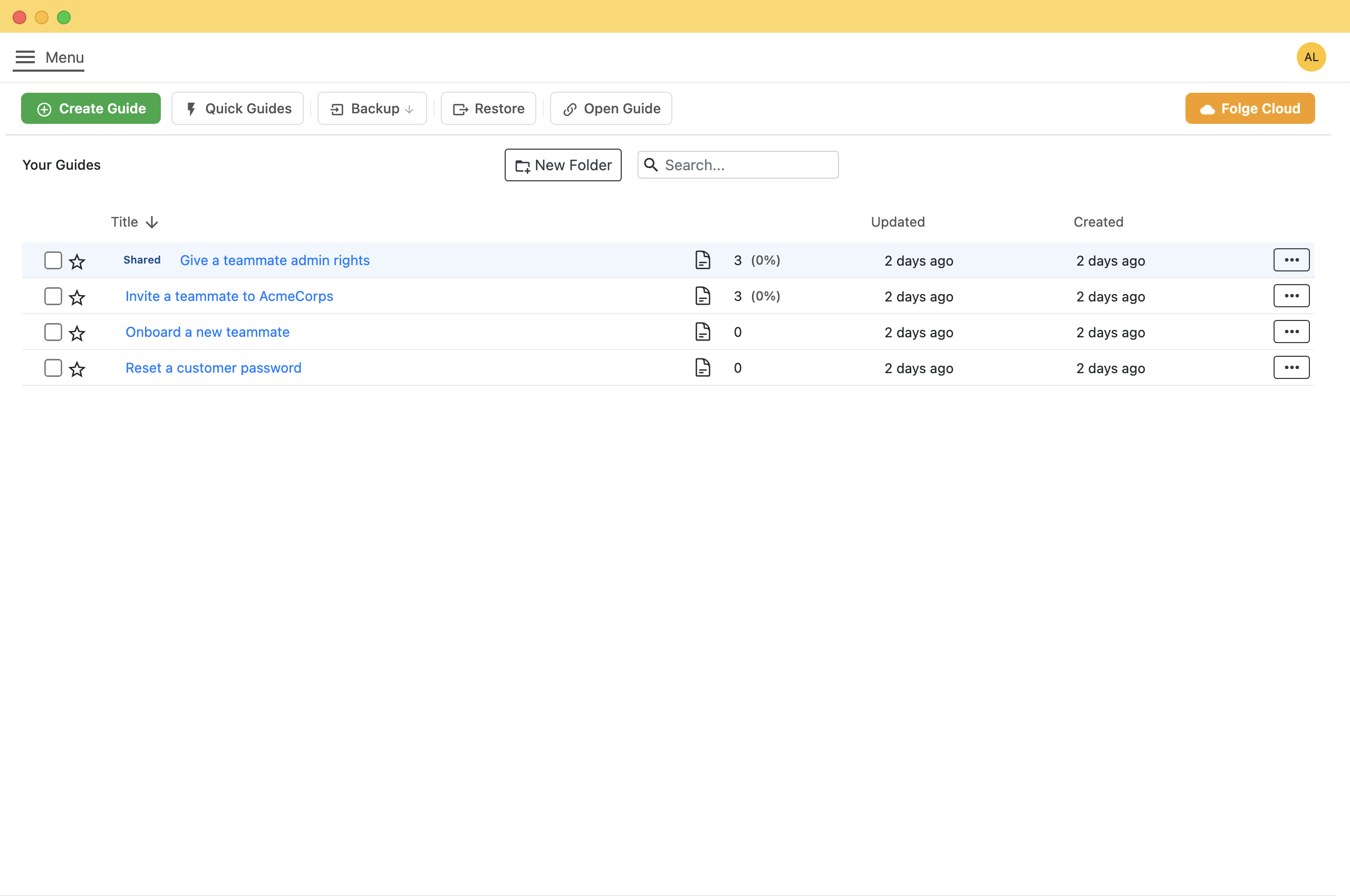
You'll spot it in your list by the Shared label.
Edit and Save
- Open the shared guide and edit it like any other.
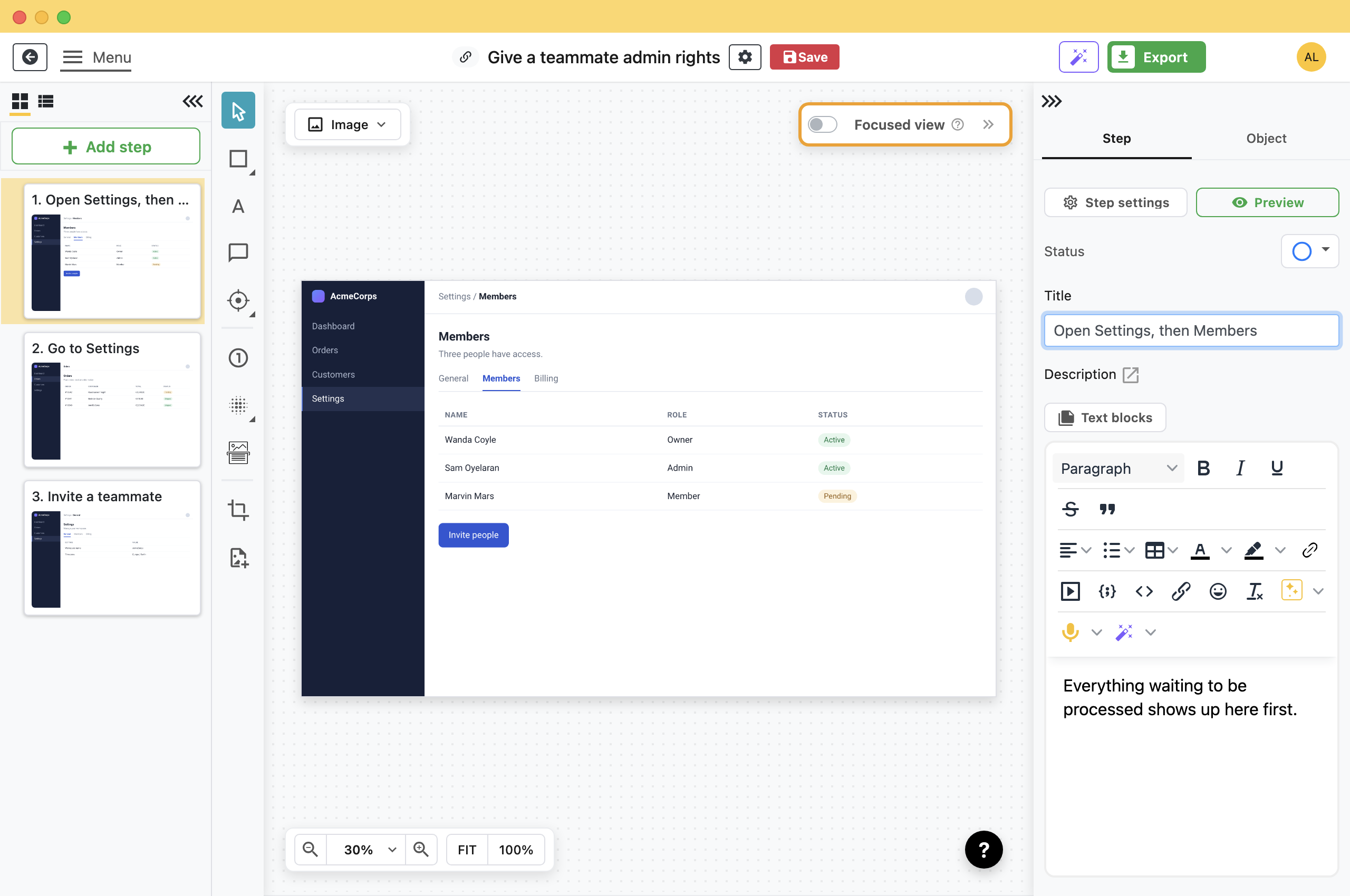
- Press Cmd + S (Ctrl + S on Windows), or click Save.Save turns from red to green.
Nothing goes into the .flgg file until you save, so save often.
Close It When You're Done
When you're finished, go back to your guides list. That's what frees the guide for the next person.
Forgot to save? You'll be asked first:
- Save: saves to the .flgg file and closes the guide.
- Discard: throws your changes away.
- Cancel: takes you back to the guide.
Wait for a Teammate
Sooner or later you'll open the guide while someone else is in it. You'll see their name and how long they've had it open, and you can choose what to do:
- Try Again: opens the guide once they're done.
- Take Over and Edit: opens it anyway. Only do this when you know they're finished, say they forgot to close it before heading home. Anything they haven't saved could be lost.
- Cancel: takes you back to your guides list.
Choose Which Version to Keep
Now and then two people save the same guide, usually because the shared folder hadn't finished syncing. When you save, you'll be asked which version to keep:
- Discard My Changes: keeps their version and reloads the guide. The safe pick when you're not sure.
- Override Their Changes: saves your version over theirs.
- Cancel: saves nothing for now.
Tips for Teams
- Everyone who edits needs a full license.
- Let OneDrive, Dropbox or Google Drive finish syncing before you open the guide.
- Leave the .flgg file where it is. If it moves, you'll have to point Folge to it again.
- Automated backups skip shared guides, so back one up by hand before a big change.
- Want everyone's exports to look the same? Share your export templates.
Send a Copy Instead
If someone just needs the guide once, send them a backup instead. They add it with Restore, and whatever they change stays on their computer. Back Up Your Guides shows how.
| Shared .flgg file | Copy | |
|---|---|---|
| Your changes reach others | Yes, after you save | No |
| Who edits | One person at a time | Everyone, on their own copy |
| Best for | A guide your team keeps up to date | Handing over a finished guide |
What this is good for
- Pick up on your desktop where you left off on your laptop.
- Hand a guide to a teammate without emailing copies around.
- Keep everyone on the same version.
Make guides like this one
Folge takes a screenshot on every click, so you make a guide by doing the task once.