Create an SOP With Screenshots
Most SOPs with screenshots are built in Word, one screenshot at a time. Folge takes the screenshots while you do the task once, and gives you a numbered SOP to finish and export to Word or PDF.

What a Good SOP Contains
An SOP someone can follow on their own has these parts. Folge records the steps and screenshots, and you write the rest in the same guide.
- Purpose: One sentence on what the task achieves and when to do it.
- Scope: Who does it, and which system or account it covers.
- Steps: One action each, with a screenshot of where to click.
- Warnings: The step people get wrong, marked before they reach it.
- Owner and date: Who keeps it current, and when it was last checked.
For the theory, see How to Write an SOP. For a ready-made structure, start from one of the SOP templates.
Get Ready to Record
Folge records exactly what is on screen, so set the screen up before you start.
- Log in to the app you are documenting, so the SOP starts at the first real step.
- Use a test account or sample data where you can. It saves blurring names later.
- Close the windows and tabs the task does not need.
- In Folge, click Create Guide and name it after the task, such as "Issue a customer refund".
Record the Task Once
- Click Capture screenshots.
- Choose Active Window, then click Start.
- Do the task at your normal speed.
- Click Finish.Every click is now a numbered step with its own screenshot and a title such as "Click Save".
Folge takes a screenshot on each click, so a 20-click task becomes a 20-step draft. Capture screenshots automatically covers pausing and the capture window.
Remove What the Reader Doesn't Need
A recording usually has clicks the procedure does not need, such as a misclick or a tab you checked. Take them out before you write anything.
- Delete step: Right-click a step in the list. Deleted steps go to a bin you can restore from.
- Change parent step: Tucks the detail under a main step, so a long SOP reads as a few main steps. See Structure a long guide.
- Blur: Covers customer names, email addresses and account numbers. See Blur sensitive information.
Write Each Step as an Instruction
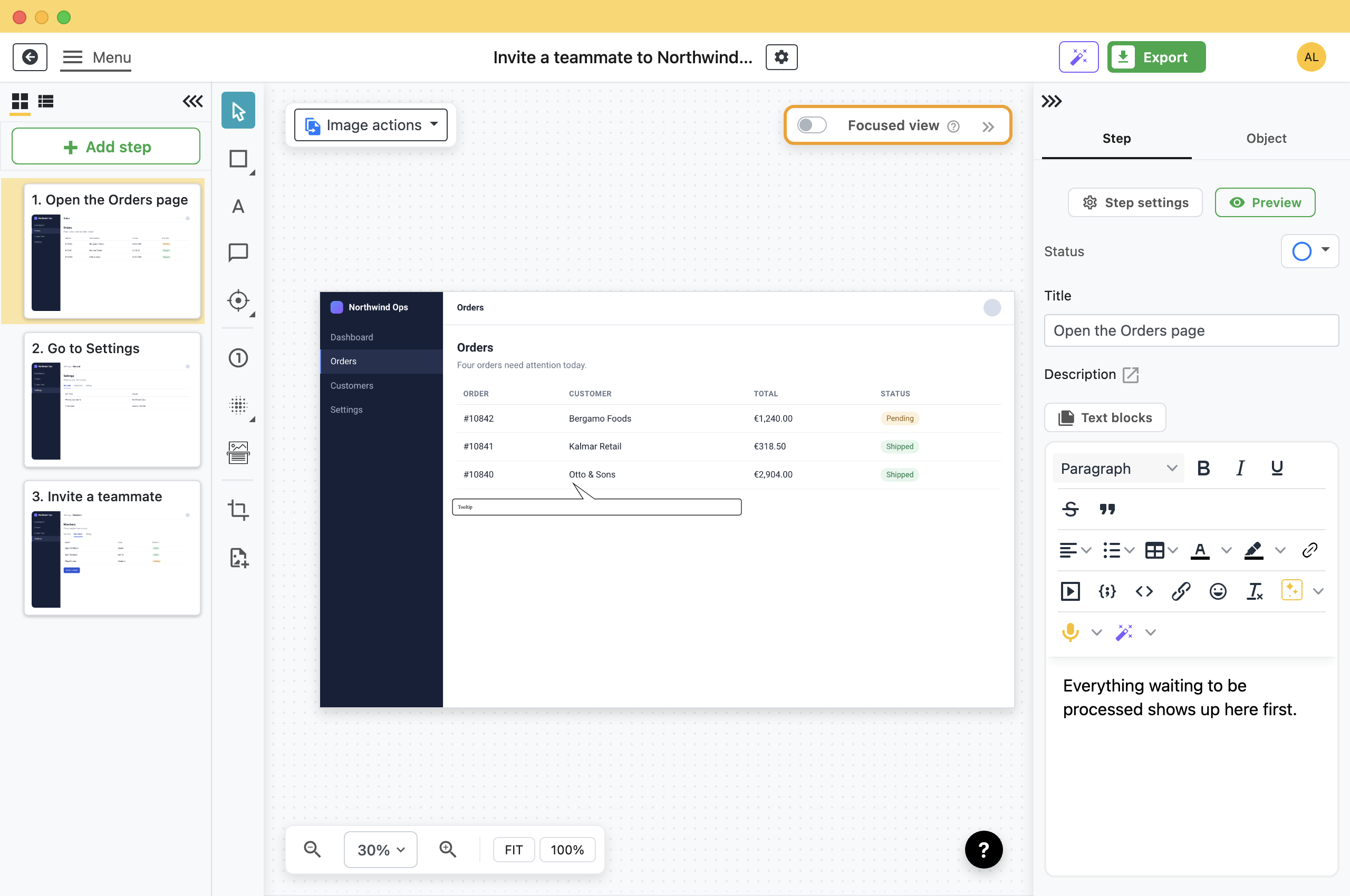
Click a step and fill in its Title and Description on the right.
- Title: The action, starting with a verb and naming the button: "Click Refund", not "Refund button".
- Description: What the screenshot cannot say: which value to pick, what happens next, what to do if it fails.
Put a warning on the step people get wrong with a text block. With AI set up, Folge can draft the descriptions from the screenshots for you to correct.
Add the Purpose, Owner and Review Date
- Click the gear next to the guide title at the top of the editor.
- On the Guide Details tab, write the purpose and scope into Description.The guide description appears at the start of the export, above step one.
For the owner, add a placeholder such as [[Owner]] once and use it in the footer of every SOP. When the owner changes, you edit one row. See Reuse text with placeholders.
Put [[Date]] in the PDF footer to print the date the file was made, and a cover page if the SOP goes into a binder or an audit pack.
Export to Word or PDF
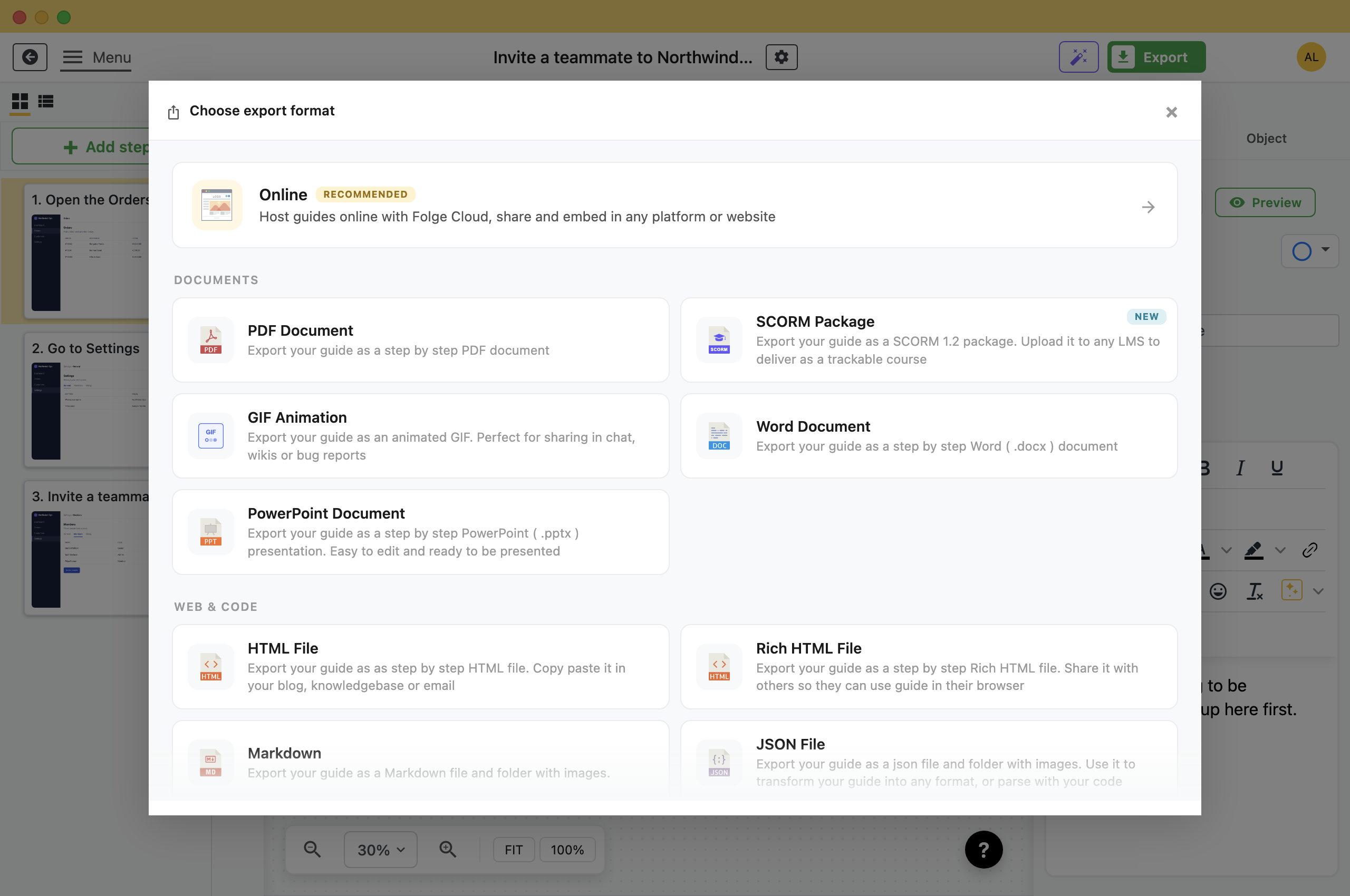
Click Export in the header. Most SOPs go out in one of two formats.
- PDF Document: For an SOP people read and follow. It looks the same everywhere. See Export to PDF.
- Word Document: For an SOP that goes through review or lives in a document system. Reviewers can edit it and add comments.
If the SOP lives in a wiki or a learning system, Folge also exports to Confluence, Notion, WordPress and SCORM. Which format should you choose? compares them.
Update It When the Software Changes
Keep the guide in Folge after you export it. Edits made in an exported Word file do not come back into Folge.
- Open the guide and click the step whose screen changed.
- Above the screenshot, open Image and choose Replace with > New capture.
- Correct the title and description if the button or the wording changed.
- Export again with the same settings.
The other steps stay as they were. For a new step in the process, click Add step in the step list, or record the missing part as a short capture.
What this is good for
- A task only one person knows how to do.
- An audit or ISO review asks for written procedures.
- The software changed and nobody trusts the old SOP.
Make guides like this one
Folge takes a screenshot on every click, so you make a guide by doing the task once.